
Setting up Tracking using Google Tag Manager
Google Tag Manager (GTM) is one of the most common ways to install CustomerLabs and manage event tracking. By using GTM, you can deploy the tracking code and capture events without making direct changes to your website’s source code.
Prerequisites
Section titled “Prerequisites”- Edit and Publish access to Google Tag Manager container that is installed on the website
- Active CustomerLabs account
Installing the Tracking Code
Section titled “Installing the Tracking Code”To get started, you need to create a new tag in GTM to load the CustomerLabs library.
Setting up the Tag
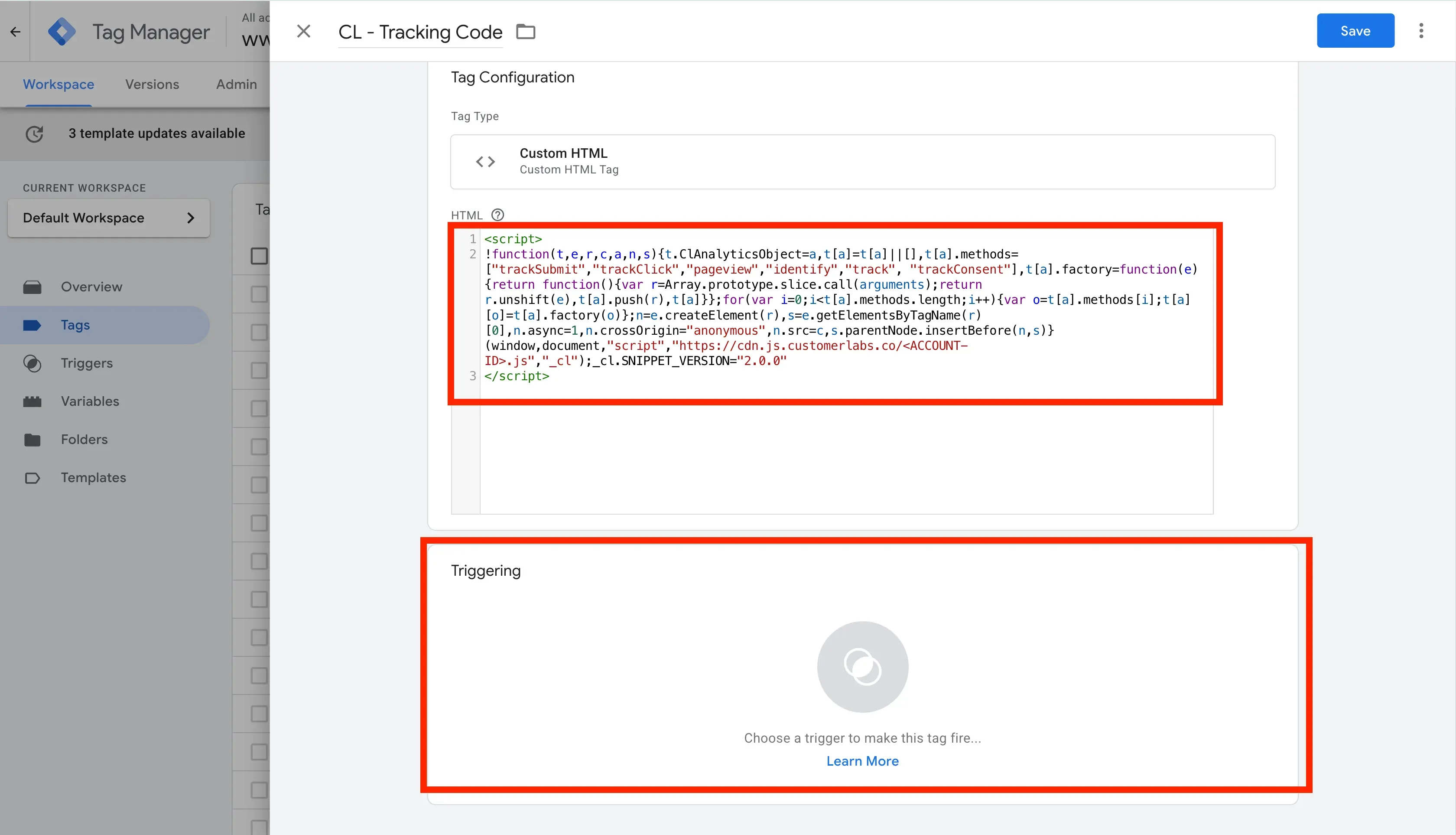
Section titled “Setting up the Tag”- Log in to your Google Tag Manager container.
- Go to Tags and click New.
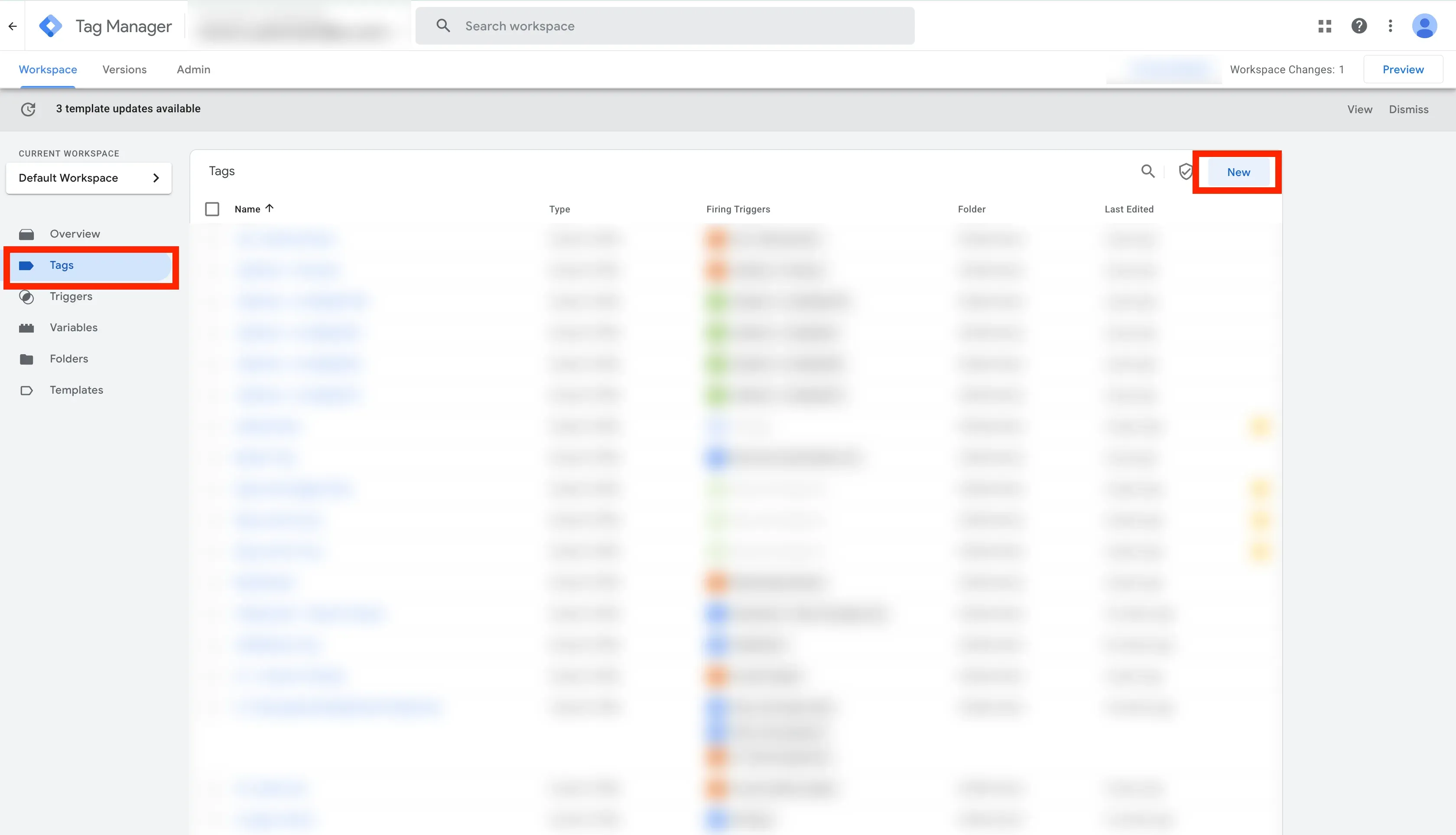
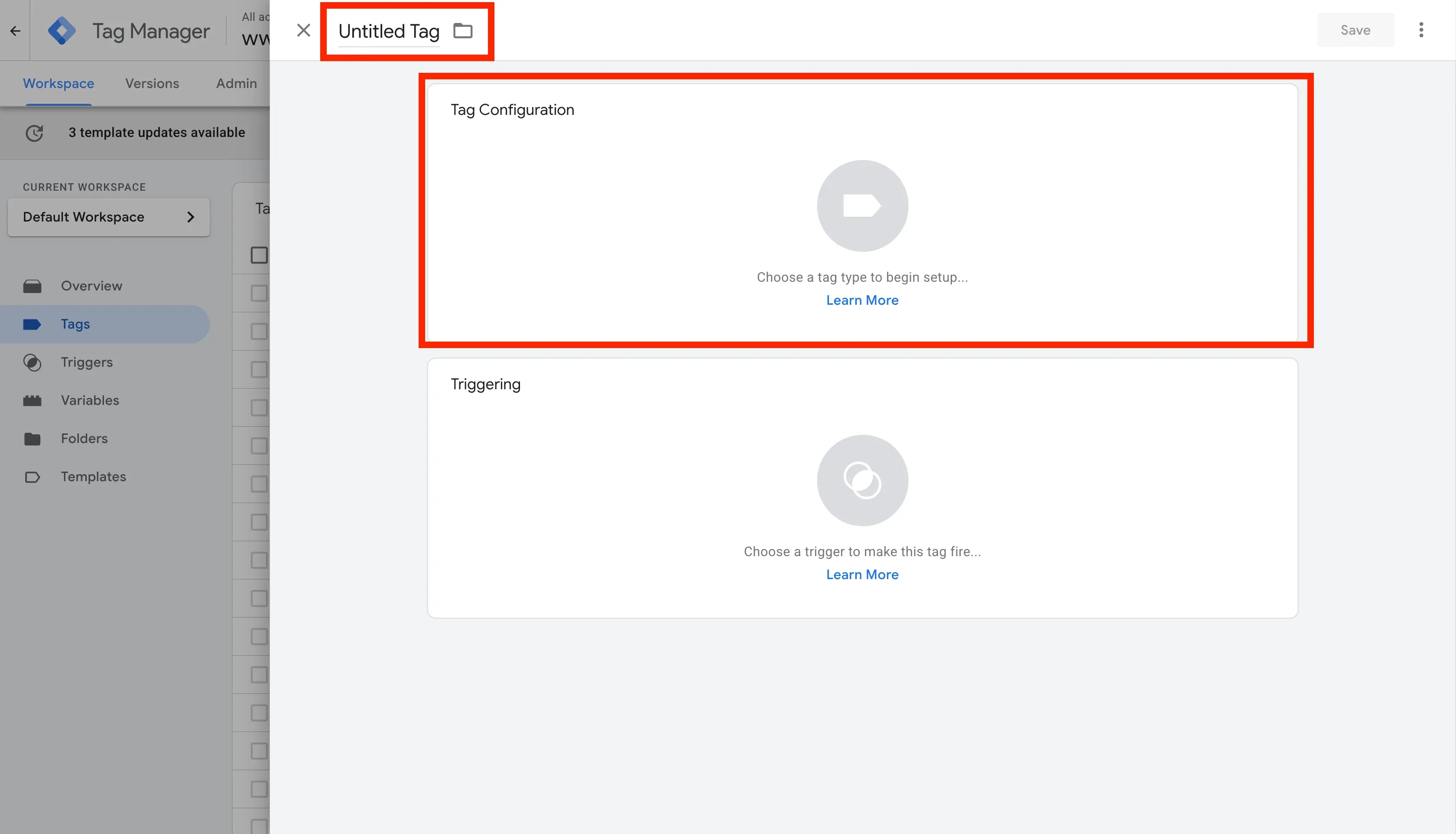
- Name the tag (e.g.,
CL - Tracking Code).
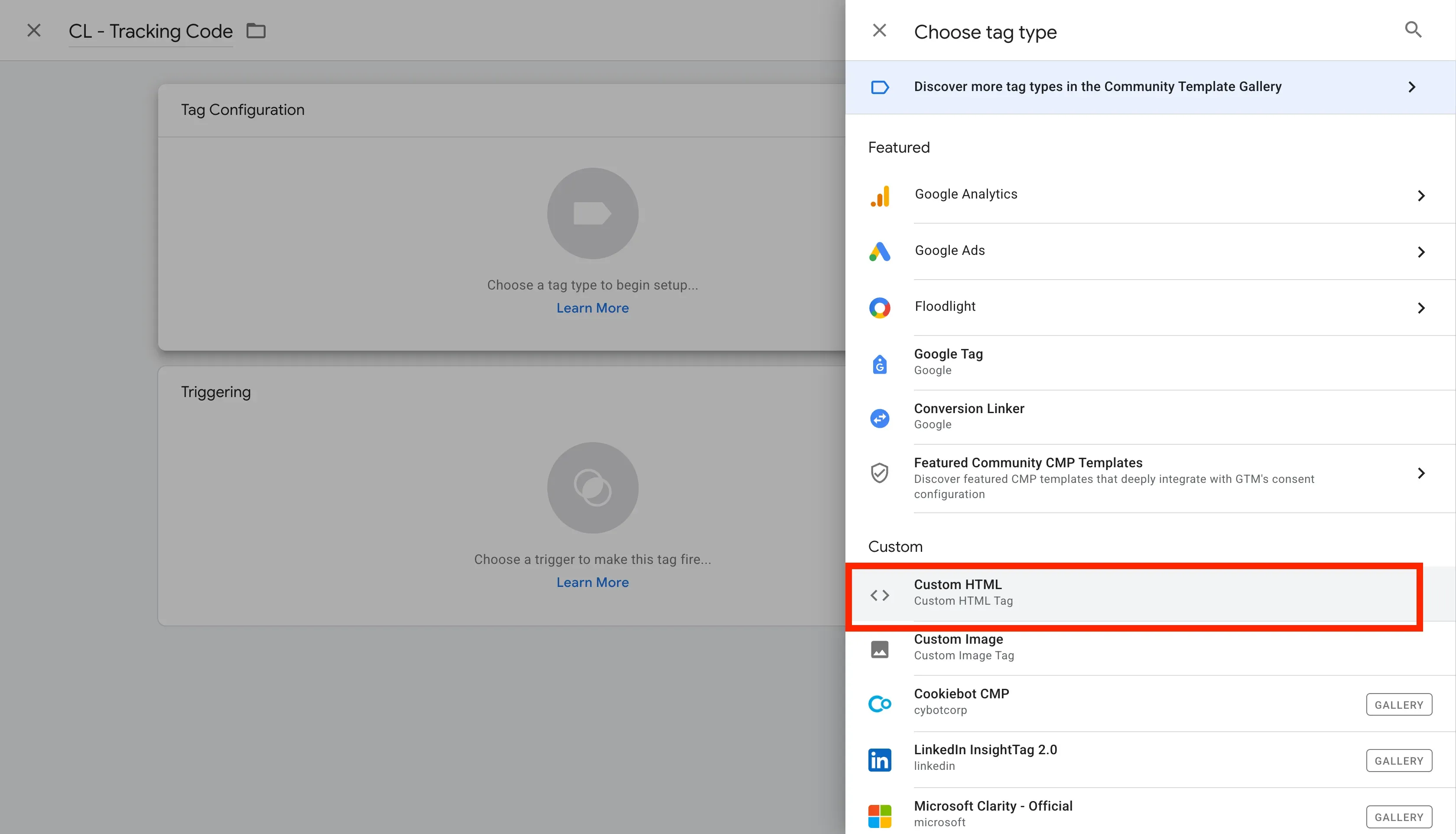
- Select Custom HTML as the Tag Type.
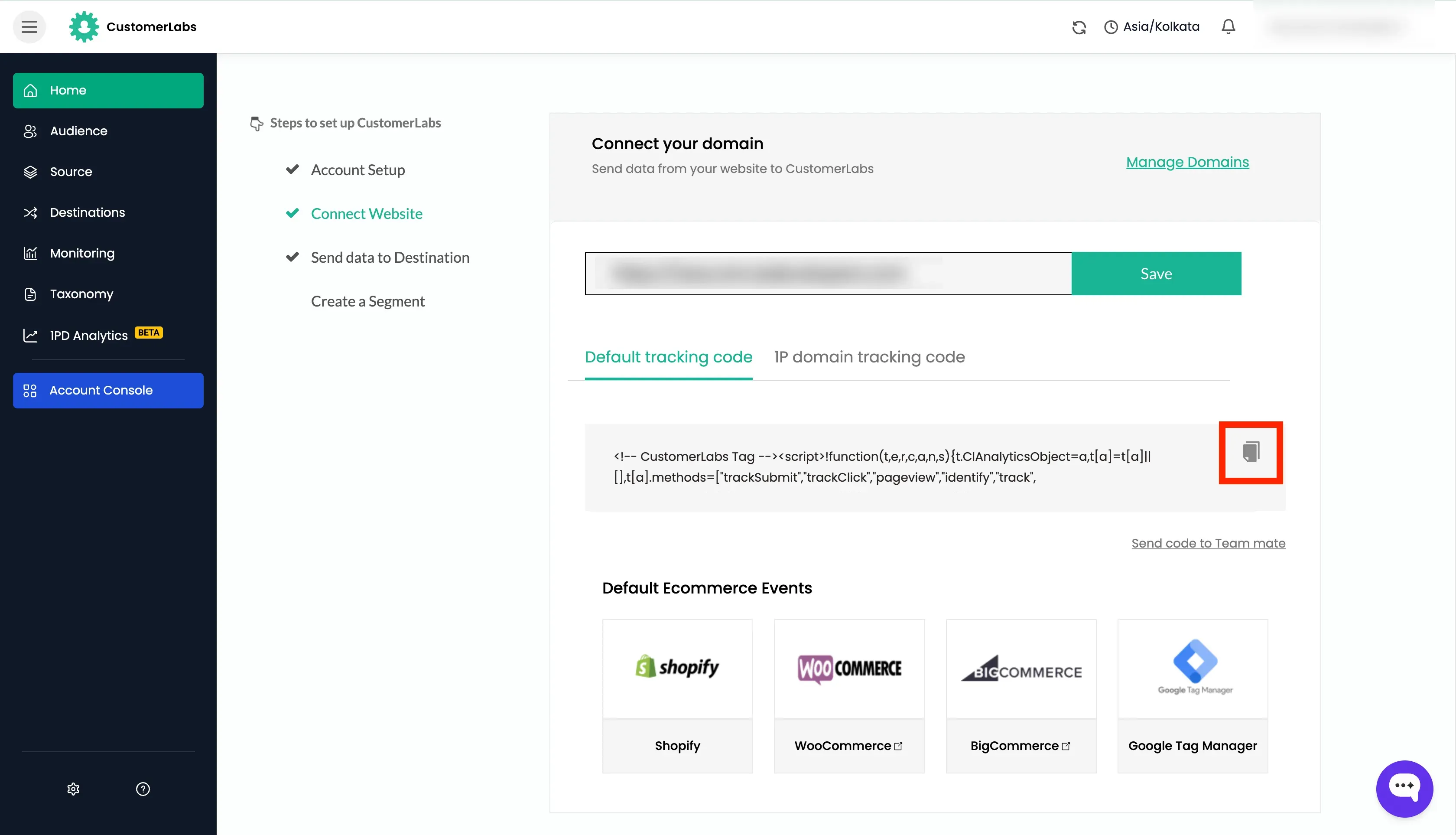
- Login to CustomerLabs and go to Home → Connect Website. Copy the Tracking Code.
- Paste your CustomerLabs tracking code into the HTML text box and Click on the Triggering section.
Setting up the trigger
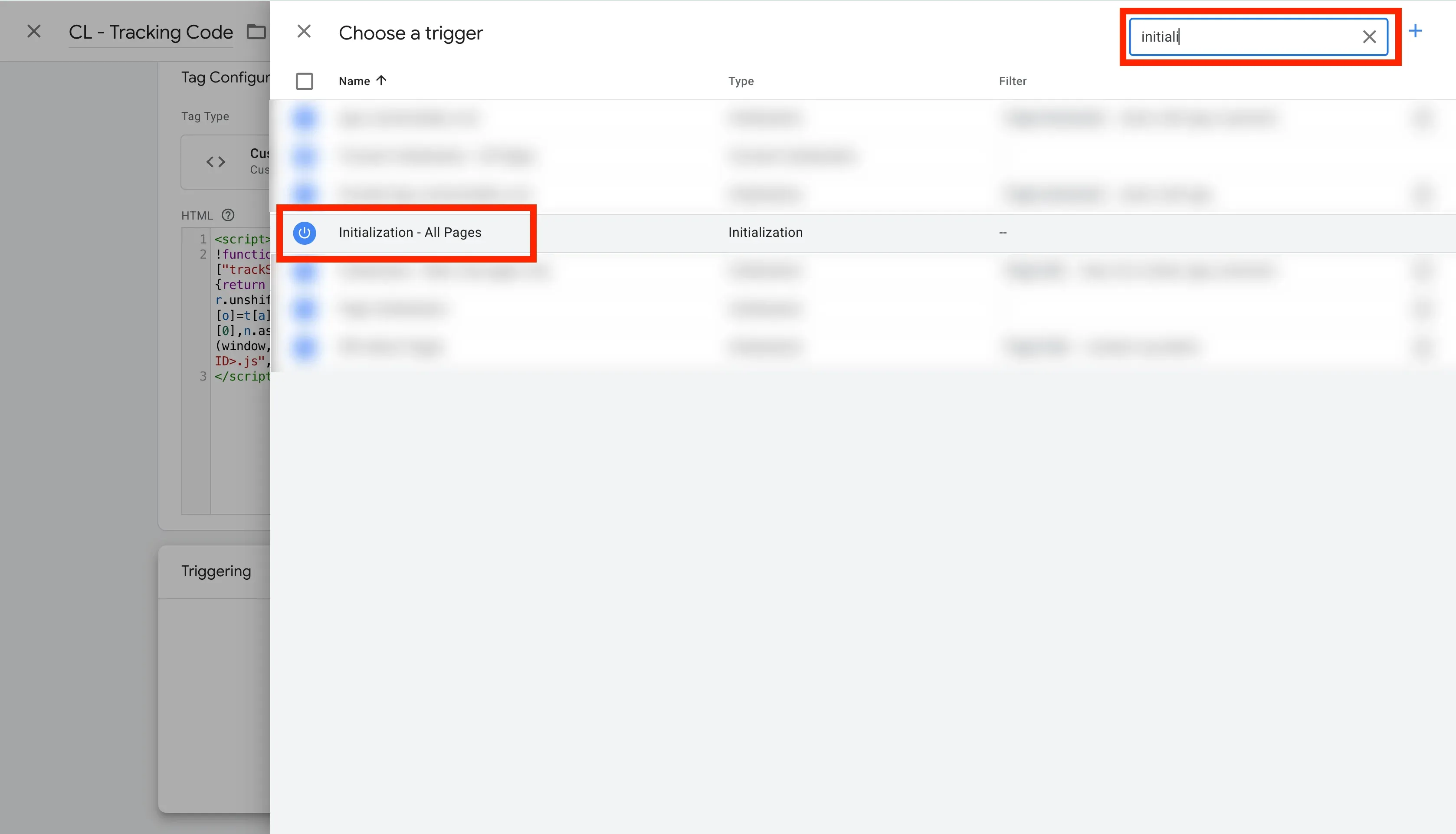
Section titled “Setting up the trigger”- Under Triggering, select Initialization - All Pages.
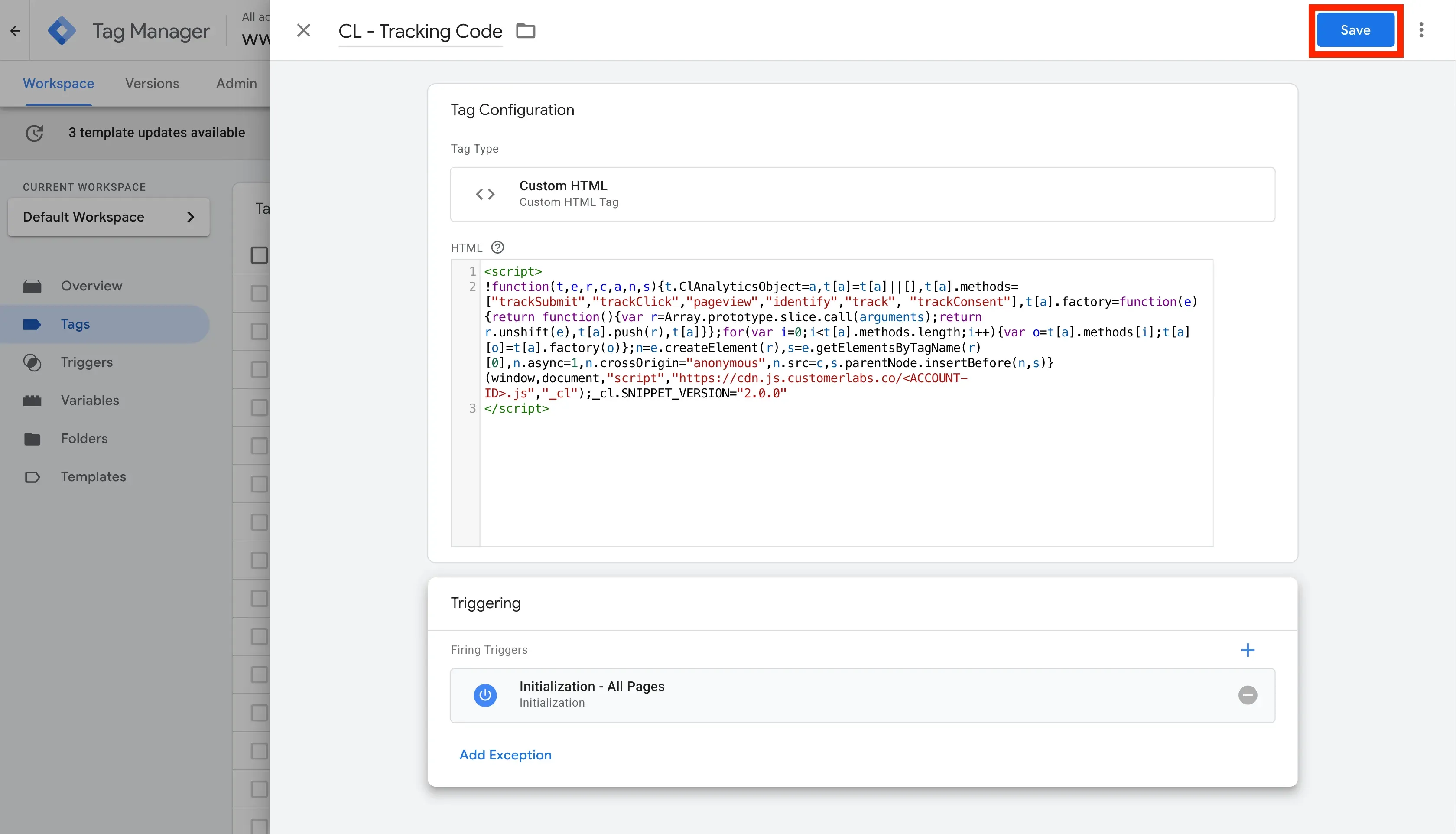
- Click Save.
Tracking Events via GTM
Section titled “Tracking Events via GTM”Prerequisites
Section titled “Prerequisites”- Edit and Publish access to Google Tag Manager container that is installed on the website
- Active CustomerLabs account
- CustomerLabs Tracking code is already installed on the website
- Data Layer is already implemented on the website and events are pushed
Data Layer
Section titled “Data Layer”A data layer is a JavaScript object on a website that acts as a structured, centralized container for passing visitor interaction data to tracking and analytics tools. It acts as an intermediary, enabling tracking without altering the website code. It provides rich context for events, such as passing purchase totals, product names, or user IDs alongside the event itself.
Once the CustomerLabs tracking code is installed, you can track user actions (like form submissions or purchases) by firing Custom HTML tags in GTM. These tags typically trigger when specific data is pushed into the website’s dataLayer.
Important Instructions
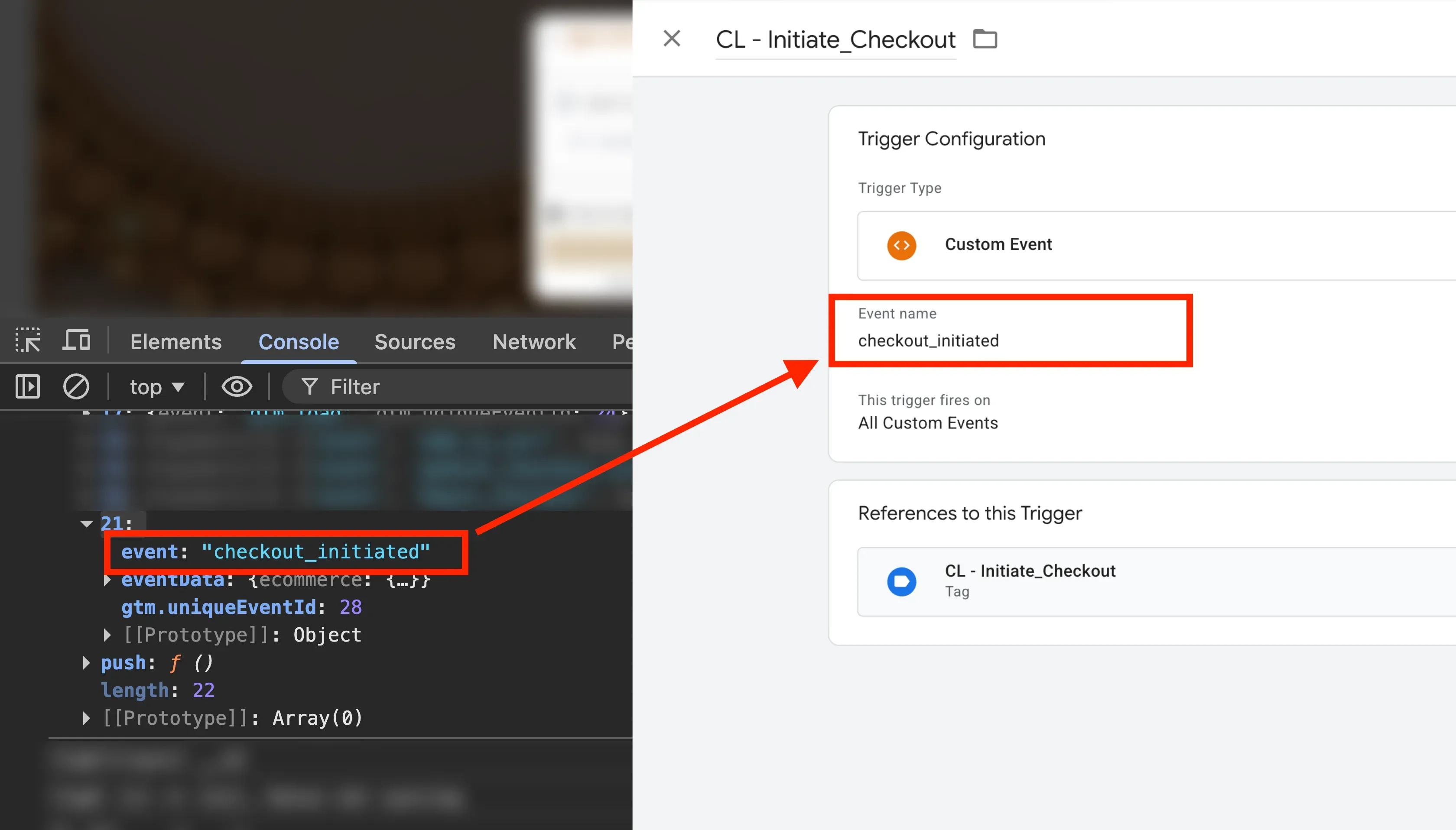
Section titled “Important Instructions”- The
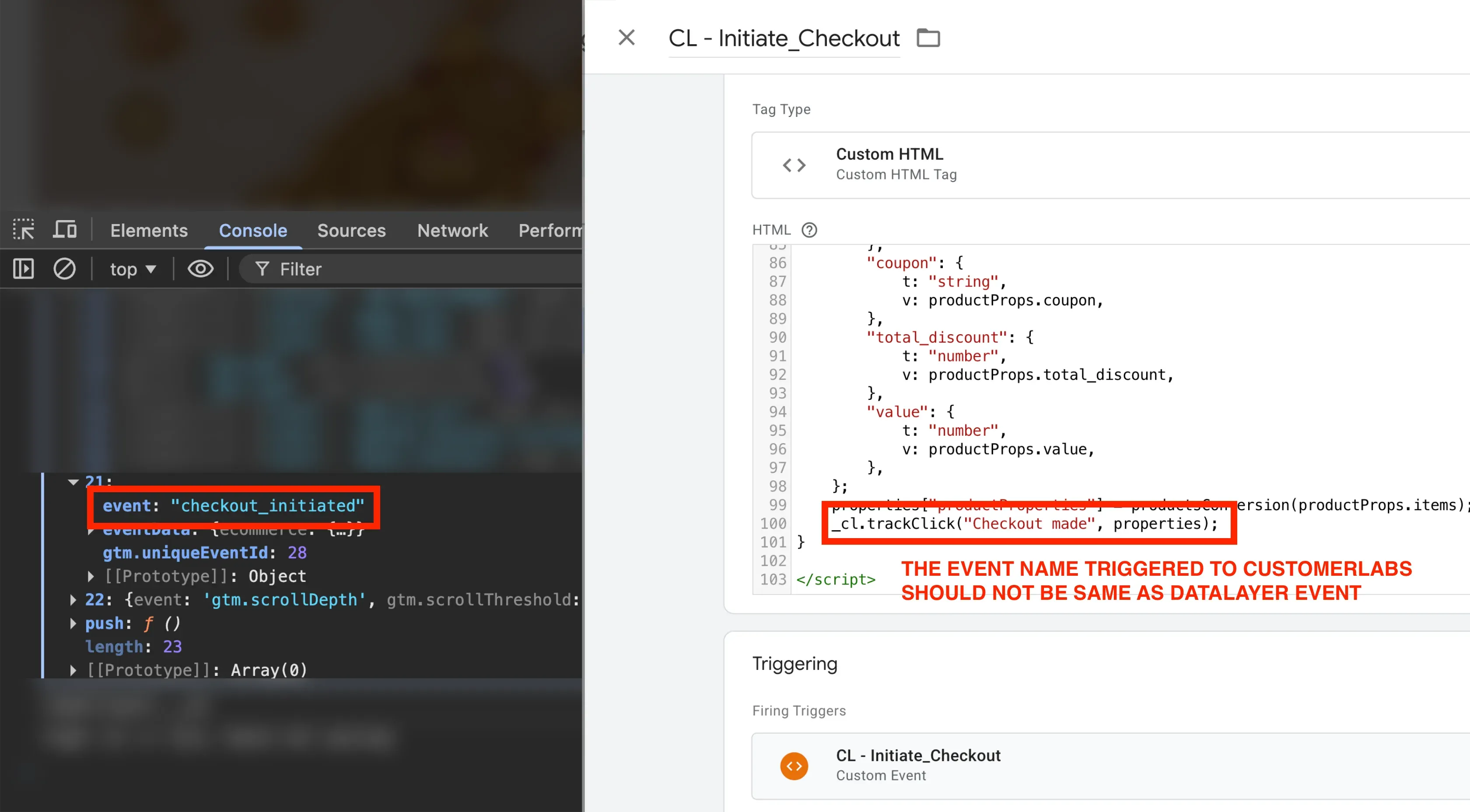
dataLayerevent name should be same as the custom event name in the GTM trigger.
- The
dataLayerevent name should NOT be same as the the event name triggered to CustomerLabs. If same name is used, then it will start an infinite loop of event trigger.
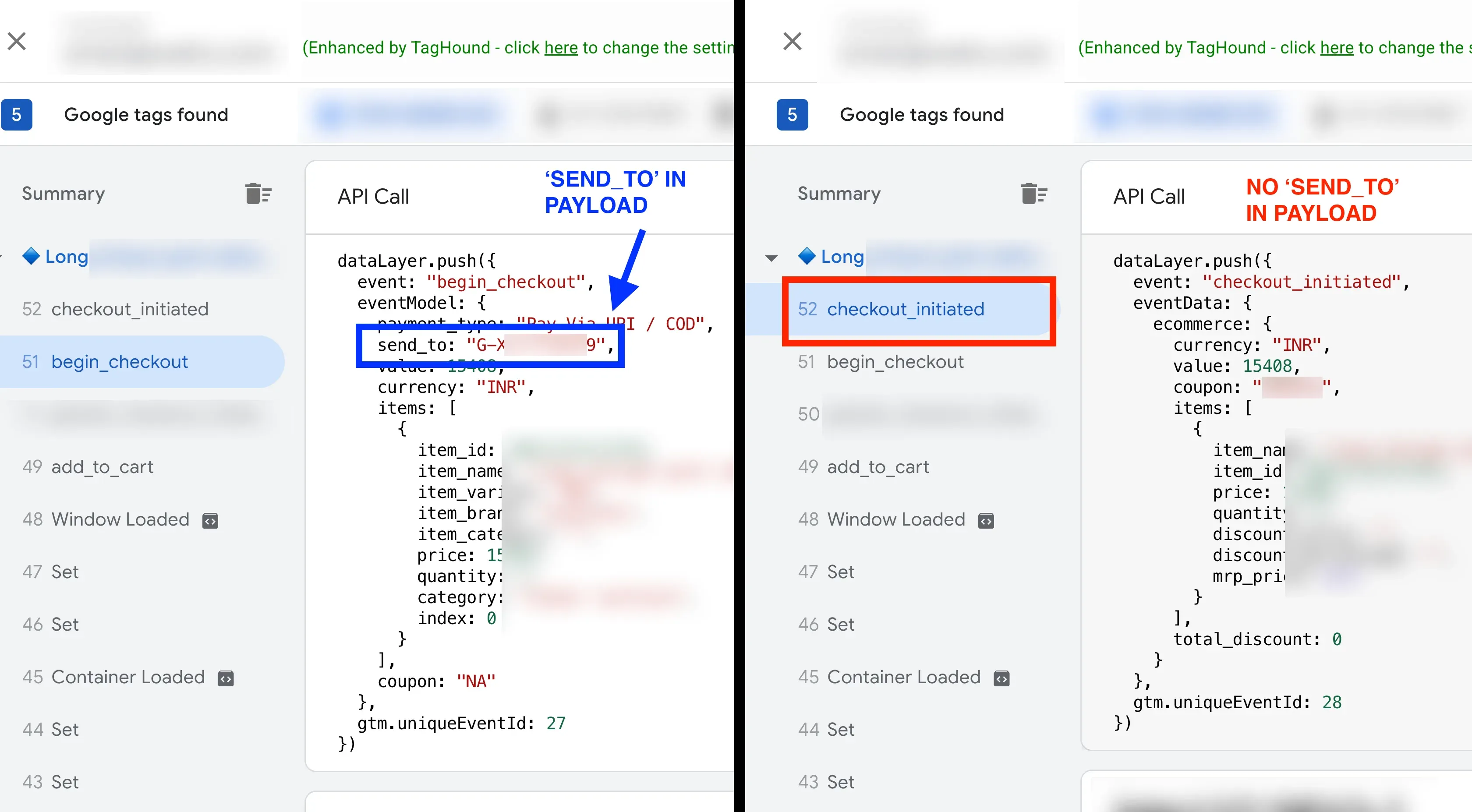
- The dataLayer push sending events to other platforms should not be used to trigger the GTM tag.
Setting up the Tag
Section titled “Setting up the Tag”- As first step, we will need a code to capture the information from the
dataLayerand send it to CustomerLabs. - Refer CustomerLabs JavaScript API to generate the code for the event you want to track. The GTM tag should contain HTML code to,
- Fetch the data from
dataLayerobject - Build the
propertiesobject consisting ofcustomProperties(andproductPropertiesfor e-commerce events). Learn More about Building the Properties - Call
_clto trigger an event to CustomerLabs API. Learn more about tracking E-commerce Events and Form Submission Events - If
dataLayerobject has PII such as email, phone number, etc., then trigger an identify call to CustomerLabs along with the event. Learn More about Identify
- Fetch the data from
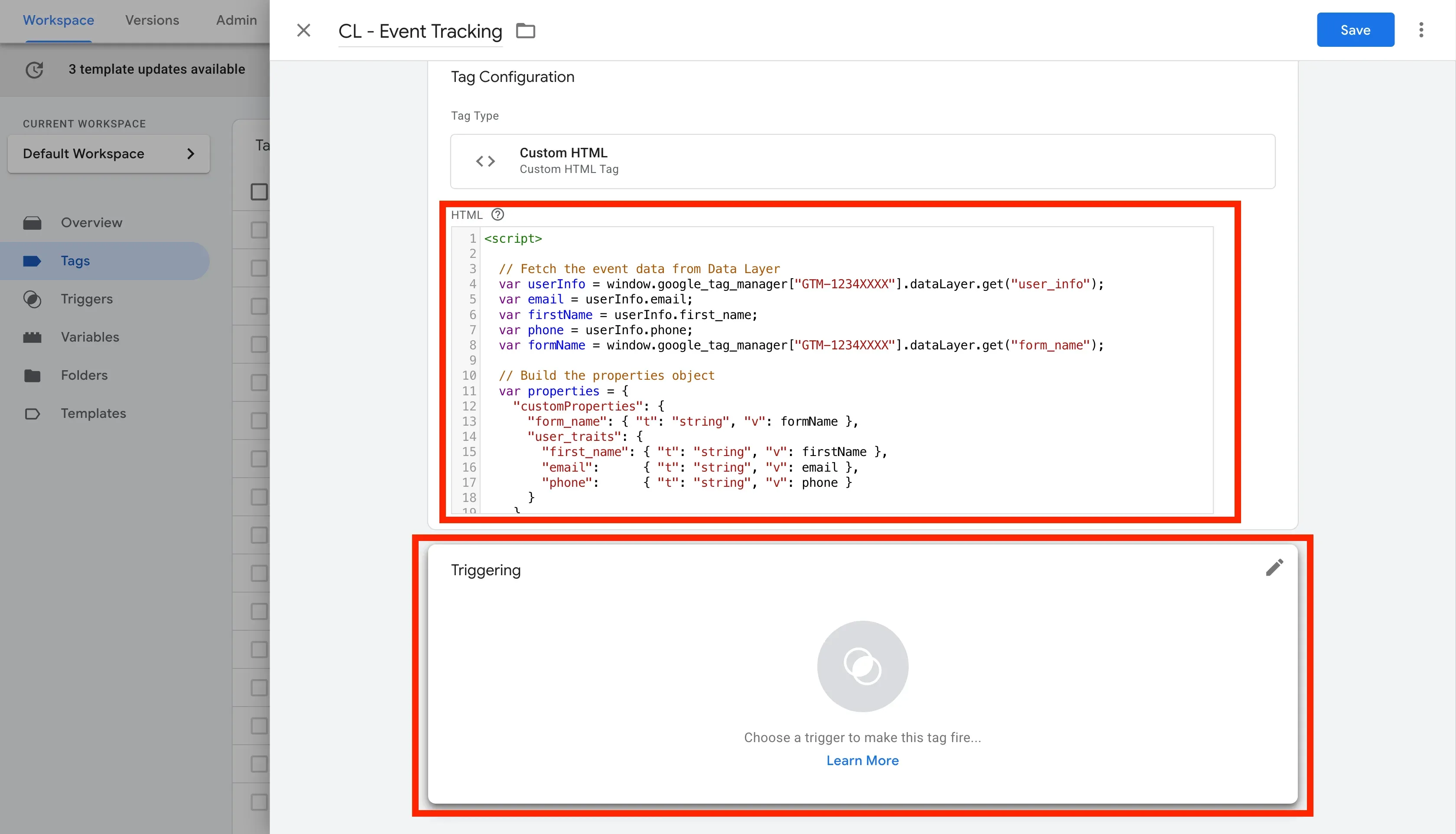
- After the GTM code is generated for the dataLayer object, Login to GTM Account and Click on Tags → New
- Enter the tag name and click on Tag Configuration
- Select Custom HTML and paste the code in the HTML field
Setting up the Trigger
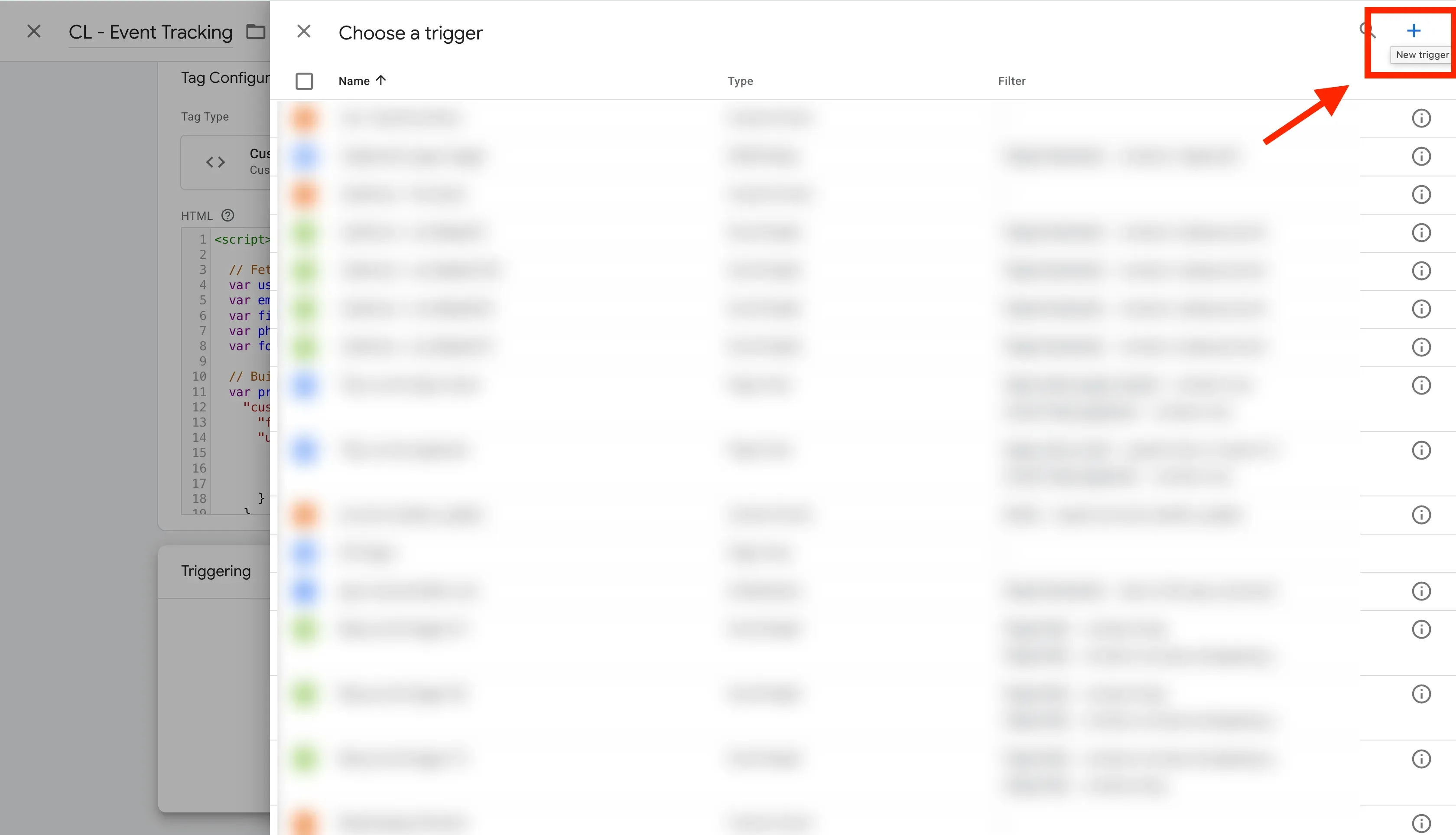
Section titled “Setting up the Trigger”- Click on Triggering and click on the
+icon to create a new trigger.
- Enter the trigger name and click on Trigger Configuration.
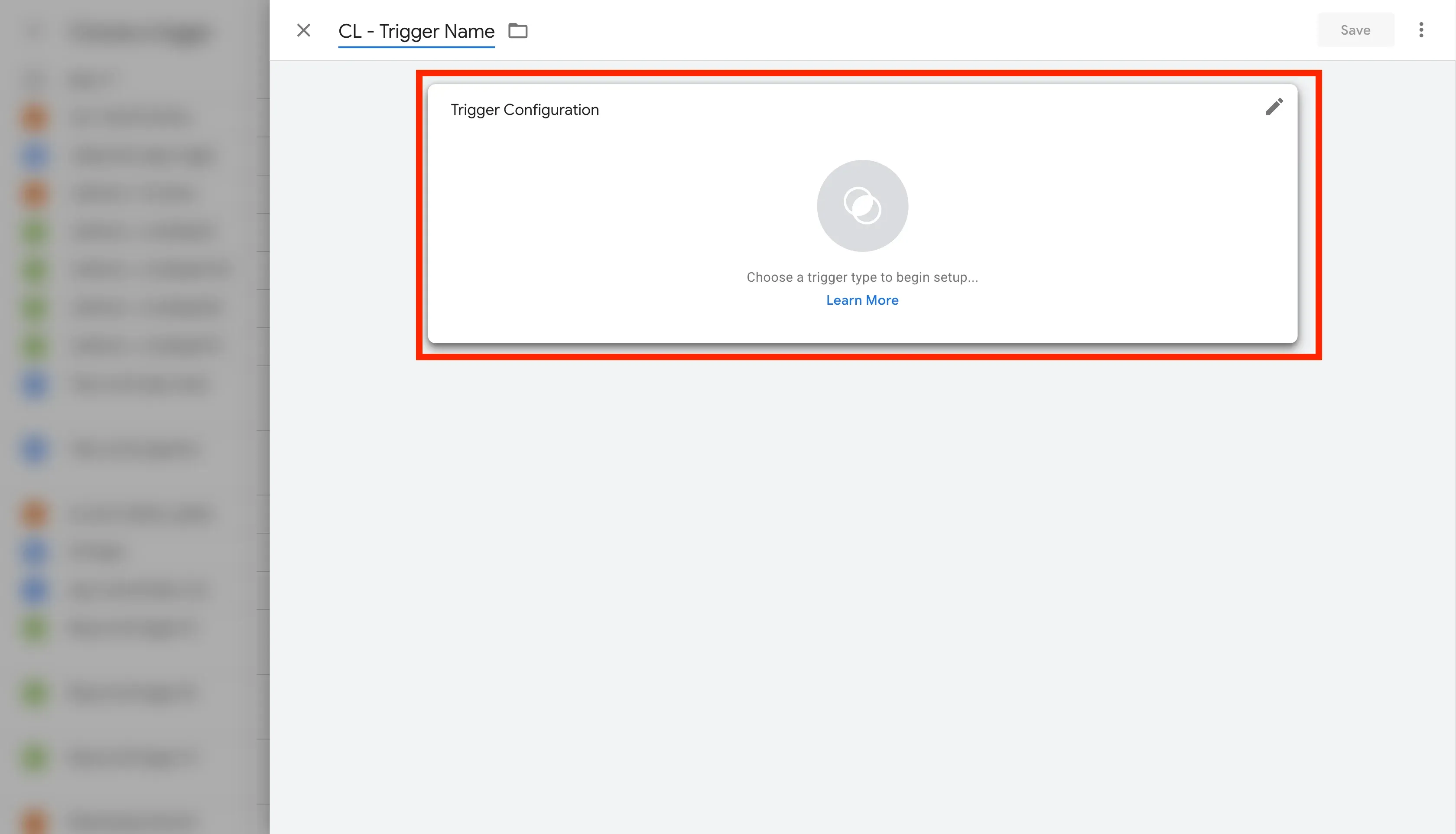
- Select Custom Event.
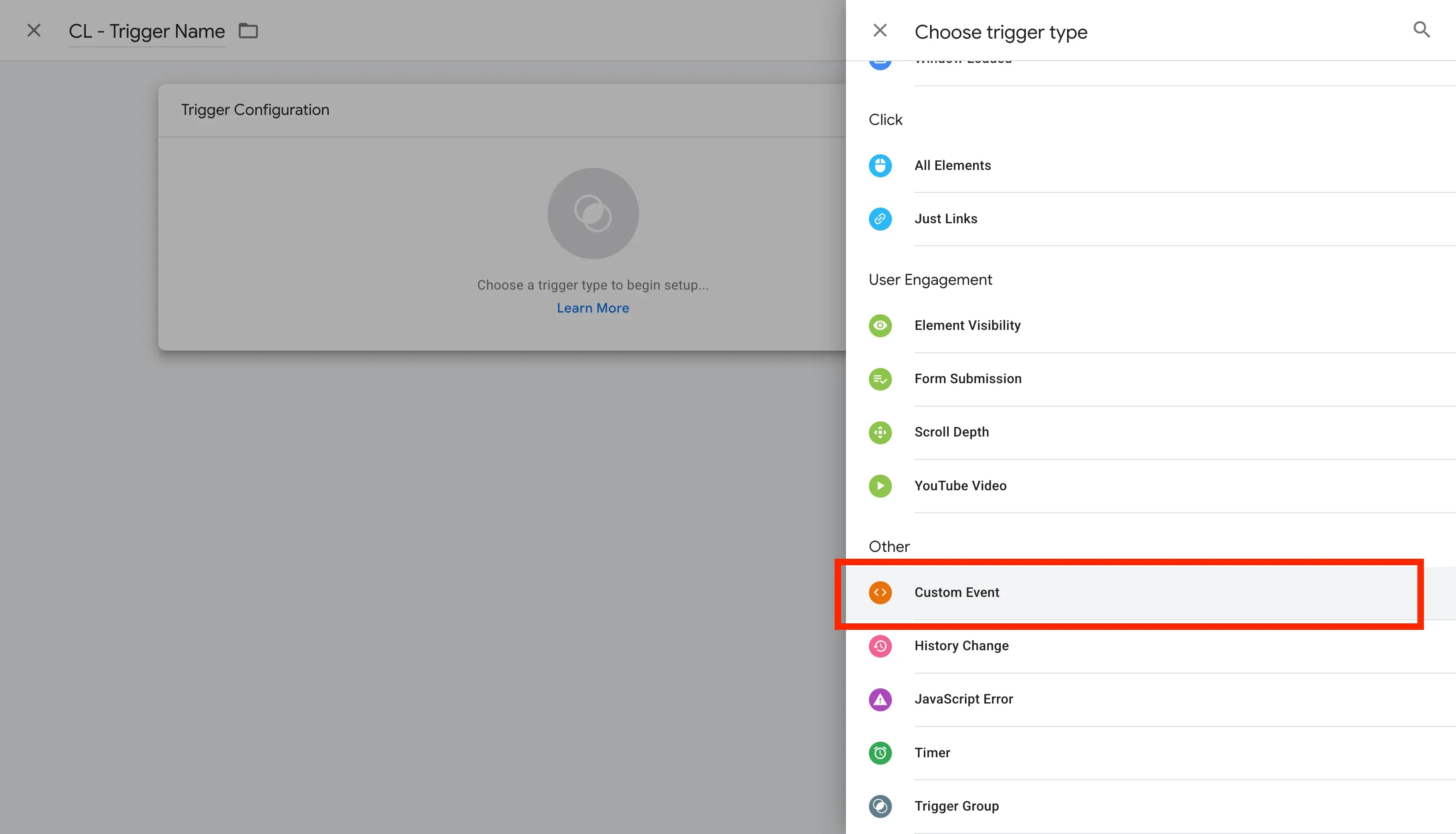
- Enter the event name and click on Save.
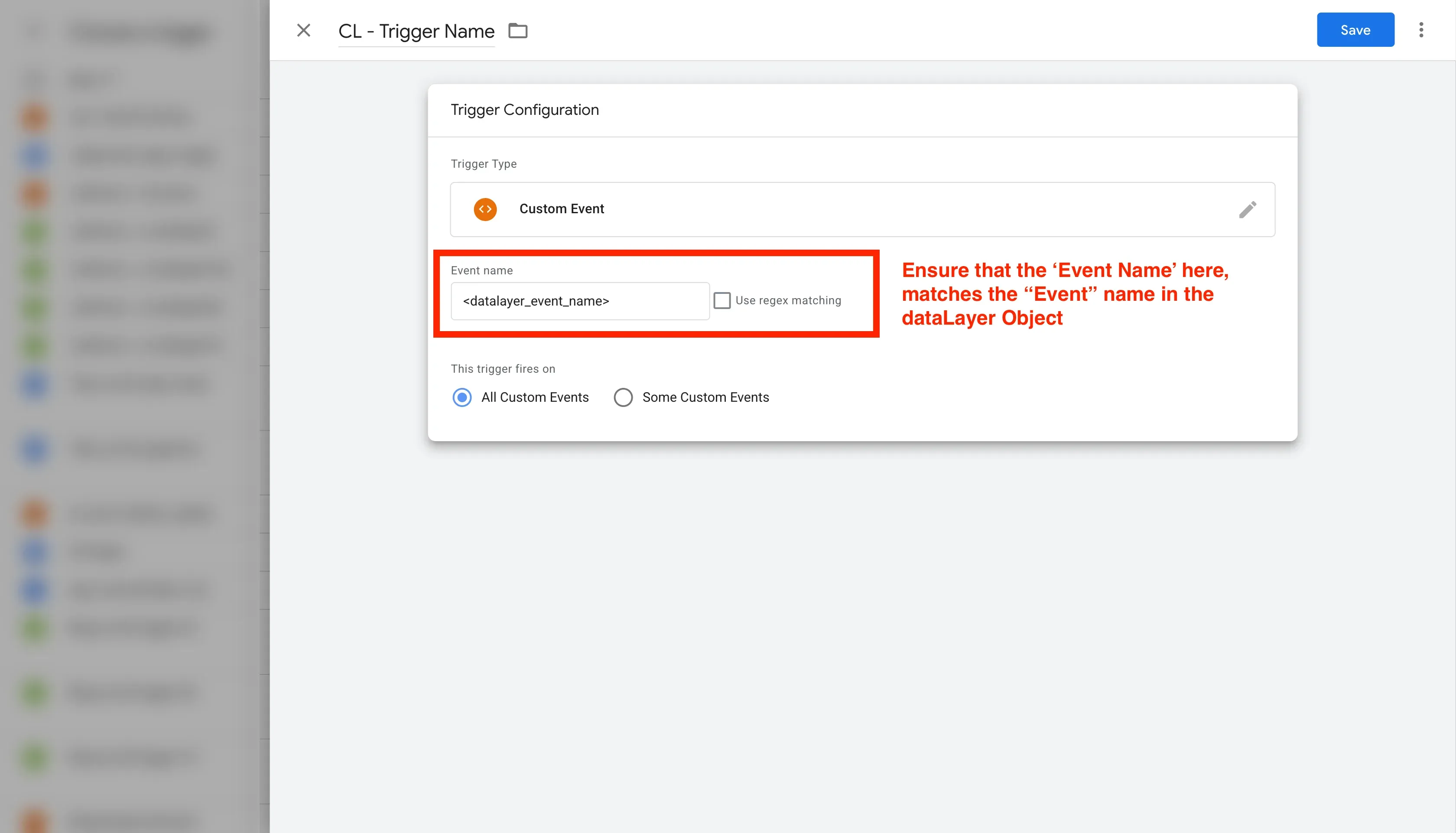
- Click on Save in the Tag.
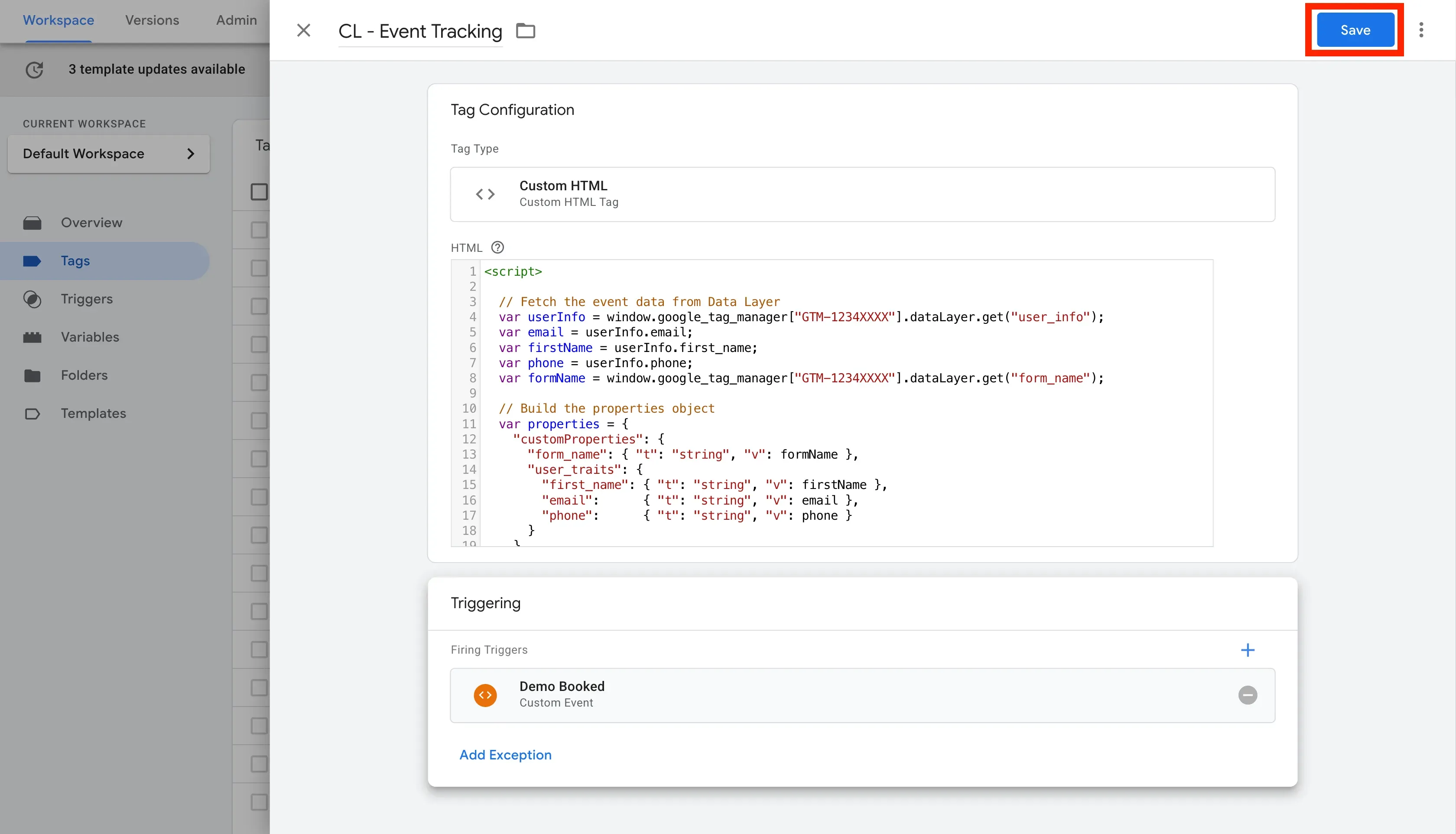
Examples
Section titled “Examples”Example: Form Submission
Section titled “Example: Form Submission”If your website pushes form data to the dataLayer when a user signs up, you can map that data to CustomerLabs.
Sample dataLayer Object:
Section titled “Sample dataLayer Object:”dataLayer.push({ 'event': 'lead_form_submitted', 'form_name': 'Lead Generation Form', 'user_info': { 'first_name': 'John', 'email': 'john.doe@example.com', 'phone': '9876543210' }});The above object is pushed to the dataLayer when a user submits a form on your website.
Tag for Sample Form Submission Event
Section titled “Tag for Sample Form Submission Event”As first step, we will need a code to capture the information from the dataLayer and send it to CustomerLabs.
Refer CustomerLabs JavaScript API to generate the code for the event you want to track. The GTM tag should contain HTML code to,
- Fetch the data from
dataLayerobject - Build the
propertiesobject consisting ofcustomProperties(andproductPropertiesfor e-commerce events). - Call
_clto trigger an event to CustomerLabs API. - If
dataLayerobject has PII such as email, phone number, etc., then trigger an identify call to CustomerLabs along with the event.
Here is the GTM code for above sample dataLayer object:
<script>
  // Fetch the event data from Data Layer  var userInfo = window.google_tag_manager["GTM-1234XXXX"].dataLayer.get("user_info");  var email = userInfo.email;  var firstName = userInfo.first_name;  var phone = userInfo.phone;  var formName = window.google_tag_manager["GTM-1234XXXX"].dataLayer.get("form_name");
  // Build the properties object  var properties = {    "customProperties": {      "form_name": { "t": "string", "v": formName },      "user_traits": {        "t": "Object",        "v": {          "first_name": { "t": "string", "v": firstName },          "email":      { "t": "string", "v": email },          "phone":      { "t": "string", "v": phone }        }      }    }  };
  // Conditional Identify by email or phone  if (email) {    properties["customProperties"]["identify_by_email"] = {      "t": "string",      "v": email,      "ib": true    };    if (phone && phone !== "") {      properties["customProperties"]["external_ids"] = {        "t": "Object",        "v": {          "identify_by_phone": {            "t": "string",            "v": phone          }        }      }    }    else if (phone && phone !== "") {      properties["customProperties"]["identify_by_phone"] = {        "t": "string",        "v": phone,        "ib": true      }    }  }
  // Trigger the identify call  if (email || phone) {    _cl.identify(customProperties);  }
  // Trigger the event  _cl.trackClick("Lead Form Submitted", properties);
</script>Login to GTM Account and Click on Tags → New. Choose Custom HTML and paste the code in the HTML field
Trigger Setup
Section titled “Trigger Setup”- Click on Triggering and click on the
+icon to create a new trigger. - Enter the trigger name and click on Trigger Configuration.
- Select Custom Event.
- The event name should match the event name in the data layer. Here, the event name is
lead_form_submitted. - Save the Tag.
Example: Purchase Event
Section titled “Example: Purchase Event”For E-Commerce tracking, you can capture detailed product information from the dataLayer.
Sample dataLayer Payload:
Section titled “Sample dataLayer Payload:”dataLayer.push({ 'event': 'order-placed', 'transaction_id': 'ORD12345', 'total_value': 150.00, 'currency': 'USD', 'items': [ { 'item_name': 'Blue T-Shirt', 'item_id': 'TSH-001', 'price': 50.00, 'quantity': 2 }, { 'item_name': 'Red Cap', 'item_id': 'CAP-002', 'price': 50.00, 'quantity': 1 } ], 'user_info': { 'first_name': 'John', 'email': 'john.doe@example.com', 'phone': '9876543210', 'address': '123 Main St', 'city': 'Anytown', 'state': 'CA', 'postal_code': '12345', 'country': 'USA' }});The above object is pushed to the dataLayer when a user makes a purchase on your website.
Tag for Sample Purchase Event
Section titled “Tag for Sample Purchase Event”As first step, we will need a code to capture the information from the dataLayer and send it to CustomerLabs.
Refer CustomerLabs JavaScript API to generate the code for the event you want to track. The GTM tag should contain HTML code to,
- Fetch the data from
dataLayerobject - Build the
propertiesobject consisting ofcustomProperties(andproductPropertiesfor e-commerce events). - Call
_clto trigger an event to CustomerLabs API. - If
dataLayerobject has PII such as email, phone number, etc., then trigger an identify call to CustomerLabs along with the event.
Here is the GTM code for above sample dataLayer object:
<script>
  /* ===================================     Function to build productProperties     ==================================== */  function productsConversion(productsArr) {    var products = [];
    for (var i = 0; i < productsArr.length; i++) {      var productsStructure = {};
      for (var key in productsArr[i]) {        switch (key) {
          case "item_name":            productsStructure["product_name"] = {              t: "string",              v: productsArr[i][key]            };            break;
          case "item_id":            productsStructure["product_id"] = {              t: "string",              v: String(productsArr[i][key])            };            break;
          case "price":            productsStructure["product_price"] = {              t: "number",              v: productsArr[i][key]            };            break;
          case "quantity":            productsStructure["product_quantity"] = {              t: "number",              v: productsArr[i][key]            };            break;
          default:            if (productsArr[i][key] !== null &&                productsArr[i][key] !== undefined &&                typeof productsArr[i][key] !== "object") {
              var rawValue = productsArr[i][key];
              var isNumeric =                  rawValue !== "" &&                  !isNaN(rawValue);
              var type = isNumeric ? "number" : "string";
              productsStructure["product_" + key] = {                  t: type,                  v: rawValue              };            }        }      }
      products.push(productsStructure);    }
    return products;  }
  // Extract values from dataLayer  var dl = window.google_tag_manager["GTM-1234XXXX"].dataLayer;
  /* =========================     EXTRACT VALUES FIRST  ========================== */
  var transactionId = dl.get("transaction_id");  var totalValue = dl.get("total_value");  var currency = dl.get("currency");  var items = dl.get("items") || [];
  var userInfo = dl.get("user_info") || {};
  var email = userInfo.email;  var phone = userInfo.phone;  var firstName = userInfo.first_name;  var address = userInfo.address;  var city = userInfo.city;  var state = userInfo.state;  var postalCode = userInfo.postal_code;  var country = userInfo.country;
  /* =========================     TRACK PURCHASE  ========================== */
  var properties = {};
  properties["customProperties"] = {    "currency": {      "t": "string",      "v": currency    },    "content_type": {      "t": "string",      "v": "product_group"    },    "value": {      "t": "number",      "v": parseFloat(totalValue) || 0    },    "transaction_id": {      "t": "string",      "v": transactionId    },    "transaction_number": {      "t": "string",      "v": transactionId    }  };
  /* =========================     IDENTIFY  ========================== */
  properties["customProperties"]["user_traits"] = {    "t": "Object",    "v": {      "first_name": {        "t": "string",        "v": firstName      },      "email": {        "t": "string",        "v": email      },      "phone": {        "t": "string",        "v": phone      },      "address": {        "t": "string",        "v": address      },      "city": {        "t": "string",        "v": city      },      "state": {        "t": "string",        "v": state      },      "zip": {        "t": "string",        "v": postalCode      },      "country": {        "t": "string",        "v": country      }    }  };
  if (email && email !== "") {
    properties["customProperties"]["identify_by_email"] = {      "t": "string",      "v": email,      "ib": true    };
    if (phone && phone !== "") {      properties["customProperties"]["external_ids"] = {        "t": "Object",        "v": {          "identify_by_phone": {            "t": "string",            "v": phone          }        }      };    }
  } else if (phone && phone !== "") {
    properties["customProperties"]["identify_by_phone"] = {      "t": "string",      "v": phone,      "ib": true    };
  }
  // Building the productProperties  properties["productProperties"] = productsConversion(items);
  // Tracking the purchase event  _cl.trackClick("Purchased", properties);
  // Identifying the user  if (email || phone) {    _cl.identify(properties);  }
</script>Login to GTM Account and Click on Tags → New. Choose Custom HTML and paste the code in the HTML field
Trigger Setup for the above sample
Section titled “Trigger Setup for the above sample”- Click on Triggering and click on the
+icon to create a new trigger. - Enter the trigger name and click on Trigger Configuration.
- Select Custom Event.
- The event name should match the event name in the data layer. Here, the event name is
order-placed. - Save the Tag.
Full Reference
Section titled “Full Reference”For more advanced tracking capabilities, including group tracking and complex identify logic, refer to our detailed developer documentation:
- Javascript API Documentation
- Building the Properties Object
- Identify (Create / Update User)
- Tracking E-Commerce Events
- Tracking Form Submissions
Next Steps
Section titled “Next Steps”- Verify the Installation using our Chrome Extension
- Connect other data sources
- Connect CustomerLabs with Ad Platforms
- Create your first Audience