
Adding a New Account to Agency
Prerequisites
Section titled “Prerequisites”- You must have an agency account in CustomerLabs. (Agency Lite or Agency Premium)
- You should admin access to the agency account
Adding a New Account to Agency
Section titled “Adding a New Account to Agency”- Open your browser and navigate to CustomerLabs website.
- Click on the “Log In” button in the top-right corner of the page.

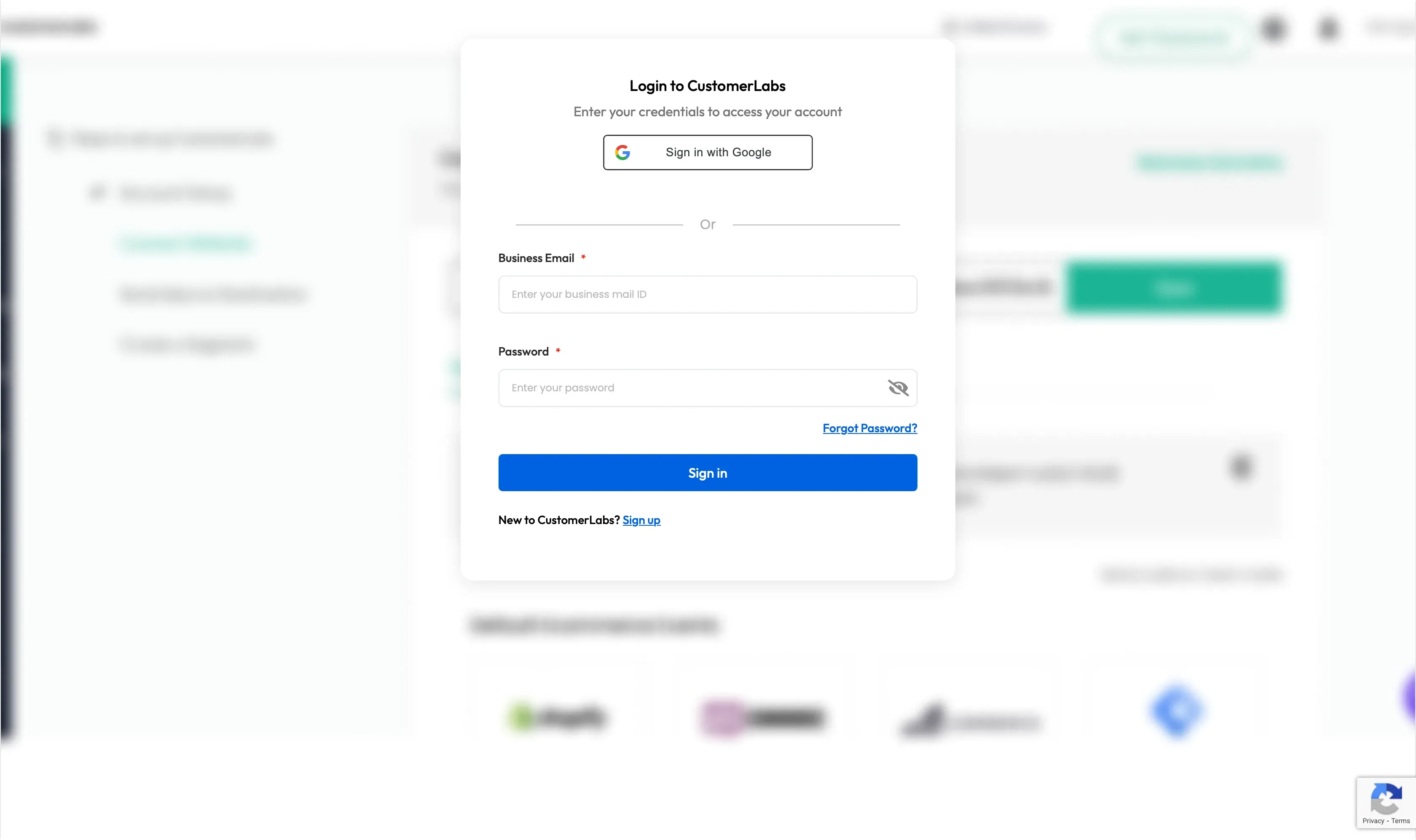
- Enter your email and password and click Sign In or you can use “Sign in with Google” to login to your account.
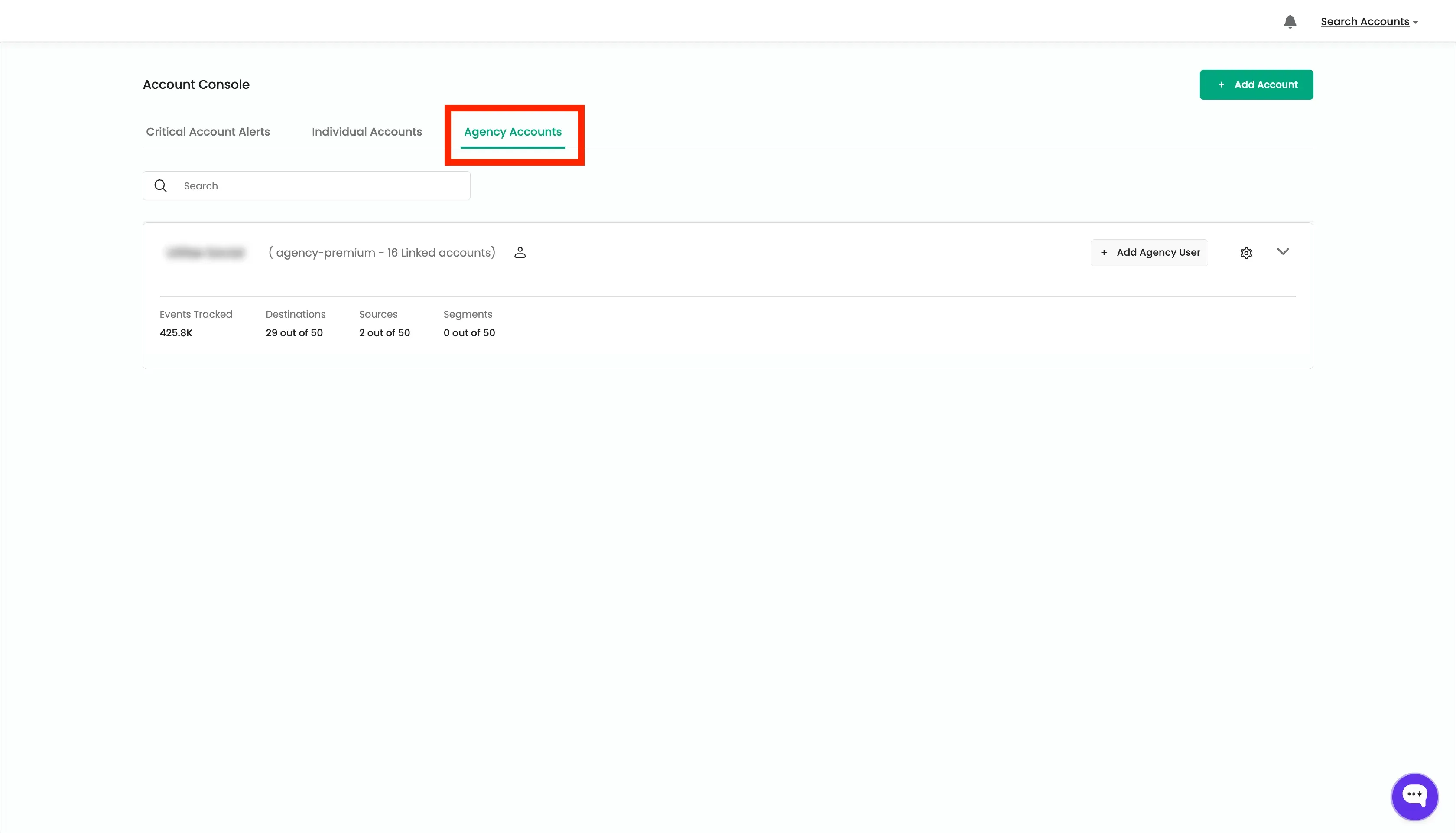
- You will be redirected to the Account Console in CustomerLabs. Go to “Agency Accounts” tab.
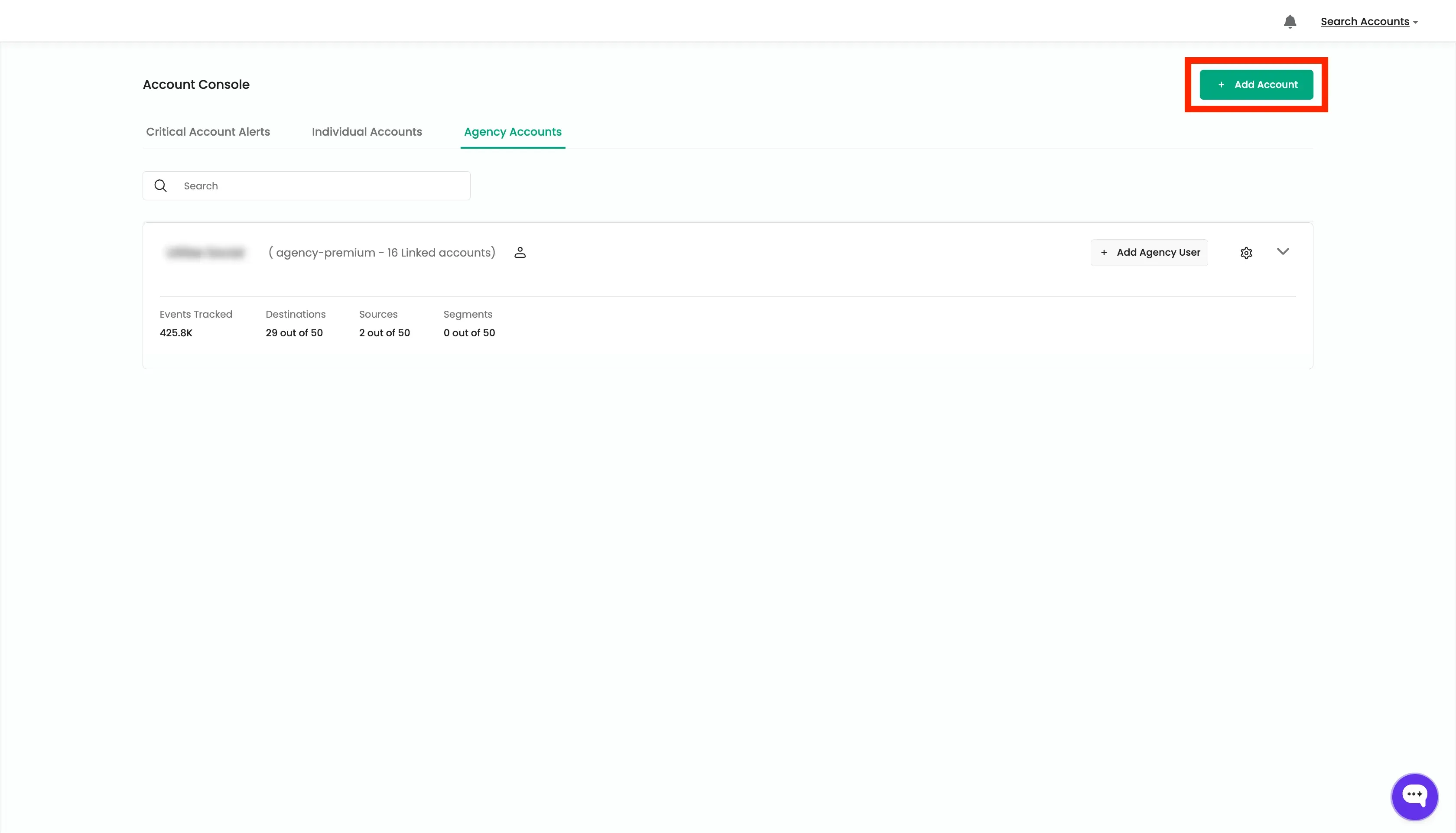
- Click on the “Add Account” button to create a new account.
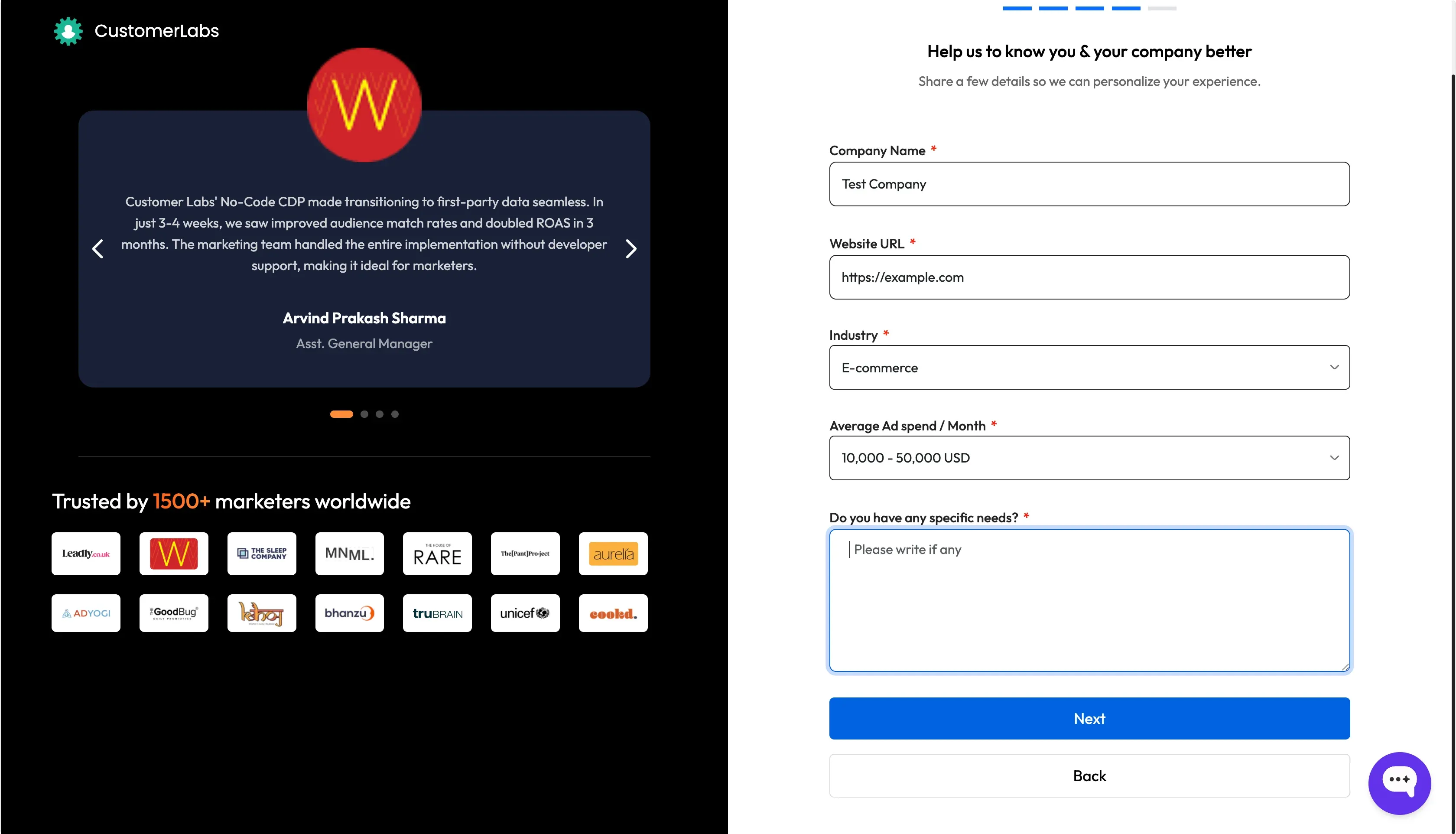
- Enter the business information such as Company Name, Website URL, etc. and Click Next.
- Choose the time zone and your required server location. Click Start Free Trial.
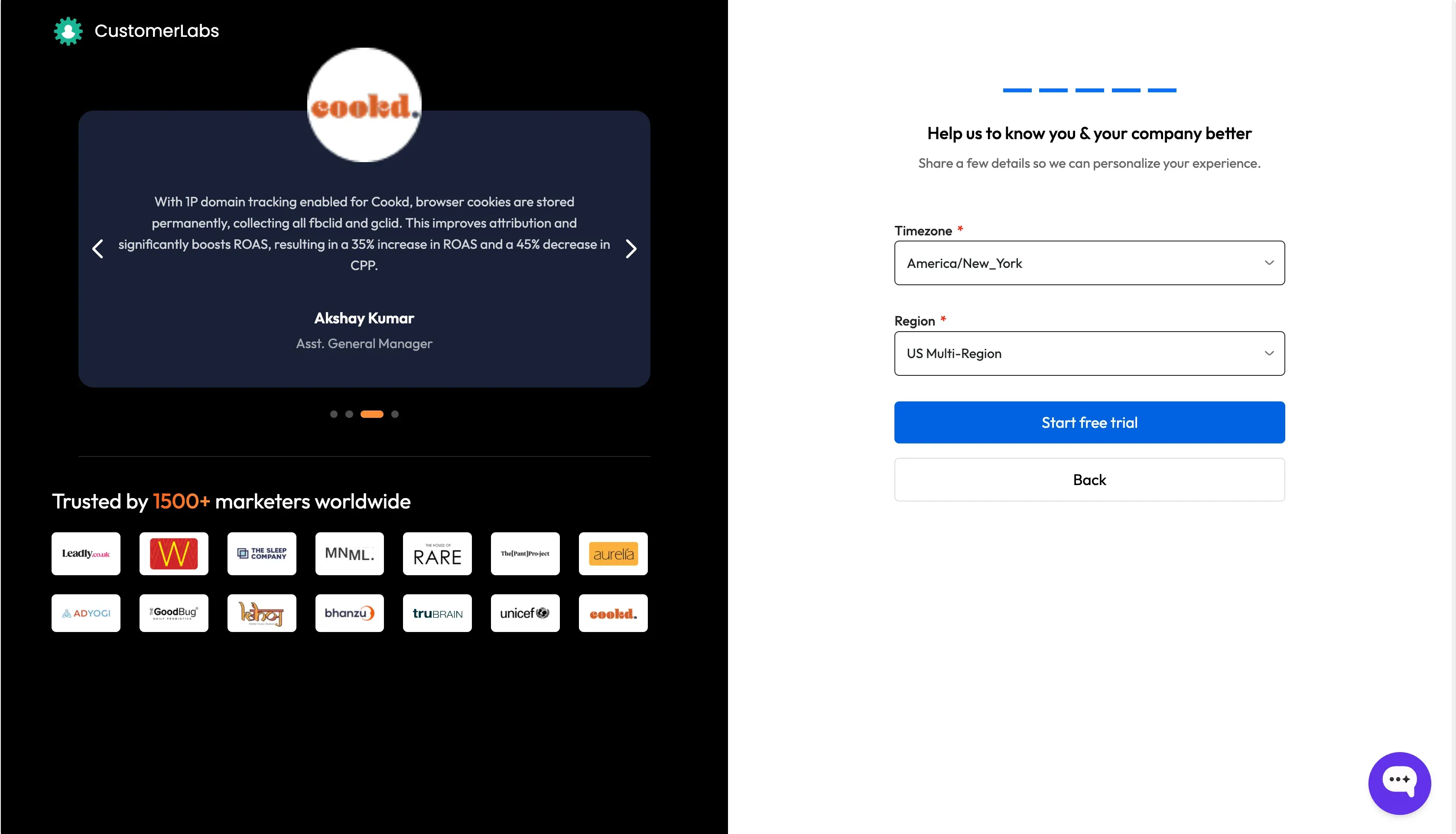
- The new account will be added as an individual account and will be under 14-day trial period.
- To link this account to the agency account, go to “Agency Accounts” tab in Account console and click on the “Settings” icon.
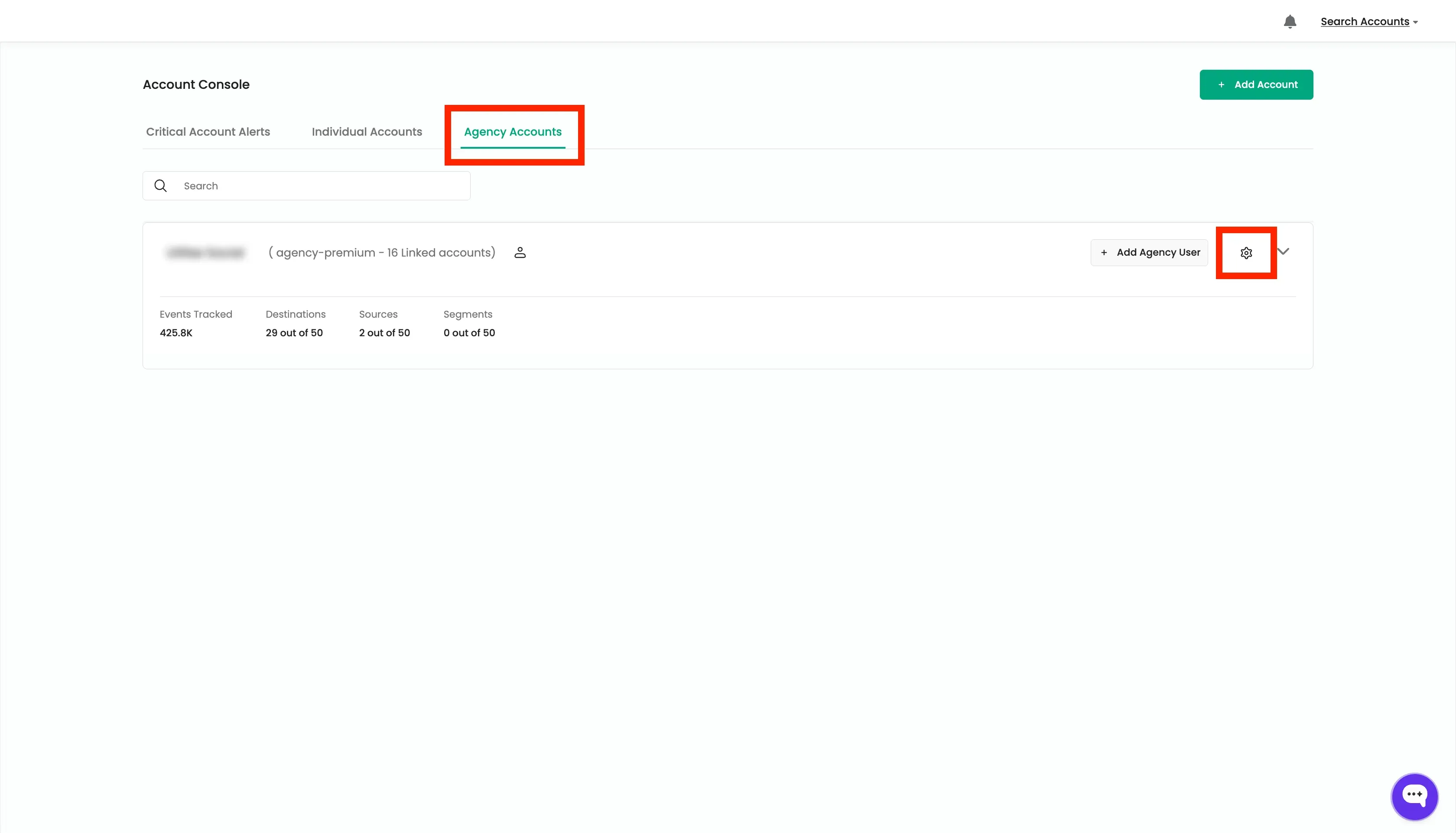
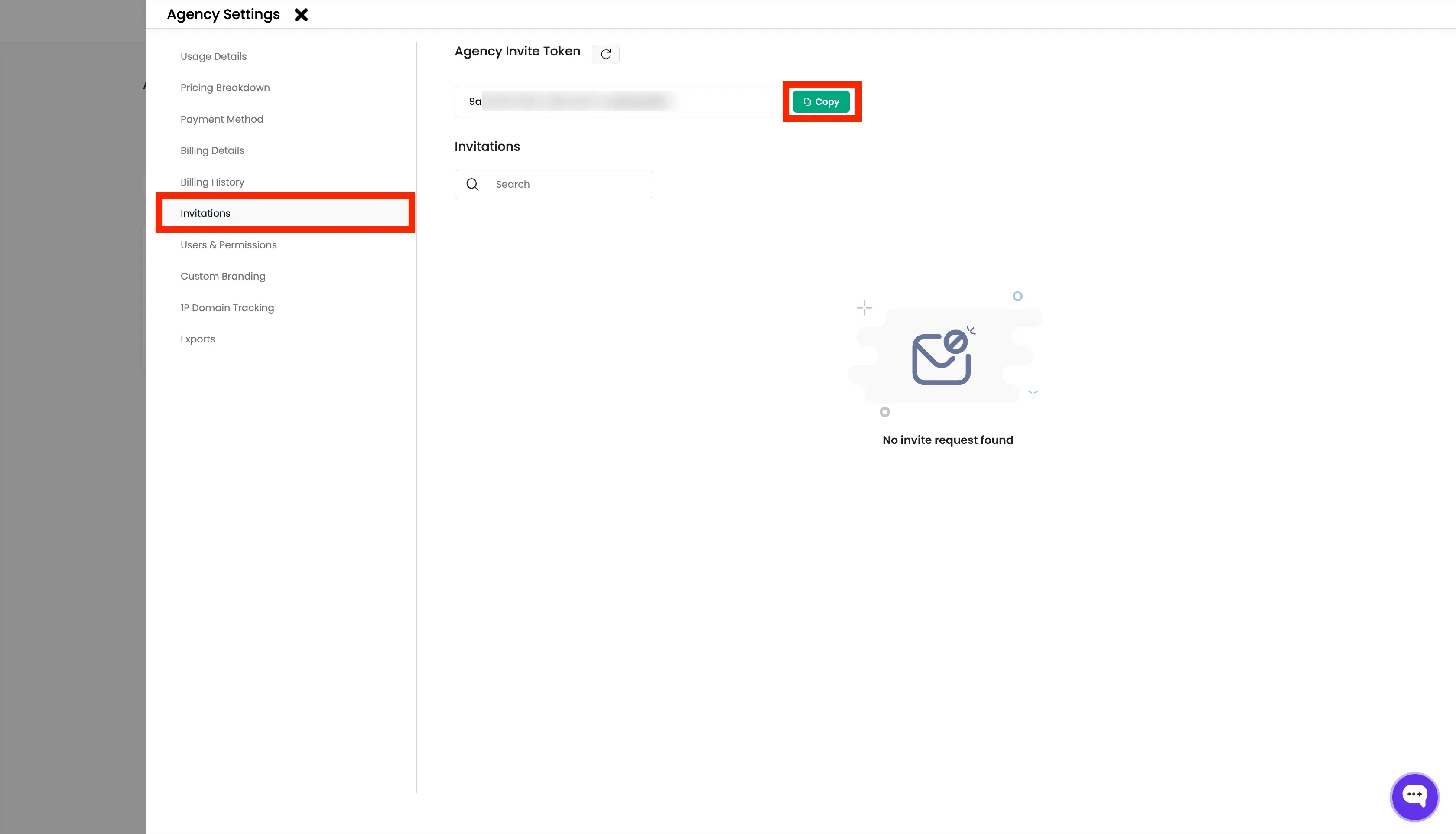
- Click the “Invitations” section and Copy the Invitation Code.
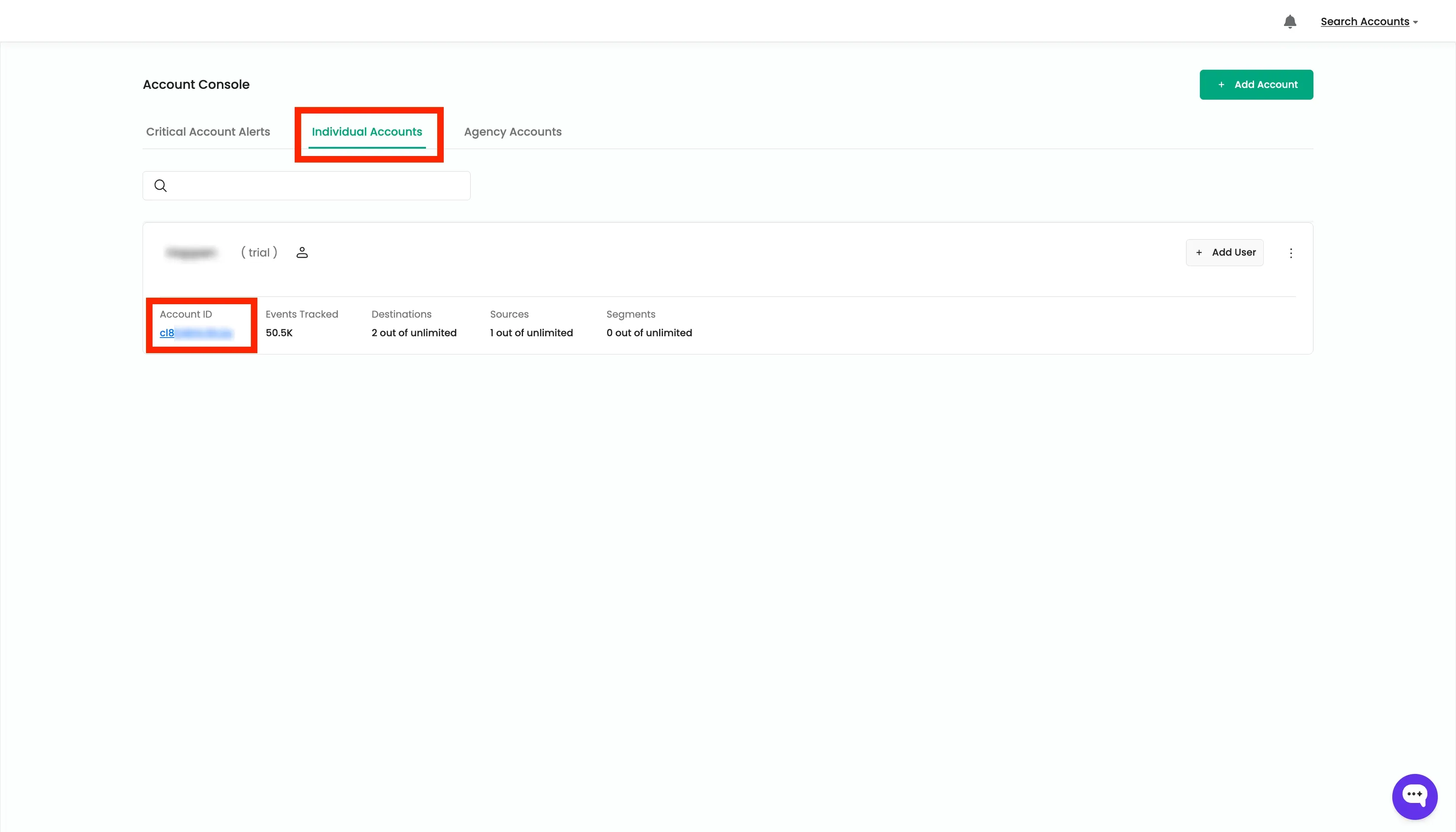
- Go back to account console, Click on Individual Accounts tab and click on the Account ID of the new account.
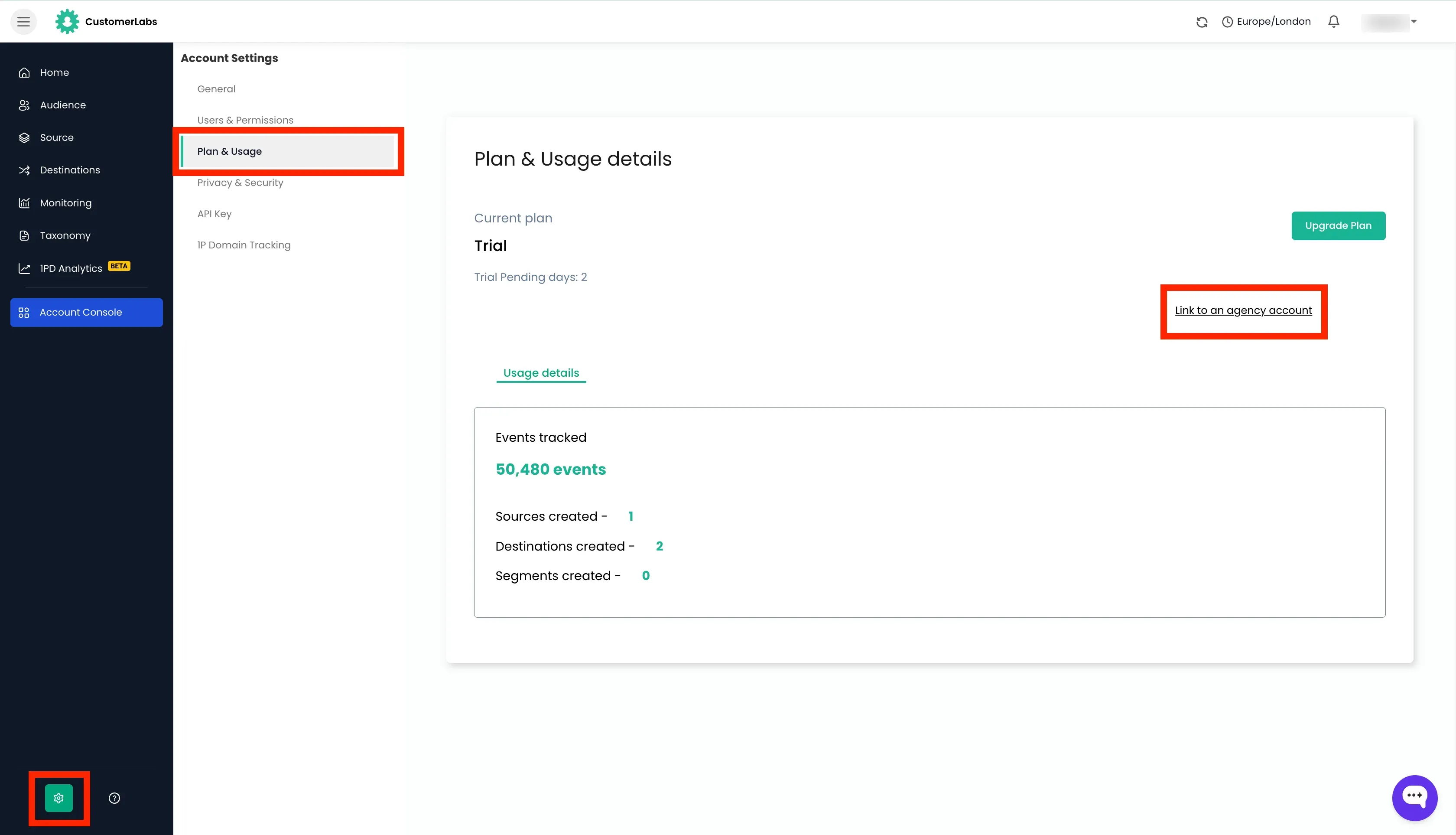
- Click on the Settings icon in left bottom and Go to “Plan & Usage” section. Click on the “Link to Agency Account”.
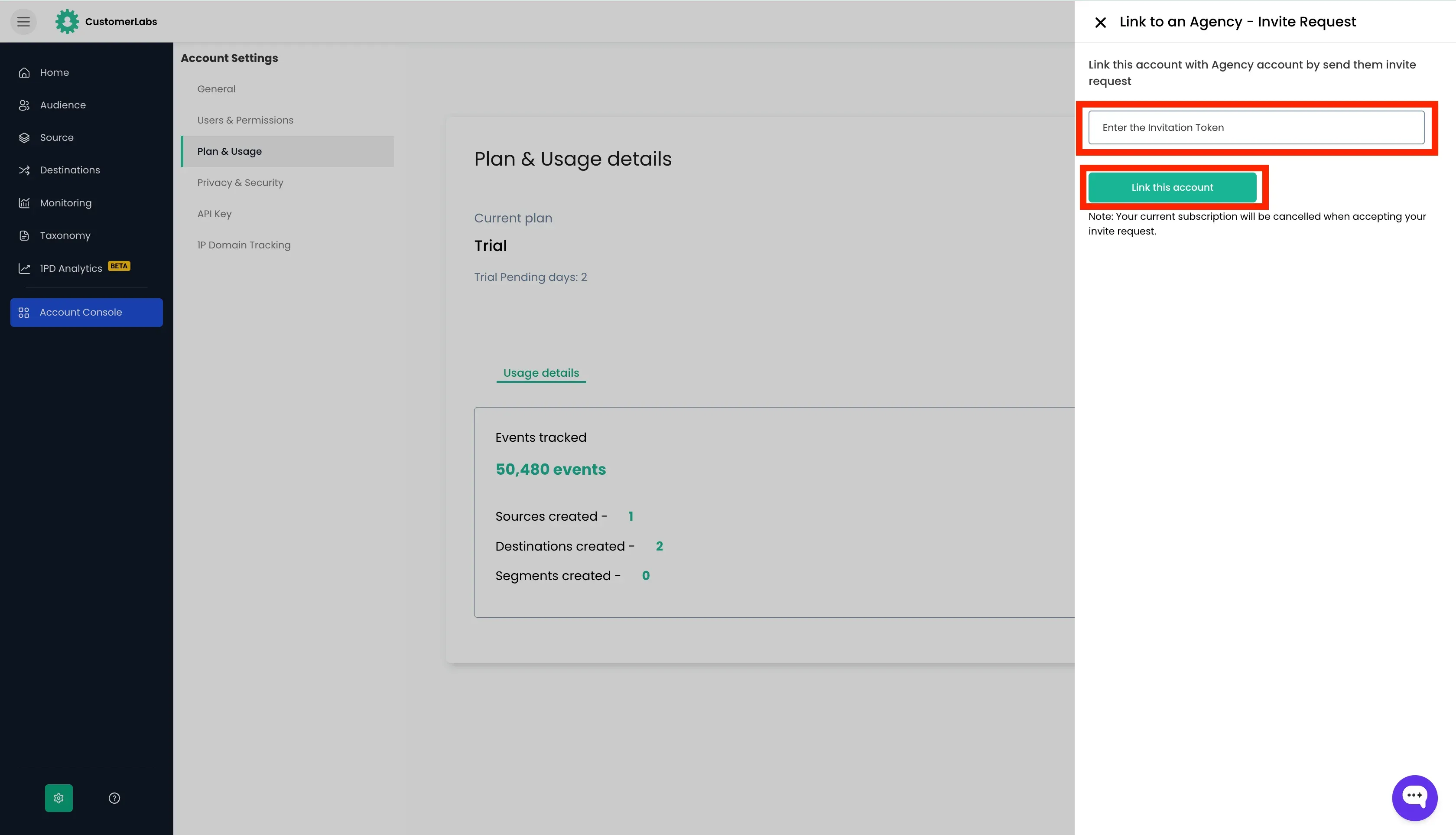
- Paste the invitation code and click “Link”.
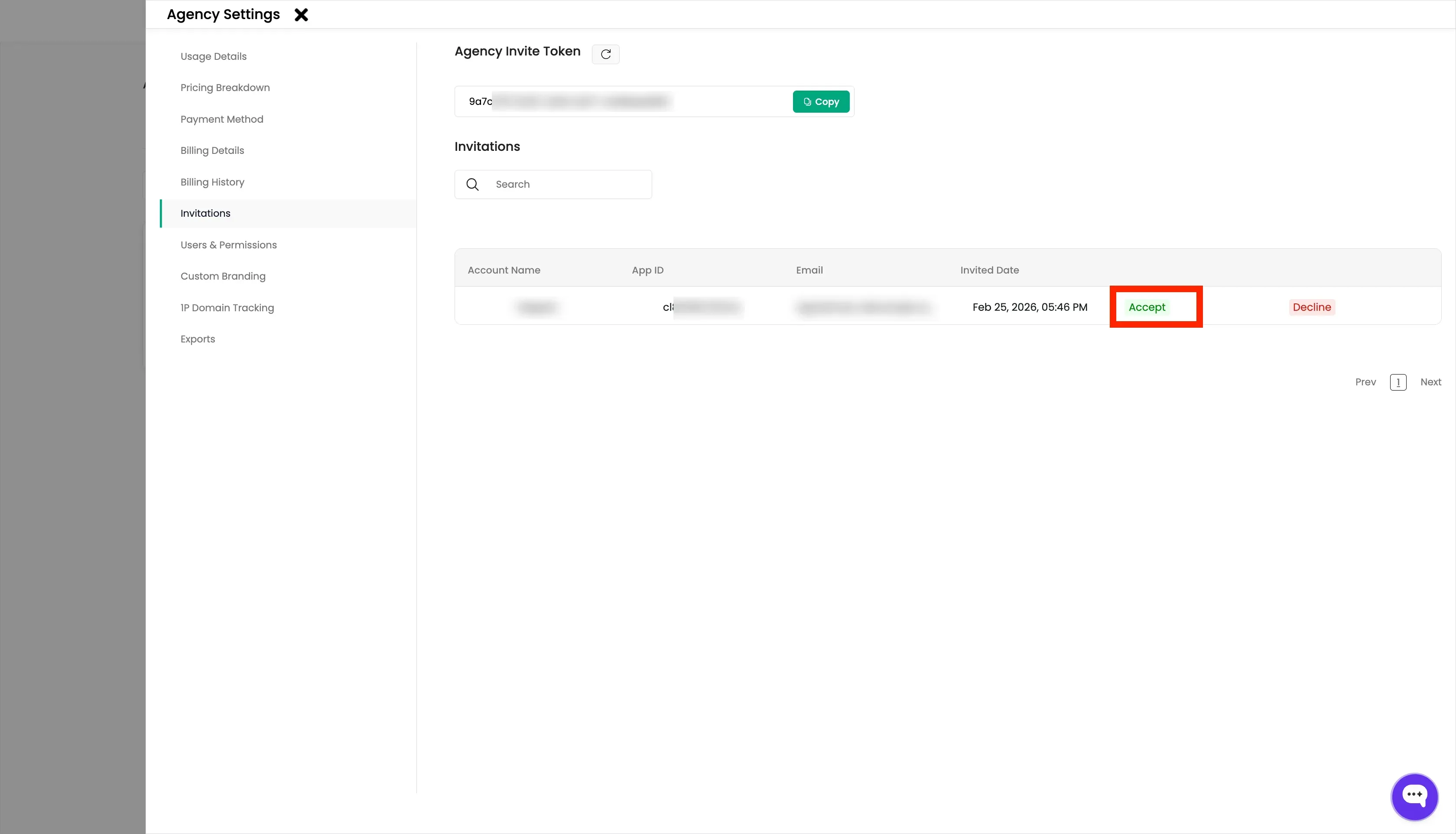
- Go back to the Agency Settings and Invitations section.
- Accept the invitation to link the account to the agency.
- The new account will be linked to the agency account and billing will be done to the agency account.