
Subscribing to 1P Domain Tracking
The introduction of First-Party (1P) Domain Tracking empowers businesses to efficiently include domains and subdomains to counter adblockers on websites, ensuring the retention of server-side cookie data.
Before you can set up 1P Domain Tracking, you need to subscribe to it. The subscription process depends on the type of CustomerLabs account you have.
For Growth Accounts
Section titled “For Growth Accounts”- Log in to your CustomerLabs account. Go to Individual accounts tab and click your Account ID.
- Navigate to Settings → Plan & Usage.
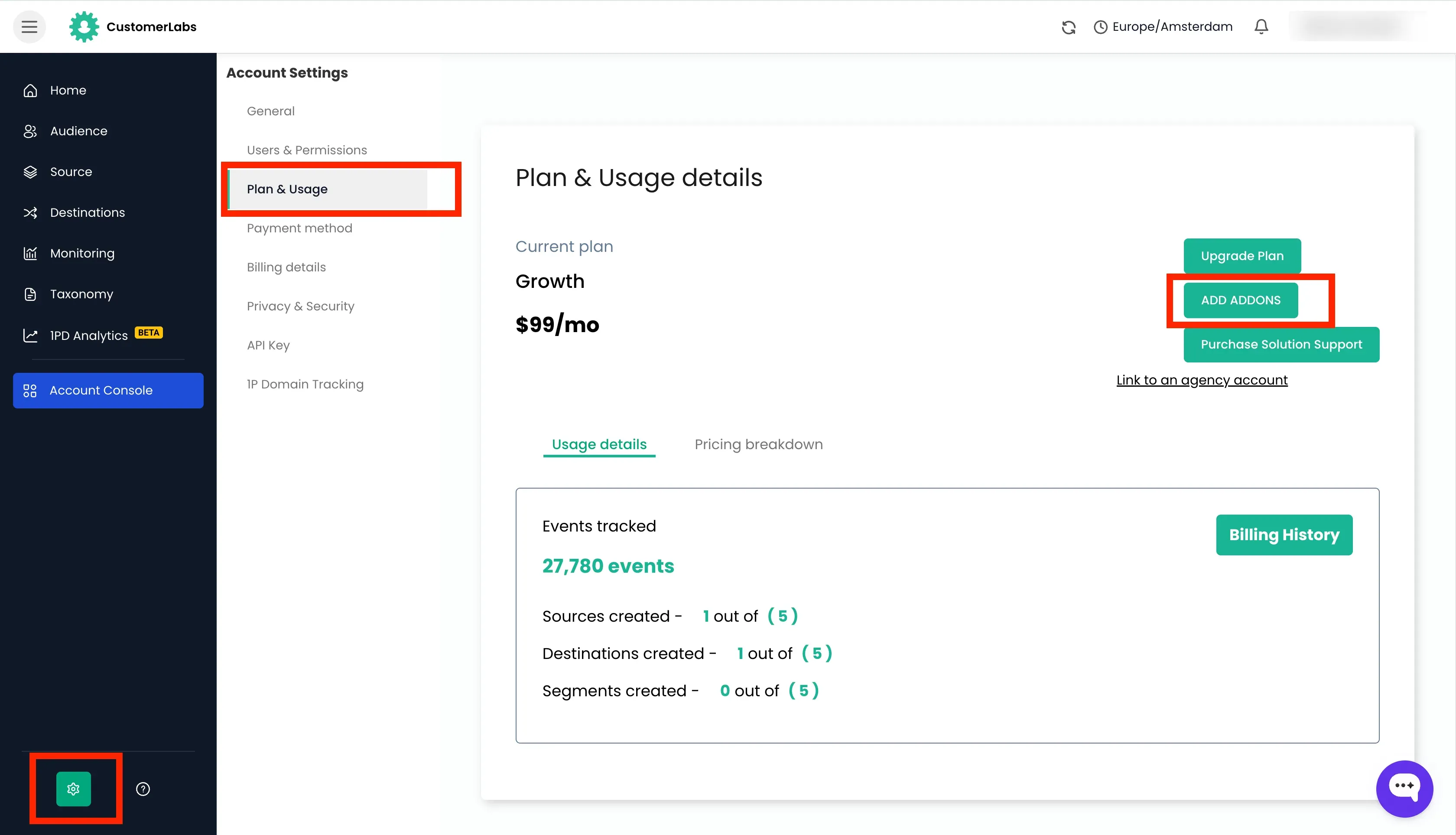
- Click on Add Add-on to subscribe to 1P Domain Tracking.
- Turn ON the 1P Domain Tracking toggle and click Subscribe Now.
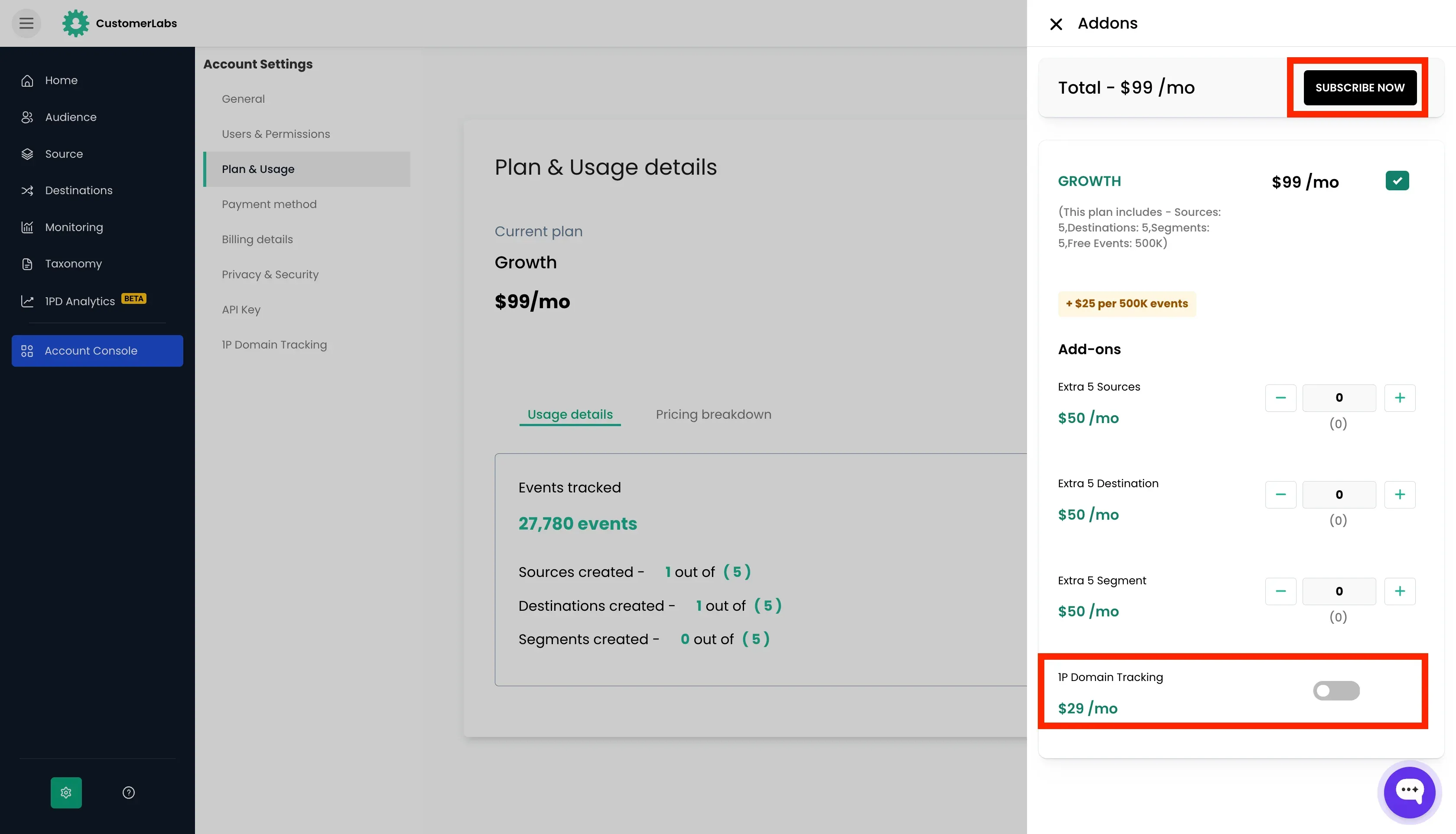
- After subscribing, 1P Domain Tracking will be enabled for your account. You can now proceed to set it up following the Setup Guide.
For Agency Accounts
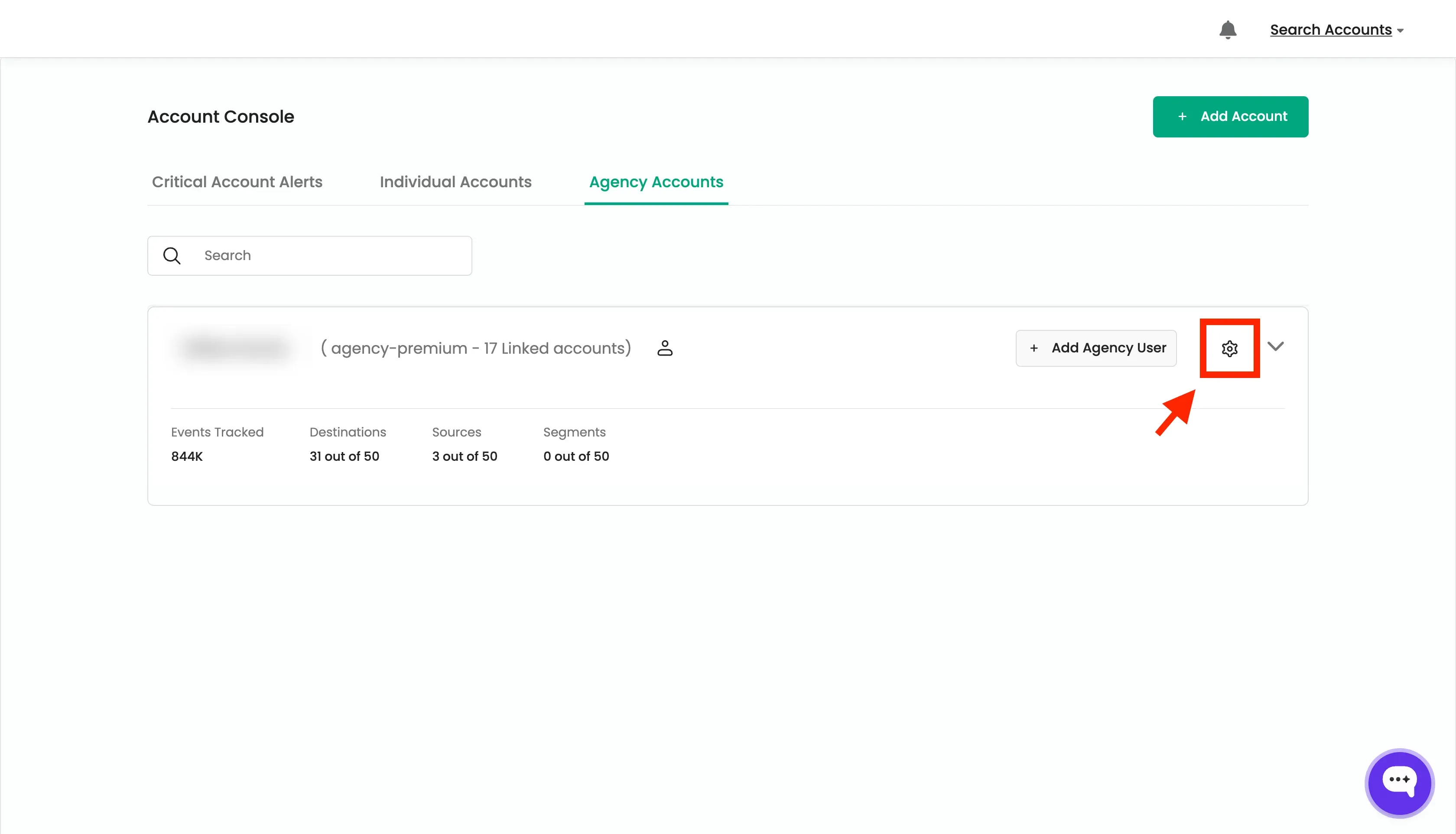
Section titled “For Agency Accounts”- Log in to your CustomerLabs account. Go to agency Accounts tab.
- Click on the settings icon.
- Click on 1P Domain Tracking and click on “Add Add-ons”.
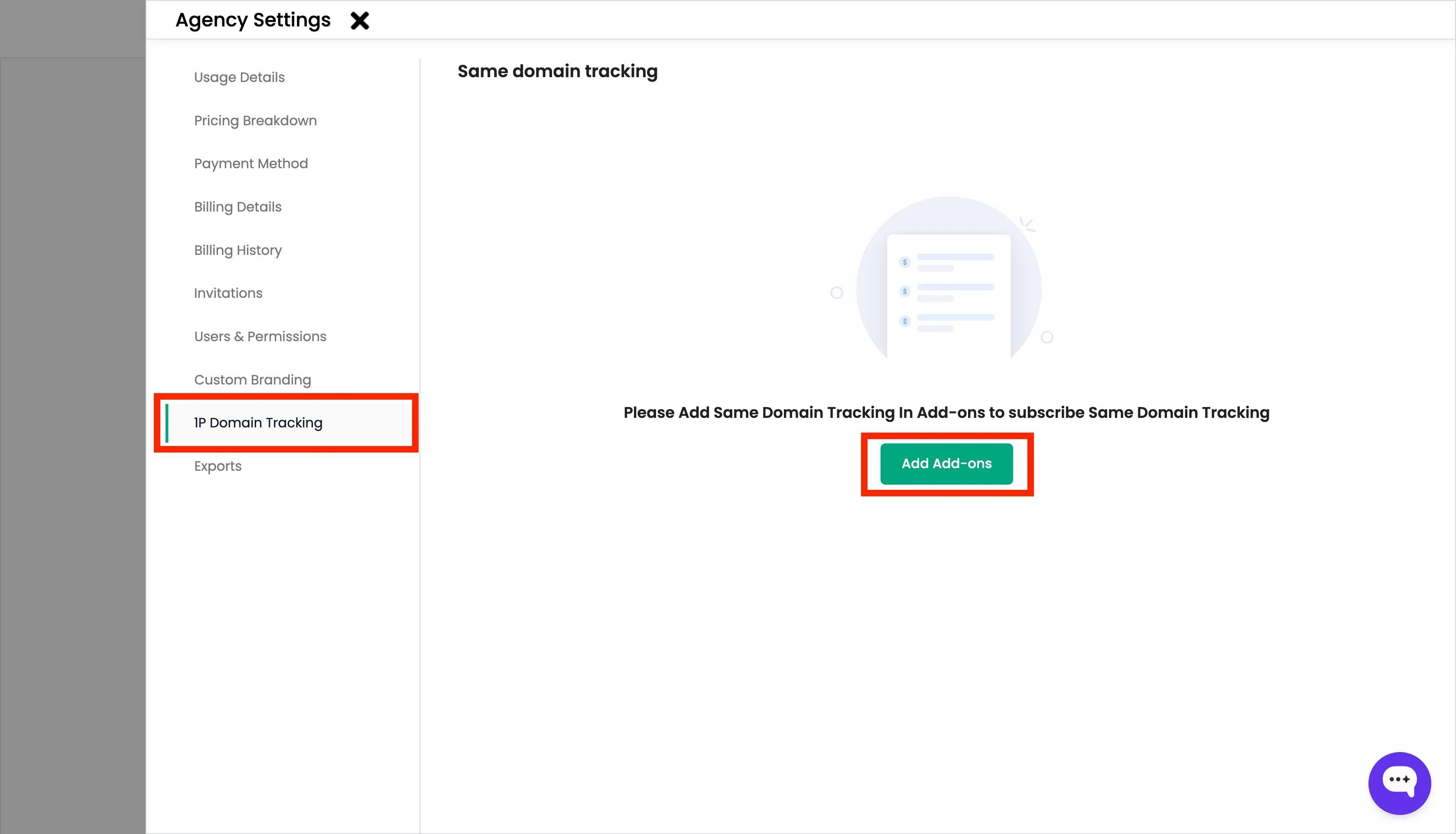
- Choose the number of “Add-ons” you want to subscribe to and click on “Subscribe Now”.
- After subscription, 1P Domain Tracking should be enabled manually for the individual sub-accounts.
- After enabling 1P Domain Tracking for a sub-account, you can log into that specific account and proceed to set it up following the Setup Guide.
For Accounts under Trial
Section titled “For Accounts under Trial”- Log in to your CustomerLabs account. Go to Individual accounts tab and click your Account ID.
- Navigate to Settings → Plan & Usage.
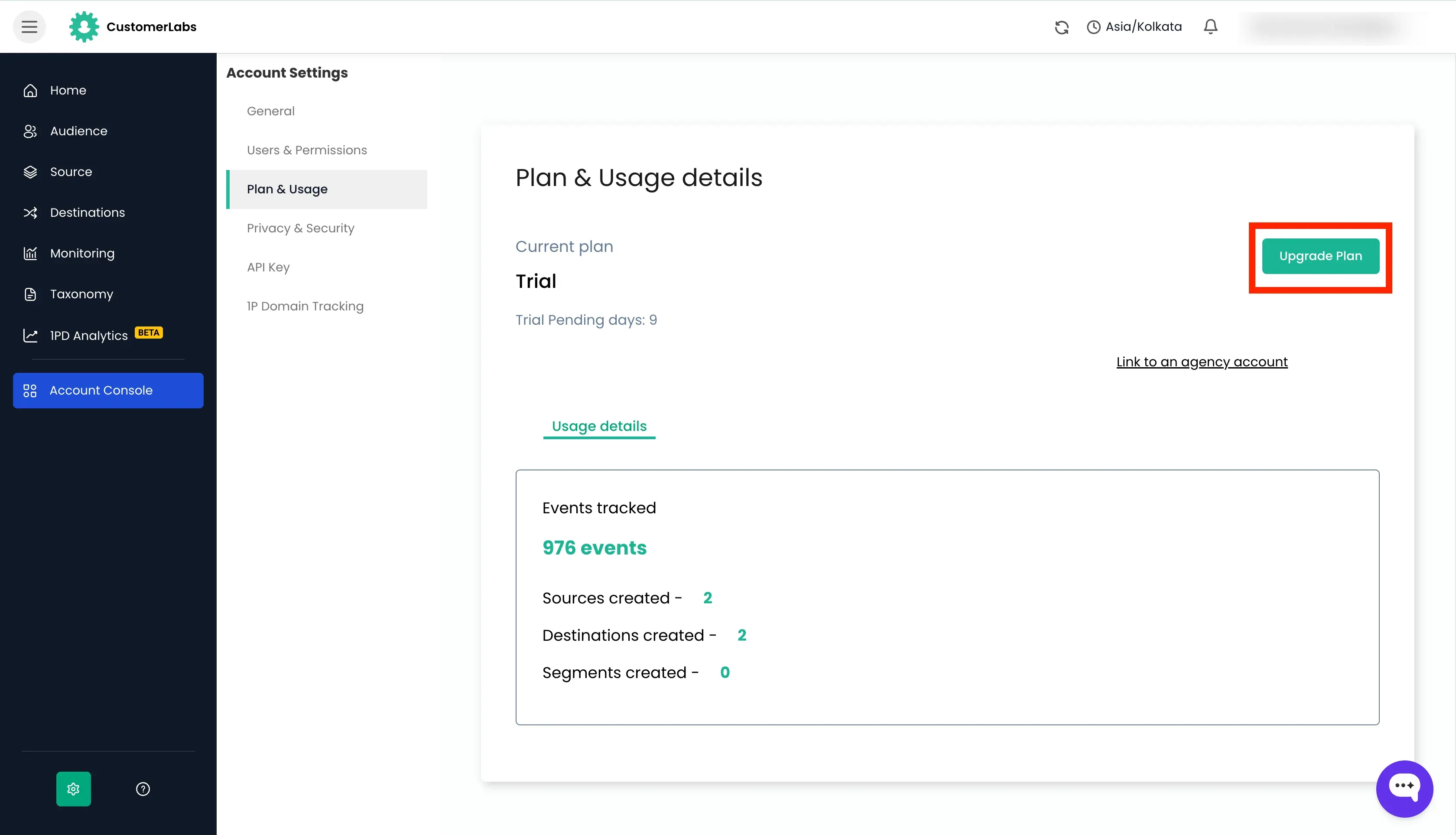
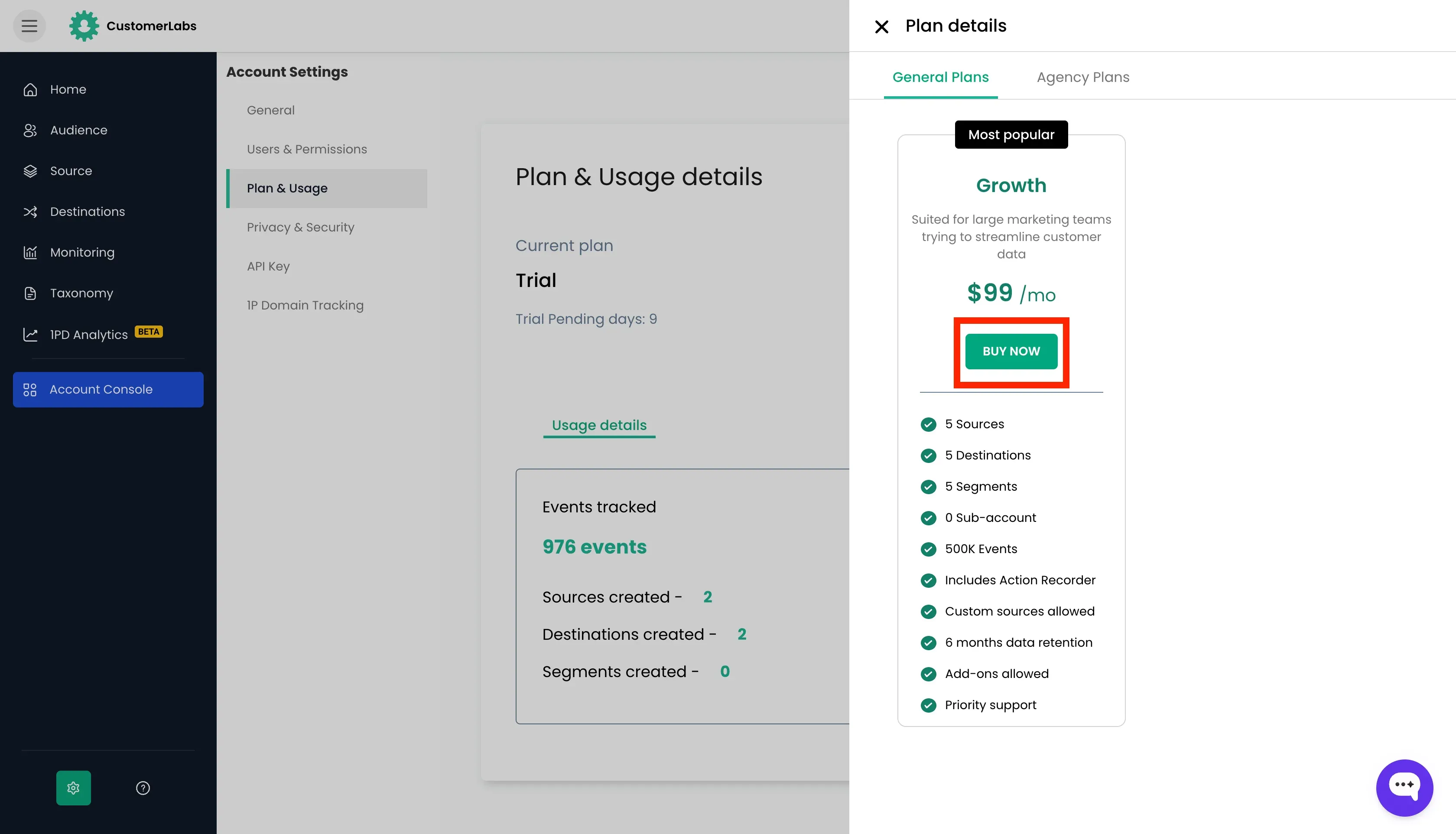
- Click on Upgrade Plan and choose the Plan.
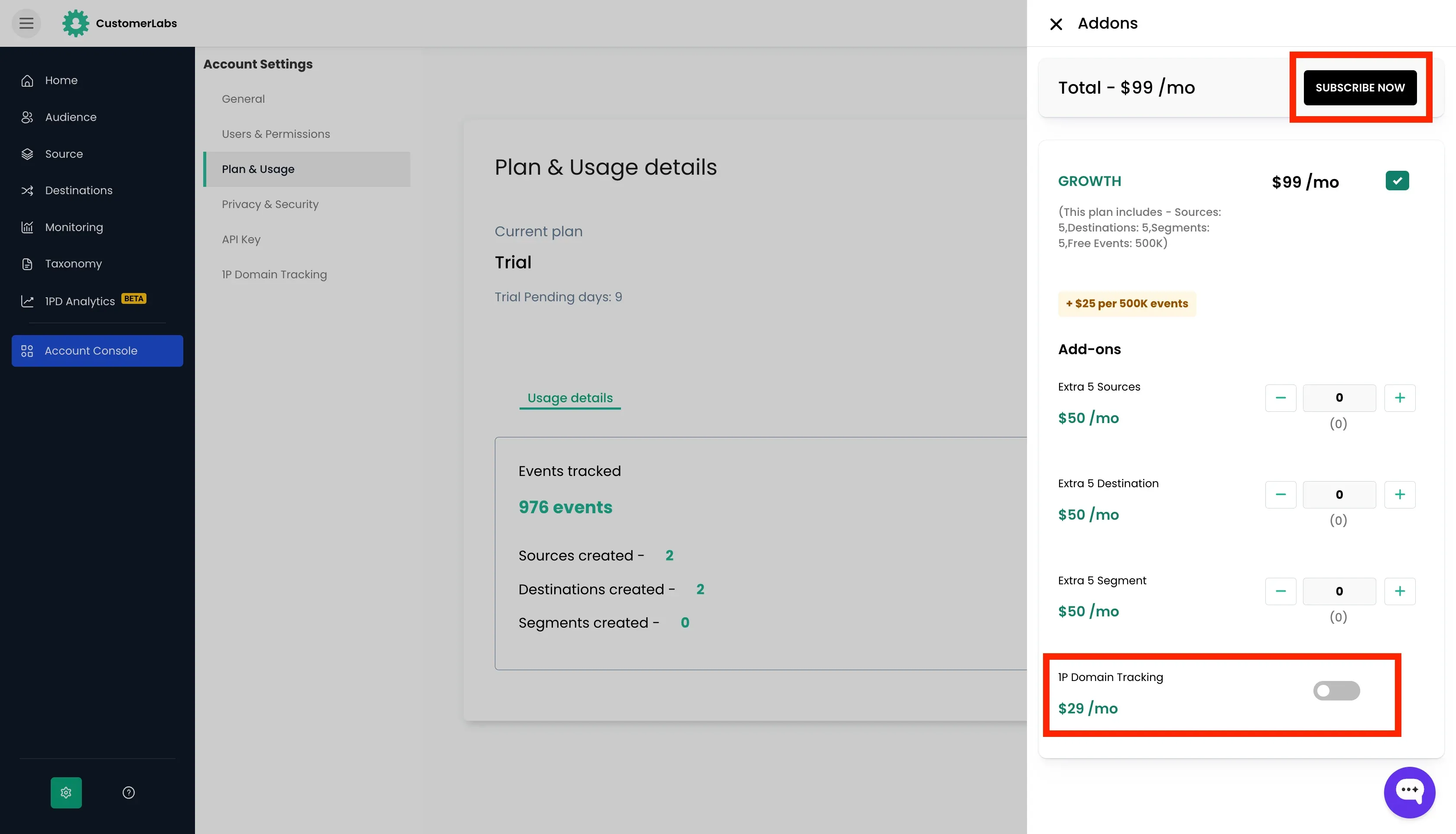
- Turn ON the 1P Domain Tracking toggle and click Subscribe Now.
- Enter the card details to proceed with the subscription.
- After subscribing, 1P Domain Tracking will be enabled for your account. You can now proceed to set it up following the Setup Guide.