Creating a New Account in CustomerLabs
Prerequisites
Section titled “Prerequisites”Before creating a new account in CustomerLabs, ensure that you have the following:
- A valid business email address
- Website URL
Account Creation based on user type
Section titled “Account Creation based on user type”- If you are new to CustomerLabs: Follow the Sign Up for a new Account (first time user) section.
- If you are an existing user: Follow the Creating a new Account for existing CustomerLabs user section.
Choosing the Server Locations
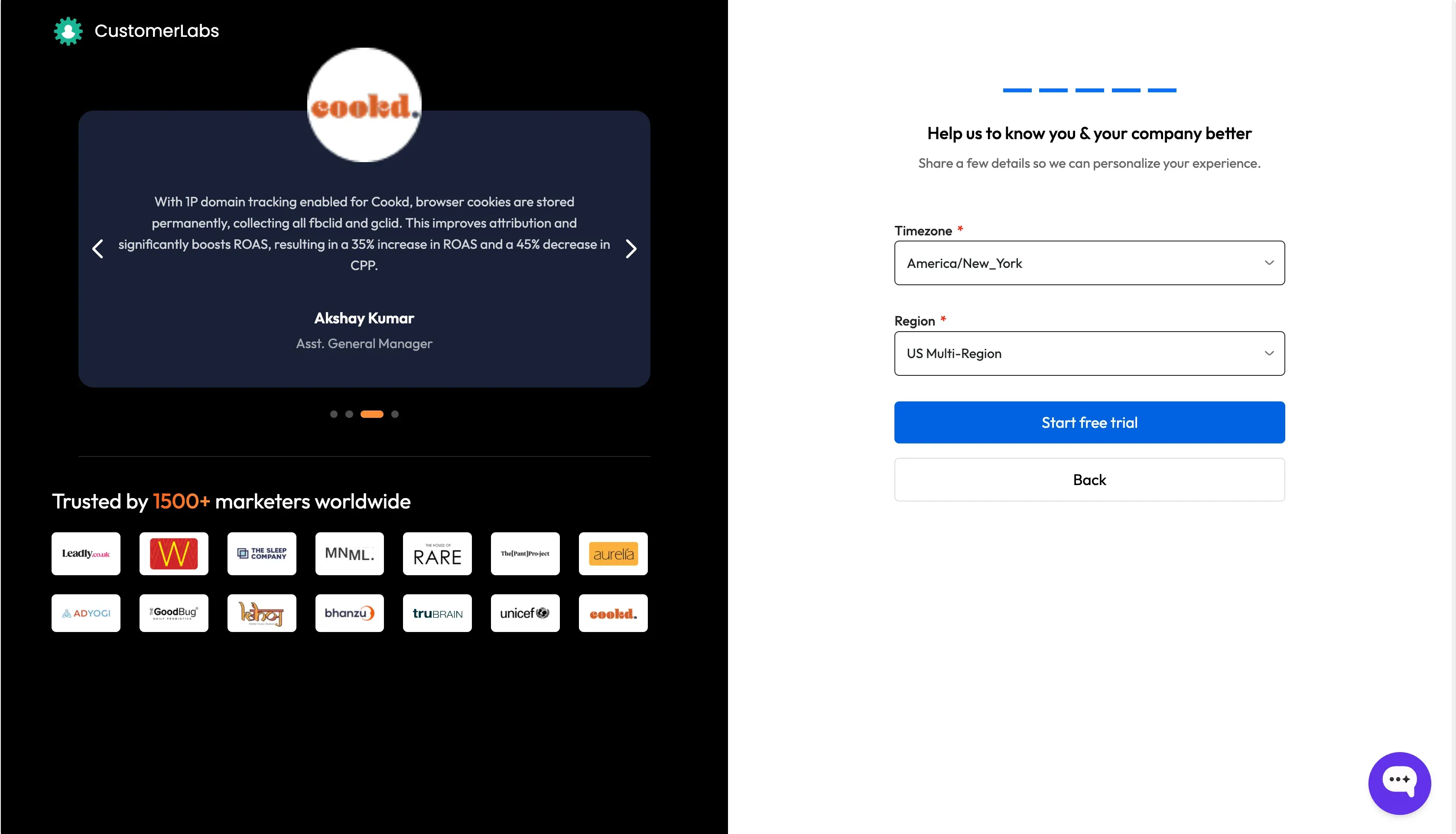
Section titled “Choosing the Server Locations”| Region | Server Location |
|---|---|
| US | US (Multi-region) |
| UK | London (Europe-West2) |
| Europe | EU (Multi-region) |
| Middle East 1 | Middle East (Me-Central1) |
| Middle East 2 | Saudi Arabia (Me-Central2) |
| India | India (Asia-South1) |
| Singapore | Singapore (Asia-Southeast1) |
| Australia | Australia (Australia-Southeast1) |
Sign Up for a new Account (first time user)
Section titled “Sign Up for a new Account (first time user)”This section covers the process of creating a new account in CustomerLabs for the first time user.
- Open your web browser and navigate to the CustomerLabs website.
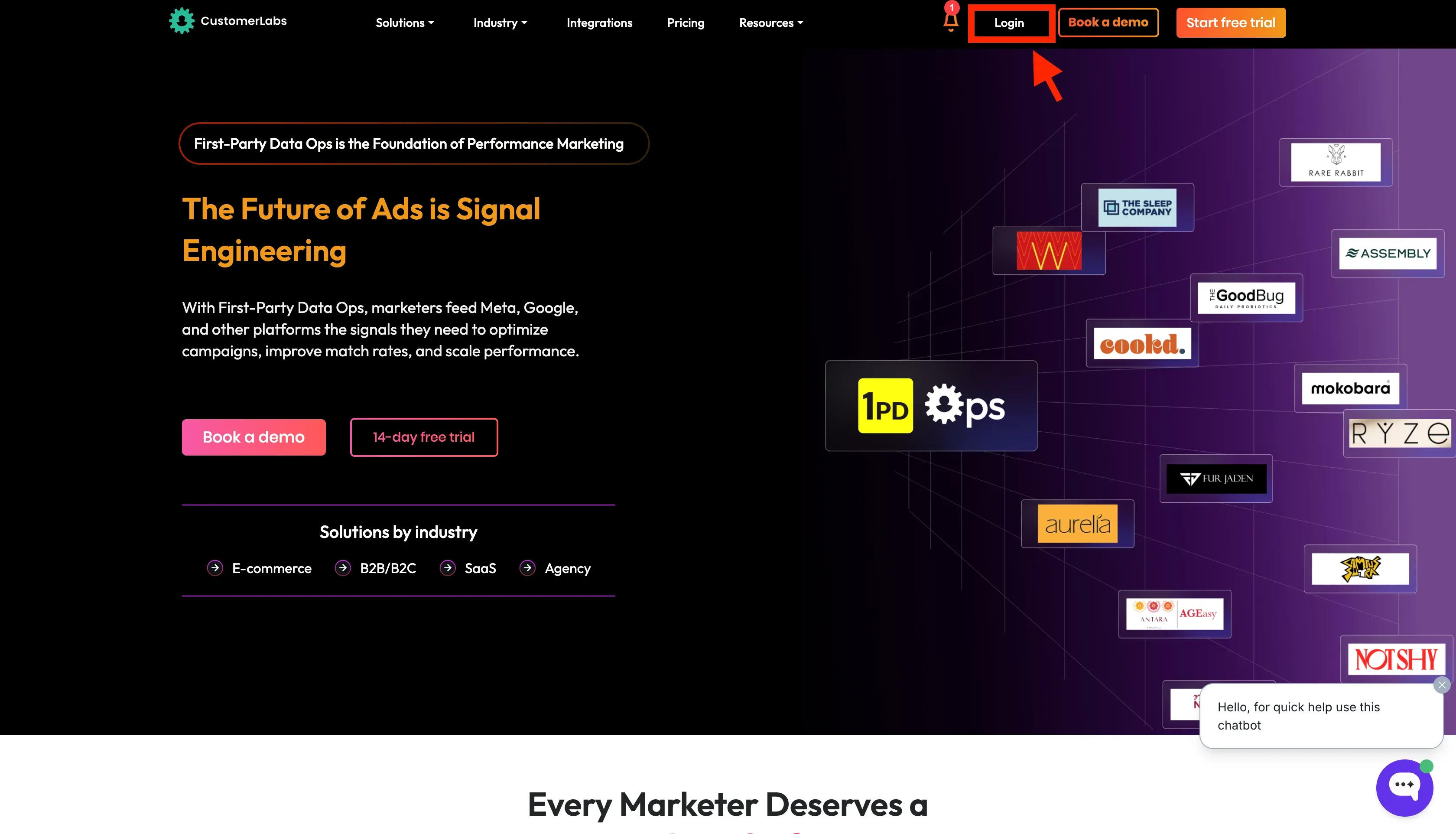
- Click on the “Log In” button in the top-right corner of the page.
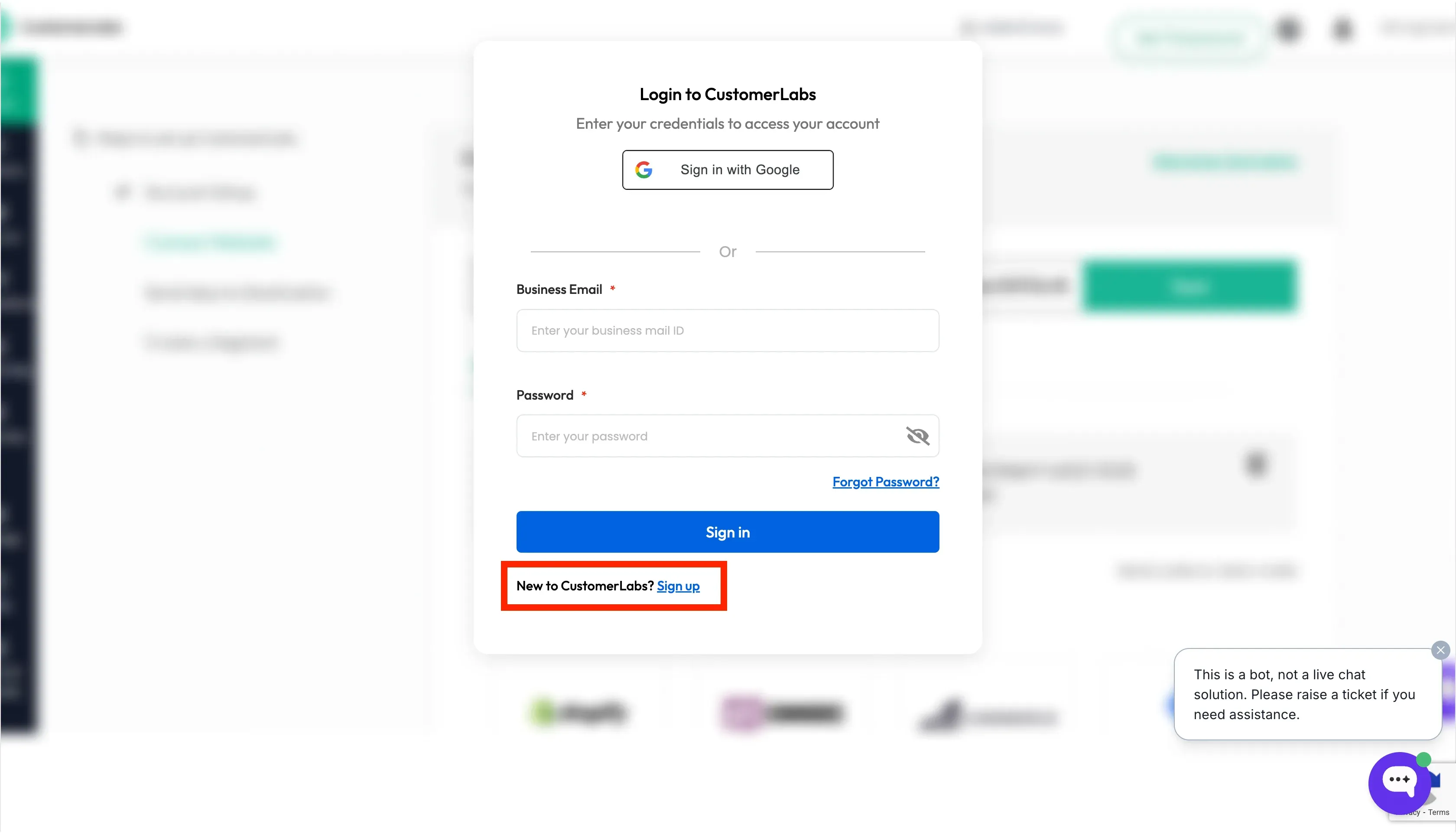
- Click on the “New to CustomerLabs? Sign up” button to start with the process.
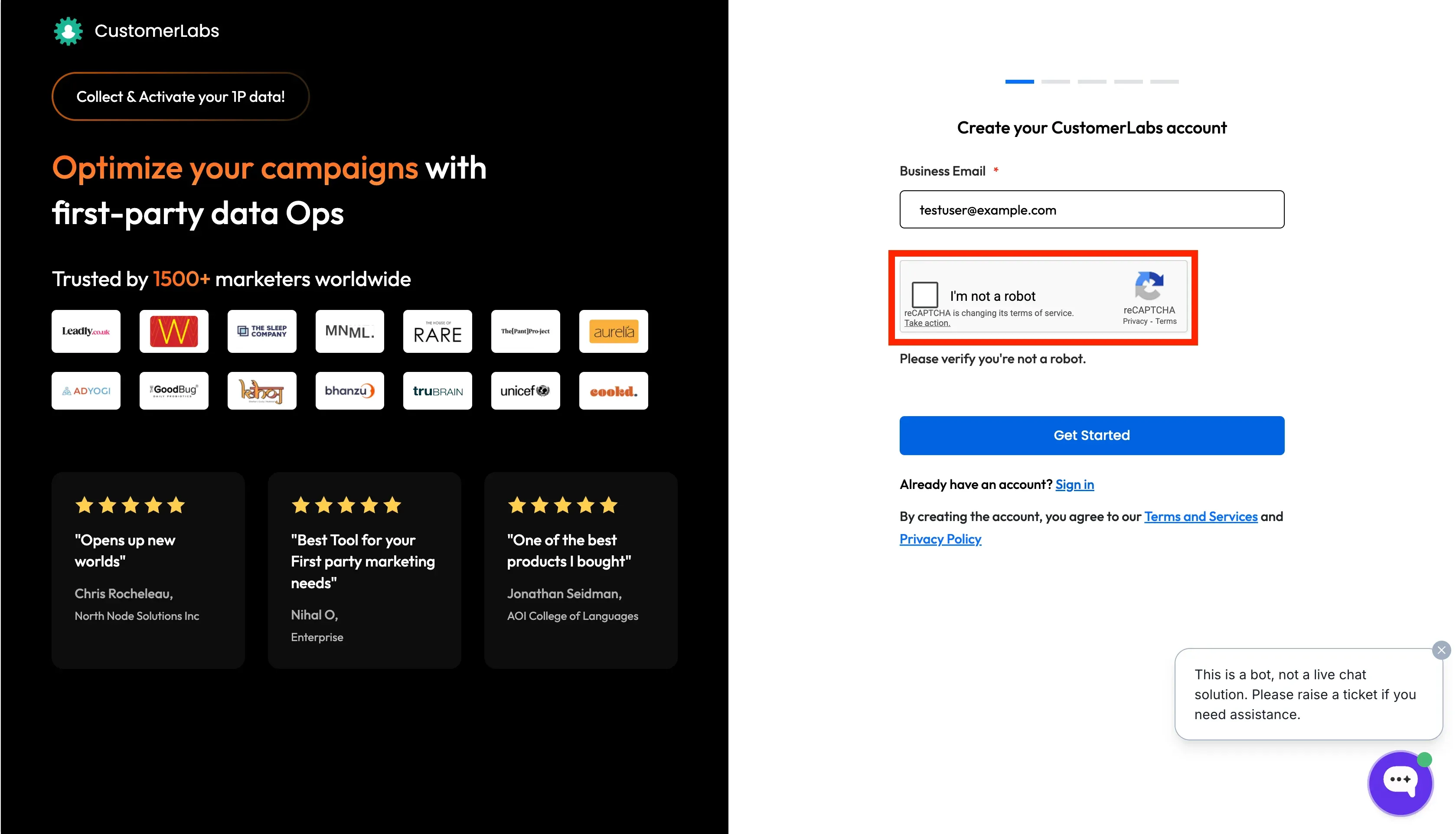
- Enter your business email and click Get Started. You will receive a verification email with a verification code.
- Enter the verification code and click Confirm. You will be redirected to the next page.
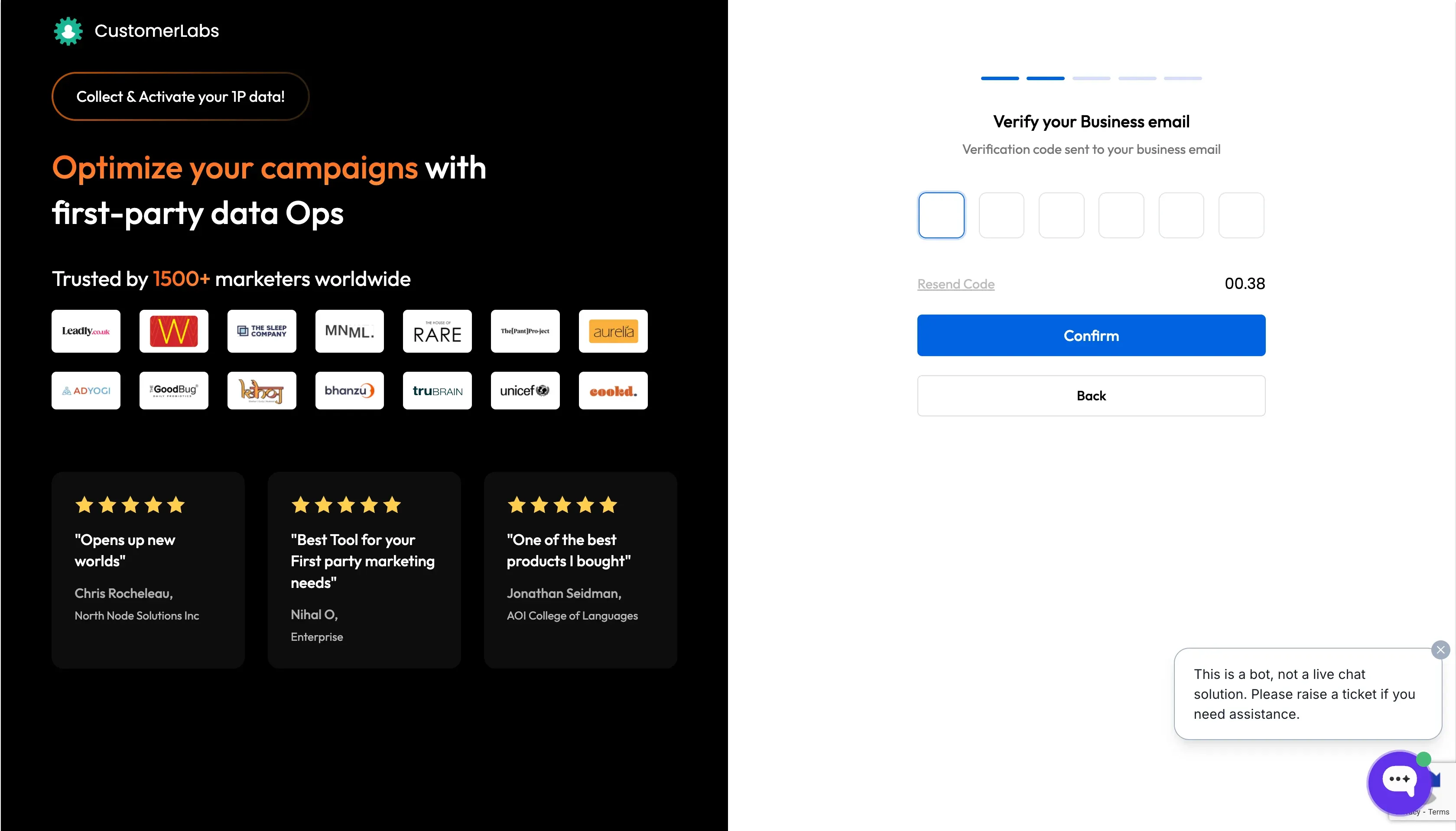
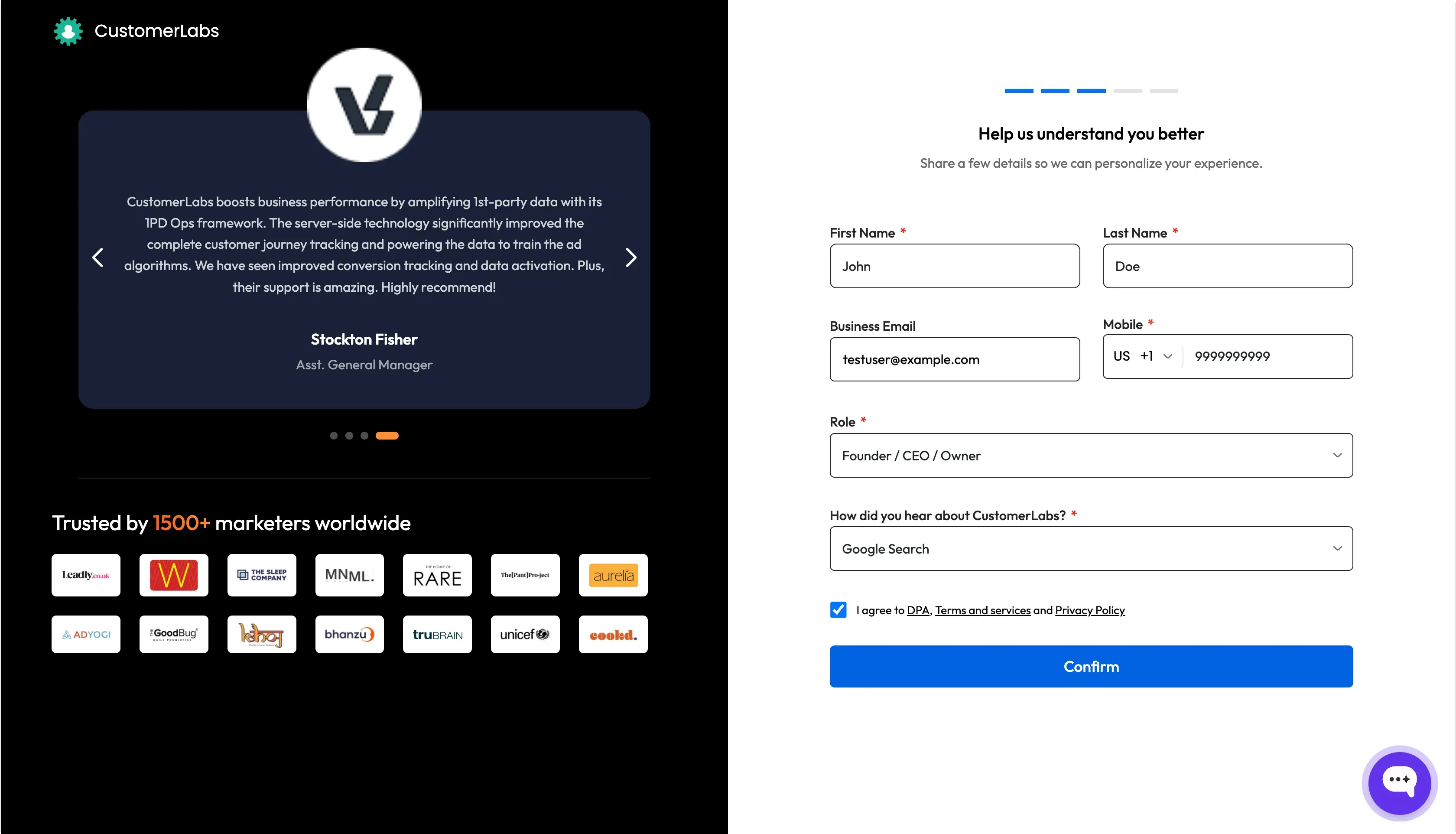
- In the next page, Enter the personal information such as First Name, Last Name, etc. and Click Confirm.
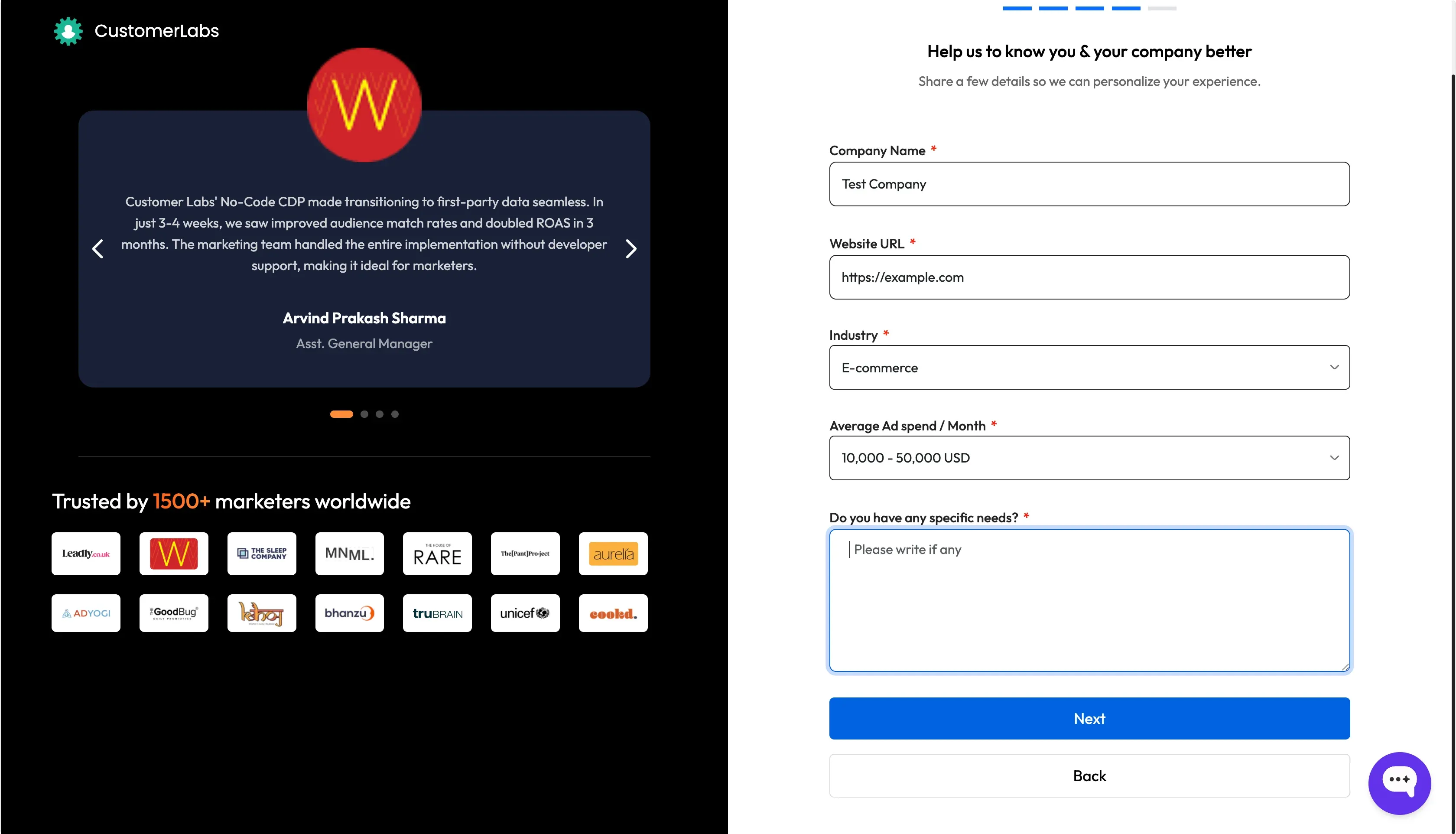
- In the next page, Enter the business information such as Company Name, Website URL, etc. and Click Next.
- Choose the time zone and your required server location. Click Start Free Trial.
- Your account will be created and you will be redirected to the CustomerLabs dashboard.
Creating a new Account for existing CustomerLabs user
Section titled “Creating a new Account for existing CustomerLabs user”- Open your web browser and navigate to the CustomerLabs website.
- Click on the “Log In” button in the top-right corner of the page.
- Enter your email and password and click Sign In. Alternatively, you can use “Sign in with Google” to login to your account.
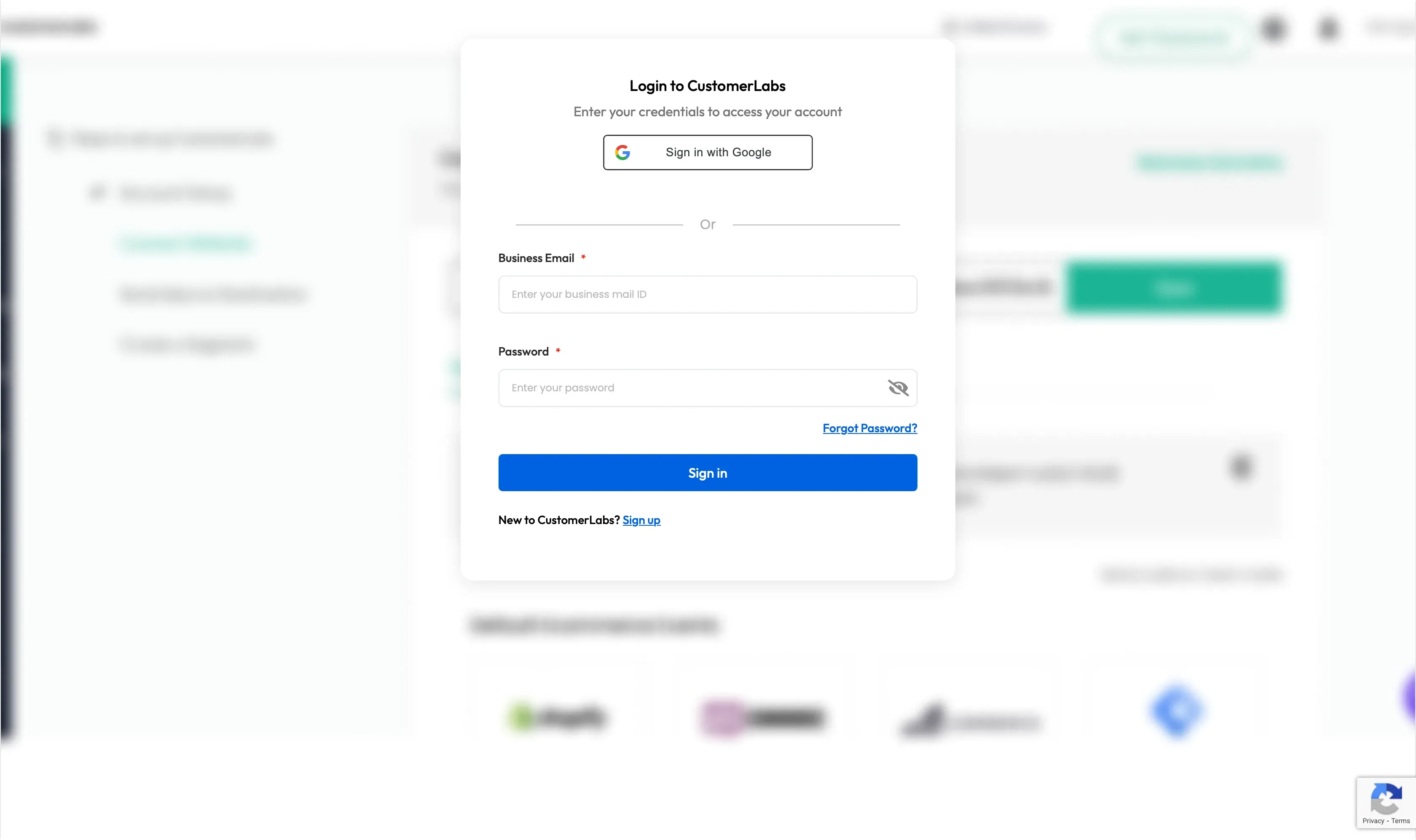
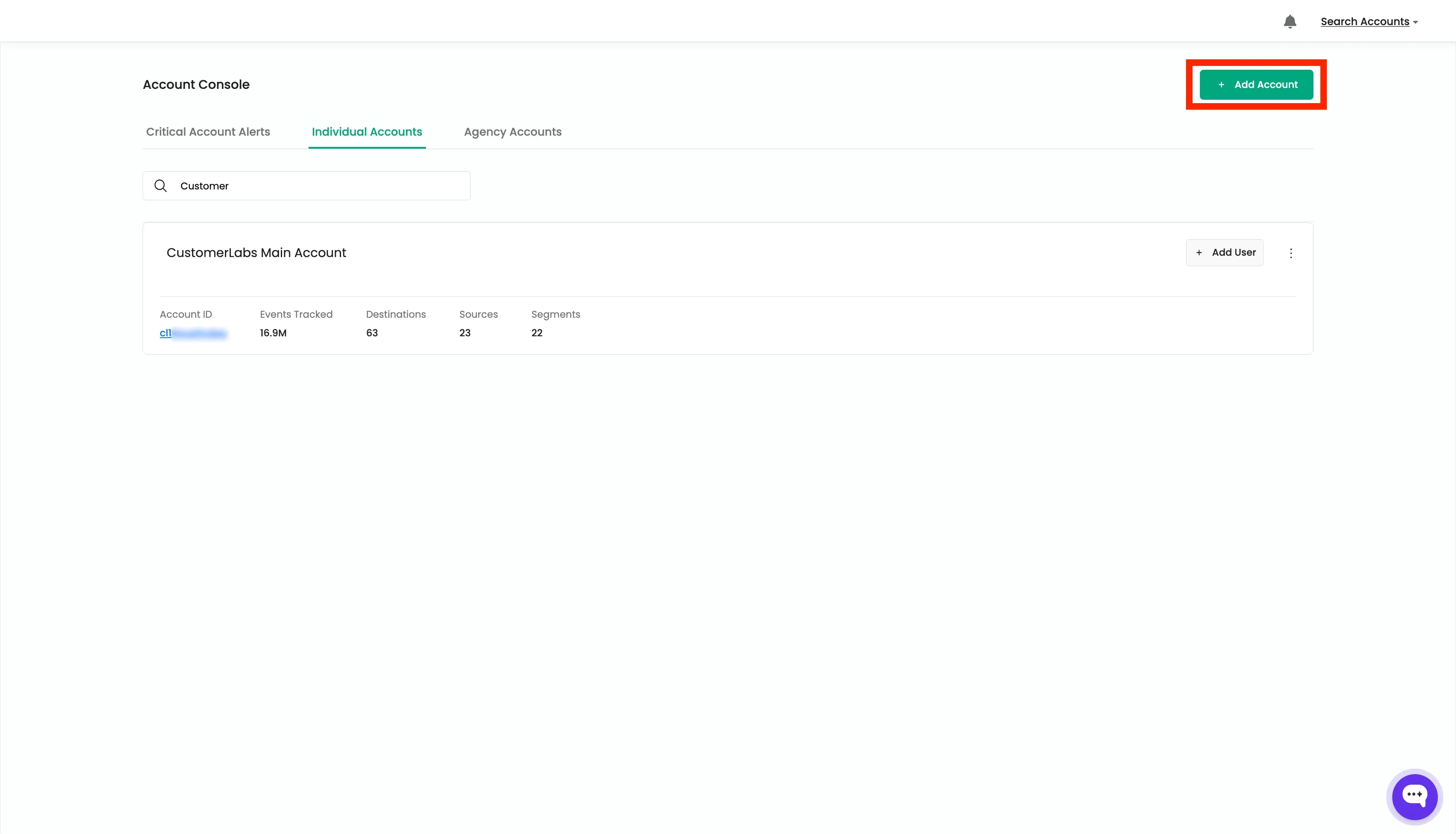
- You will be redirected to the Account Console in CustomerLabs.
- Click on the “Add Account” button to create a new account.
- Enter the business information such as Company Name, Website URL, etc. and Click Next.
- Choose the time zone and your required server location. Click Start Free Trial.
- Your account will be created and you will be redirected to the CustomerLabs dashboard.
Upgrading to Paid Plan
Section titled “Upgrading to Paid Plan”To upgrade to a paid plan, follow these steps:
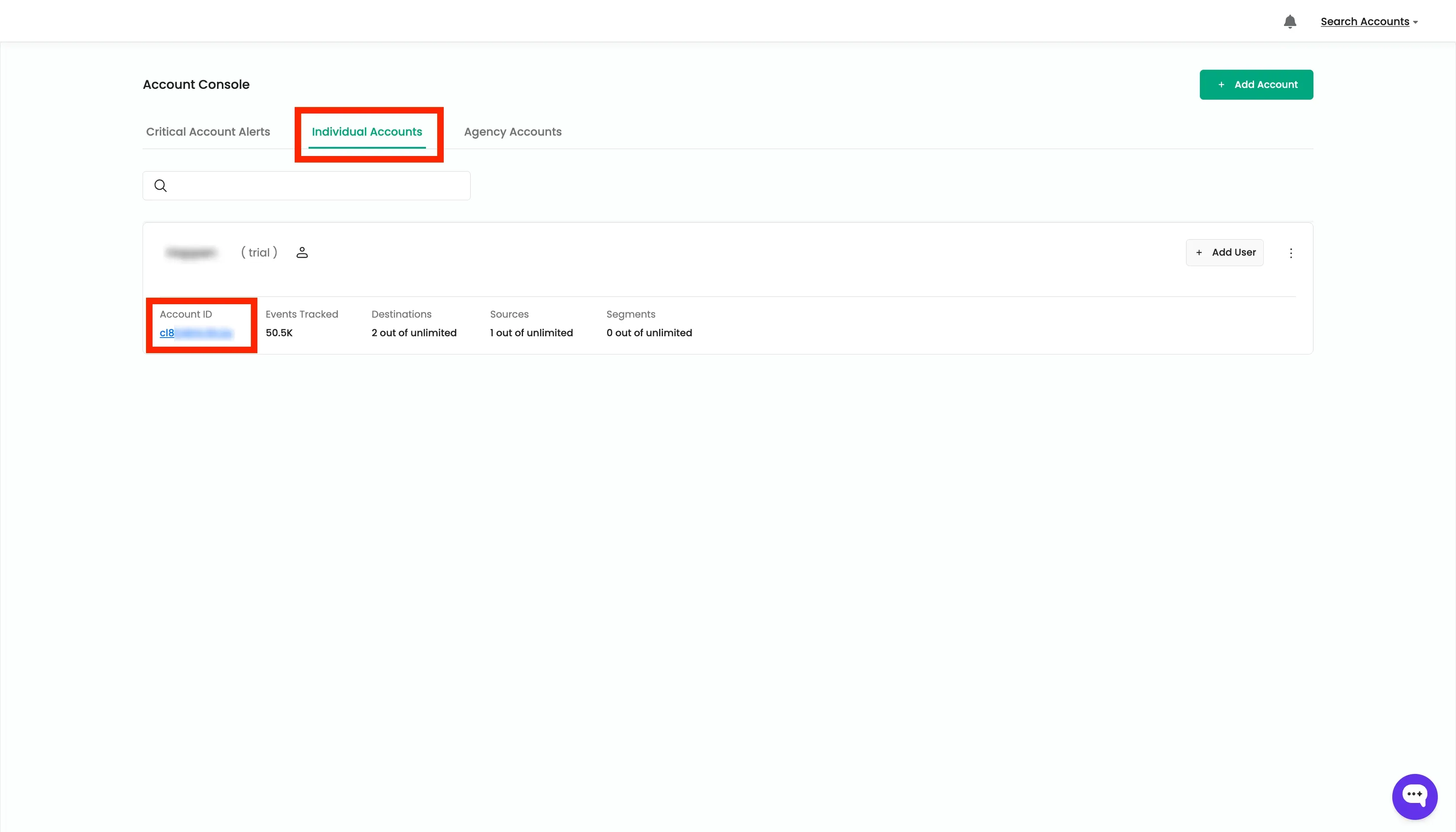
- Go to the “Account Console” in CustomerLabs. Click on the “Individual Accounts” tab.
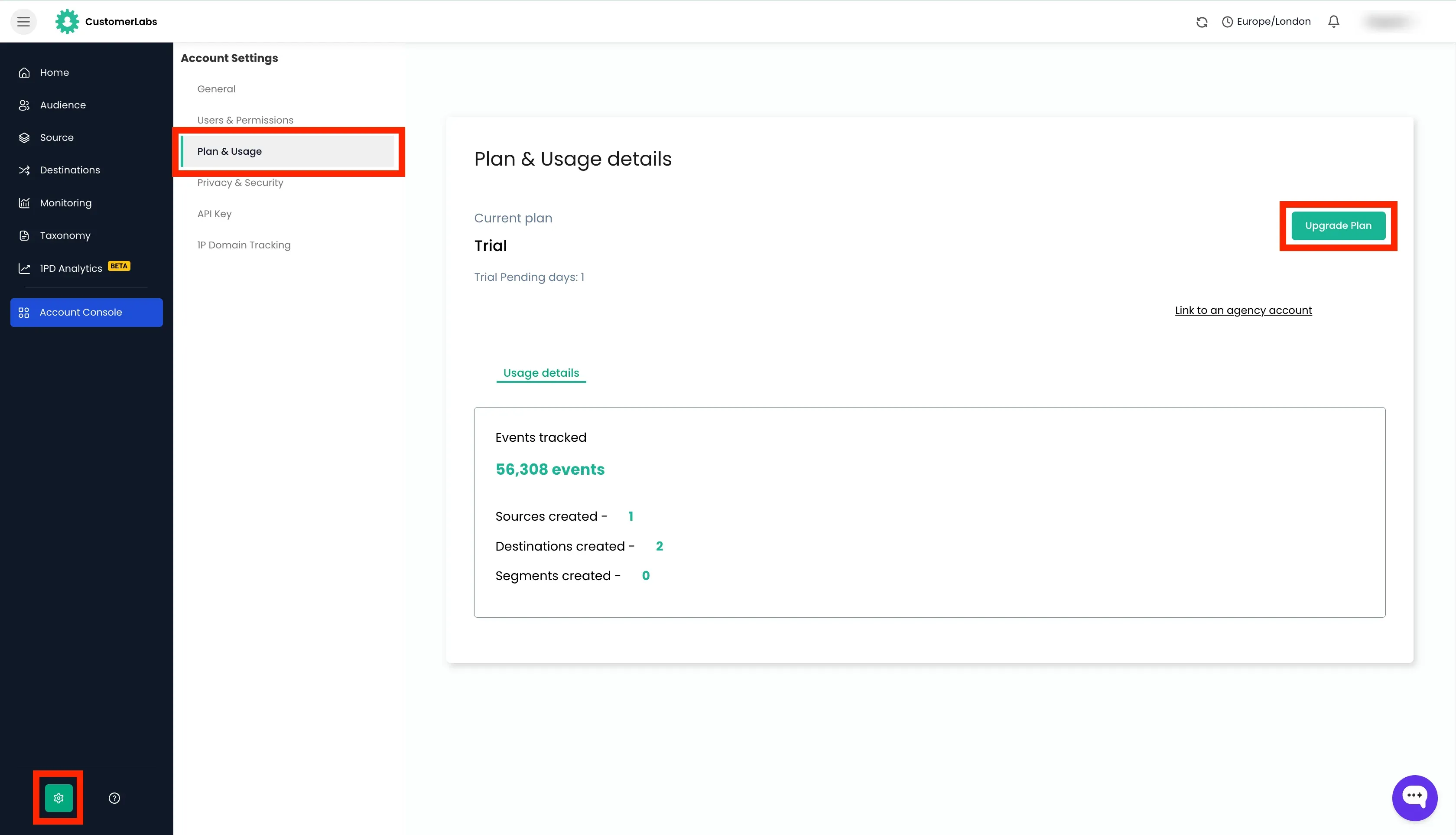
- Click the settings icon → Click “Plan & Usage” → Click “Upgrade Plan”.
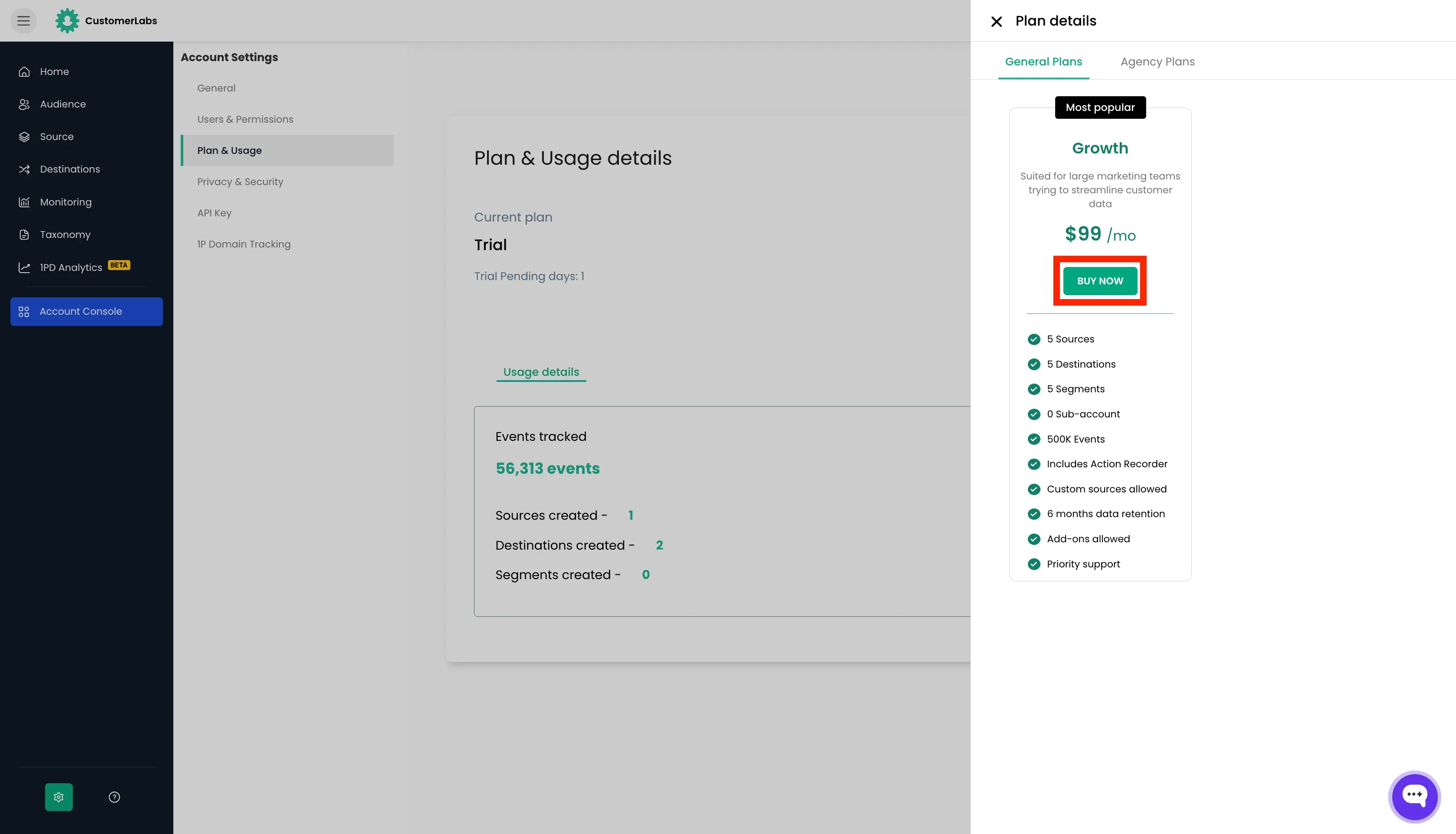
- Choose the plan and click “Buy Now”.
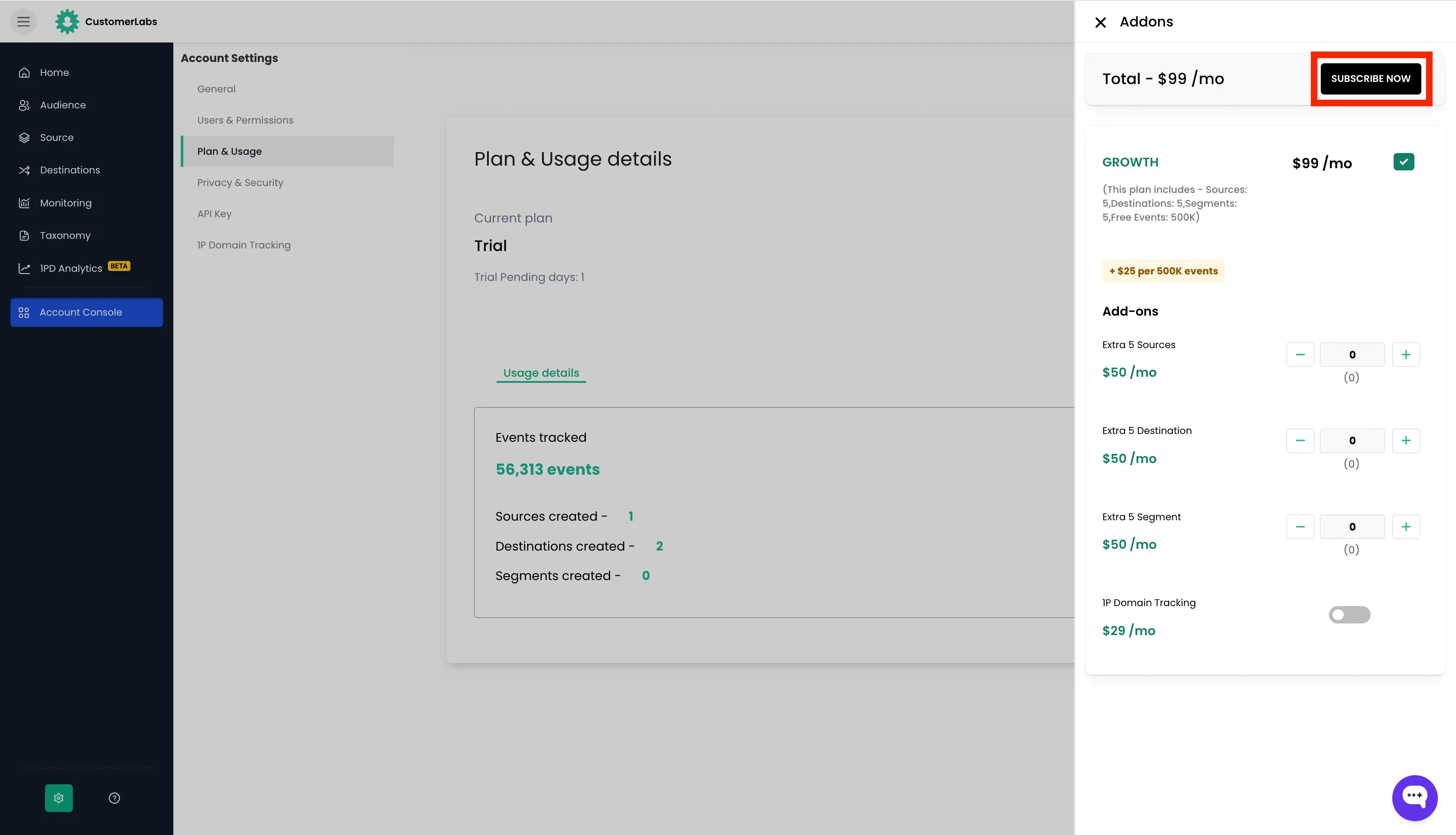
- Choose any add-ons if required and click “Subscribe Now”.
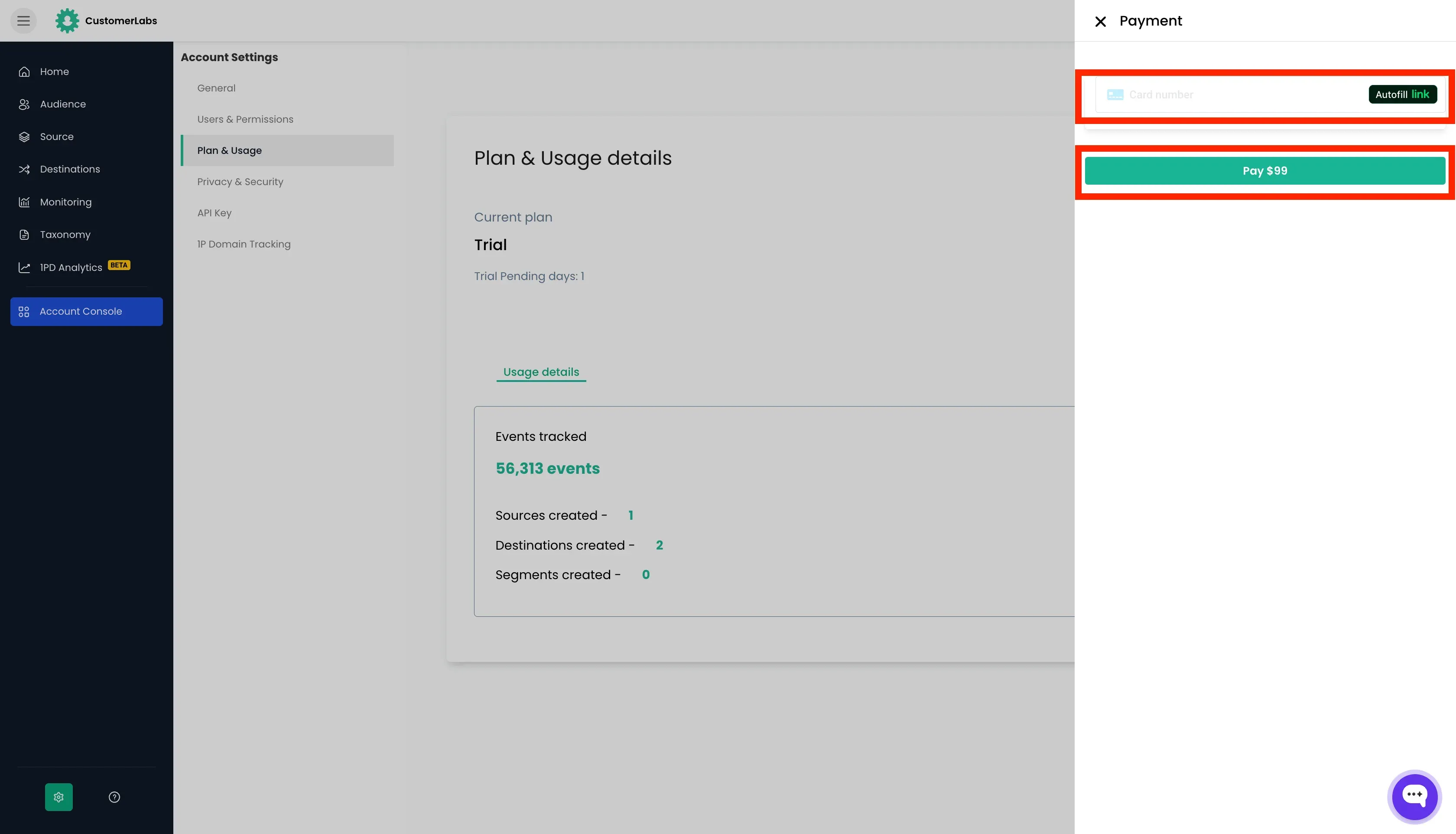
- Enter your payment details and click “Pay”.
- You will be redirected to the CustomerLabs dashboard.
Linking the Account to Agency
Section titled “Linking the Account to Agency”To link the account to the agency, Visit the doc Linking the Account to Agency →.