If you’re running a WooCommerce store and advertising on Facebook, tracking accuracy can make or break your campaigns.
With browser restrictions, iOS privacy updates, and third-party cookie loss, the Meta Pixel alone isn’t enough anymore. That’s where Meta’s Conversions API (CAPI) comes in — and when you combine it with CustomerLabs, you unlock complete visibility into your shoppers’ journey, both browser- and server-side.
This guide sets both up using CustomerLabs, a first-party data platform: your store events are collected and unified in CustomerLabs, then sent server-side to Meta. No code, no GTM.
Why You Need Both Pixel and Conversions API
The Meta Pixel reports events from the browser, whereas the Conversions API (CAPI) sends the same events from your server. Each catches what the other drops.
| Meta Pixel | Conversions API | |
|---|---|---|
| Where it runs | Browser | Server |
| Reliability | Can be blocked | Always delivers |
| Data richness | Basic events | Enhanced customer data (email, phone, IDs) |
Run both from one system and Meta gets every signal — once, not twice.
What breaks browser-only tracking
-
App Tracking Transparency (iOS 14.5) — no cross-site tracking without consent.
-
Safari and Firefox block third-party cookies by default; Safari’s ITP caps first-party cookie lifetime.
-
Ad blockers stop the Pixel script loading at all.
One thing is no longer on that list: Chrome’s cookie deprecation. Google confirmed in April 2025 that it will not deprecate third-party cookies and later dropped the user-choice prompt. So there is no cookie deadline.
The problem is the same size regardless, because Safari, Firefox, ATT and ad blockers all still apply.
What the Pixel tracks on WooCommerce
Page View, Product View (ViewContent), Add to Cart, Initiate Checkout, Purchase. Every audience and lookalike you build comes from these, so a missing Add to Cart is an audience you never got to advertise to.
Pre-Setup Checklist
-
WooCommerce website with WordPress admin access
-
Meta Business Manager and ad account access
-
A CustomerLabs account (free to start)
-
Permission to create or use a Pixel
Then disable every other Facebook or WooCommerce tracking plugin. Two integrations sending the same purchase is the top cause of inflated conversion counts.
Check for: the official Facebook for WooCommerce plugin, any all-in-one pixel plugin, a Pixel snippet in your theme header (header.php or a custom-code plugin), and a Pixel tag in an existing GTM container. The theme snippet is the one people miss — it never shows in the plugin list.
Two WooCommerce Changes That Break Tracking Silently
These are WooCommerce changes, not Meta ones, and neither throws an error.
High-Performance Order Storage (HPOS) moved order data out of the WordPress post tables into dedicated order tables, and has been default for new installs since WooCommerce 8.2. Any plugin reading orders via raw SQL or get_post_meta() instead of the order CRUD API stops receiving data. No warning — just purchase events with empty values, or none at all.
Blocks checkout is default for new installs and renders the order-received page differently. Tracking built for the classic thank-you template can fail to fire Purchase.
Check both: confirm whether HPOS is on and which checkout you use, then run a test purchase through that exact flow and confirm the purchase arrives with its value and currency. A setup validated on classic checkout is not validated on blocks.
Also read on how to track add-to-cart event in your WooCommerce store.
Both are arguments for keeping conversion data outside WordPress. A first-party data platform holds the event, its value and its identifiers in your own data layer, so they survive however WordPress stores orders this release — which is also what lets a purchase be resent or remapped later.
Setup Facebook Conversion Tracking on WooCommerce: Pixel + Conversions API
Step 1: Create your Business Manager and Pixel
Skip if you already have a Pixel you intend to keep.
-
Sign in to Business Manager and create your business account.
-
Add your store: Accounts → Add Assets → Website, enter your store URL.
-
Create the Pixel: Events Manager → Connect Data Sources → Web → Facebook Pixel. Name it clearly if you run multiple stores. Copy the Pixel ID.
-
Create a business asset group if you do not have one — it bundles Pixel, ad account and Page so permissions travel together. Step 3 asks you to select one.
Meta increasingly calls this a dataset rather than a Pixel, because Events Manager now merges website, app, offline and messaging events in one place. Your dataset ID is the same number as your Pixel ID, so nothing needs re-implementing.
Step 2: Connect WooCommerce to CustomerLabs
For detailed WooCommerce tracking.
The WordPress plugin is the collector — it captures store events and passes them to the CustomerLabs platform, where data is unified and forwarded to Meta.
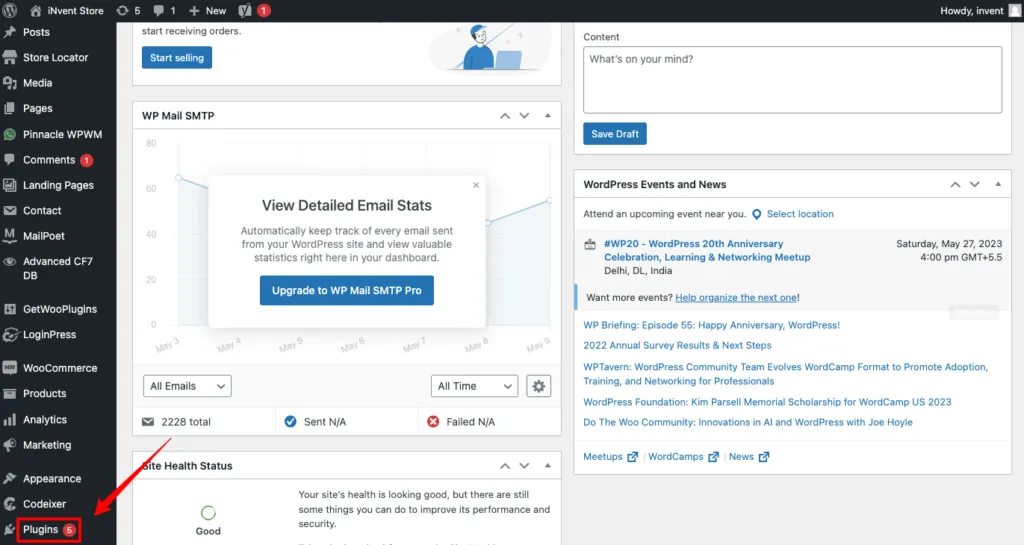
- Plugins → Add New, search CustomerLabs, Install and Activate. (If the search misses it, download the .zip from the WordPress Plugin Directory and use Plugins → Add New → Upload Plugin.)
-
In CustomerLabs: Home → Connect website, enter your store URL, save.
-
Copy your Account ID and paste it into the plugin settings under CustomerLabs App ID.
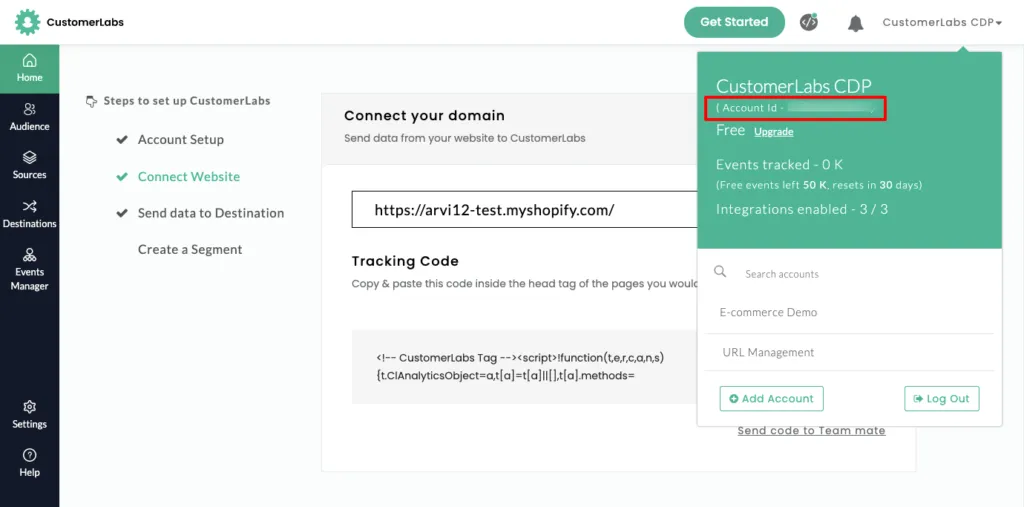
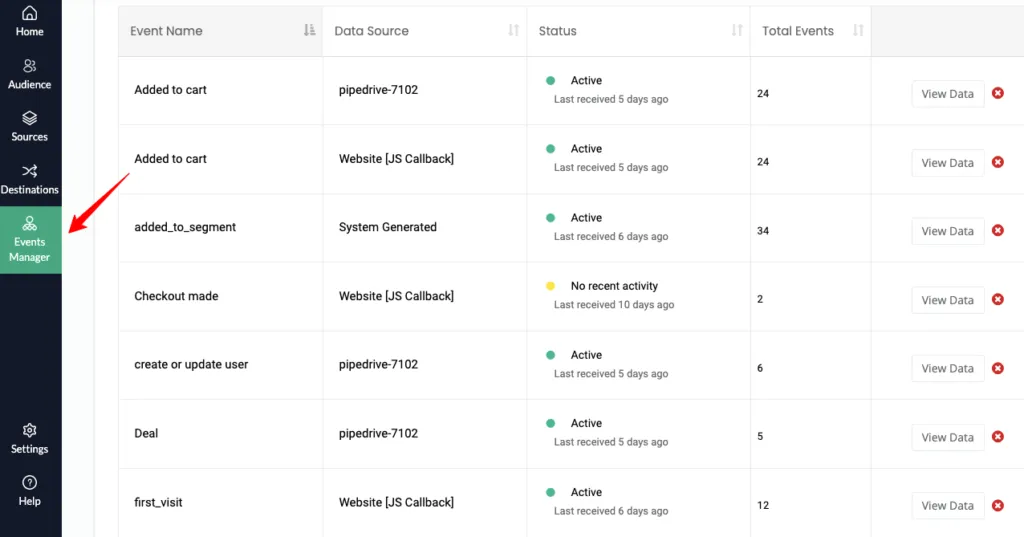
- Verify in the CustomerLabs Events Manager: view a product, add to cart, complete a purchase. All three should appear, the purchase with its value. If not, re-check the App ID, then the plugin’s activation status.
Step 3: Connect the Pixel and turn on CAPI
Go to Destinations → Facebook → Enable, and authenticate via System User. Use System User, not a personal login: a personal token dies when that person’s password changes or they leave, and takes your server-side tracking with it.
Work the prompts: Business Manager account → business asset group → ad account → your Pixel. Submit.
Two toggles matter:
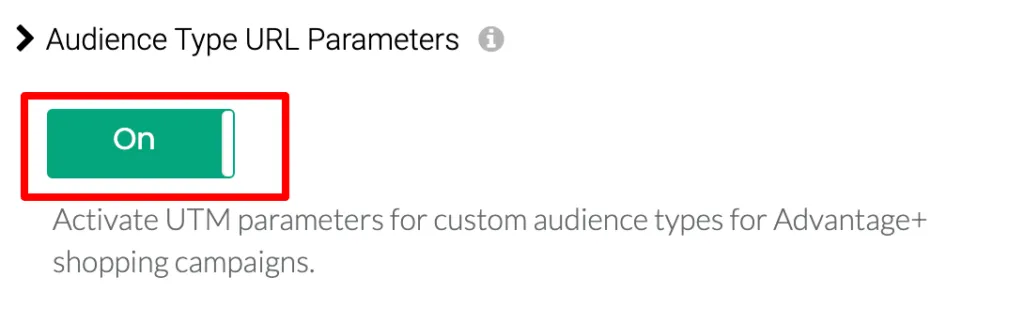
- Audience URL Parameters — attributes conversions to your first-party audiences in Advantage+ Sales campaigns (Meta renamed Advantage+ Shopping to Advantage+ Sales in February 2025).
- Send data via server-side — this is the switch that activates the Conversions API. Turn it on and save.
Step 4: Set up the event workflow
Destinations → Facebook → Setup Event Workflow → enable all server-side callbacks. Every tracked event now goes through CAPI instead of relying on the browser.
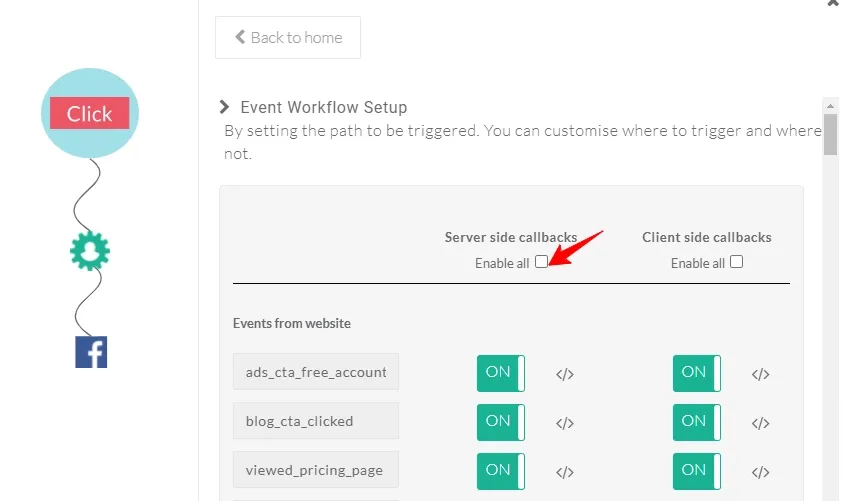
For audiences, turn on added_to_segment to sync audience lists, and removed_from_segment to have them update as people drop out. It refreshes on the interval you set and can take 24–48 hours to populate the first time — an empty audience on day one is not a failure. Want audience syncing only? Enable added_to_segment alone.
CustomerLabs’ no-code event tracker captures anything else — a wishlist add, a size-guide open, a subscription upgrade — by selecting the on-page element instead of writing a tag. The same server-side toggle sends it through CAPI.
Step 5: Map customer information fields
This step decides how much of your data Meta can use. Events without identifiers get counted, then fail to match a real person.
Map what you collect: email (highest value, and already in your order data), phone, Facebook user ID, external ID. CustomerLabs adds external ID, IP, fbc, fbp and user agent automatically.
In Events Manager, enable Advanced Matching. Identifiers are hashed with SHA-256 before sending — a fingerprint, not a customer list.
Step 6: Set up Limited Data Use
Limited Data Use (LDU) handles US state privacy laws that let people opt out of data sharing for ads. Opted-out events still count for measurement but will not feed Custom Audiences, lookalikes or retargeting.
Turn on Enable Limited Data Use, then under LDU Cookie Configuration enter the cookie name and value your consent plugin writes on opt-out. The value should return true, 1 or y. With marketing_consent = true, CustomerLabs reads the cookie, flags the user, and passes the flag to Facebook via both Pixel and CAPI.
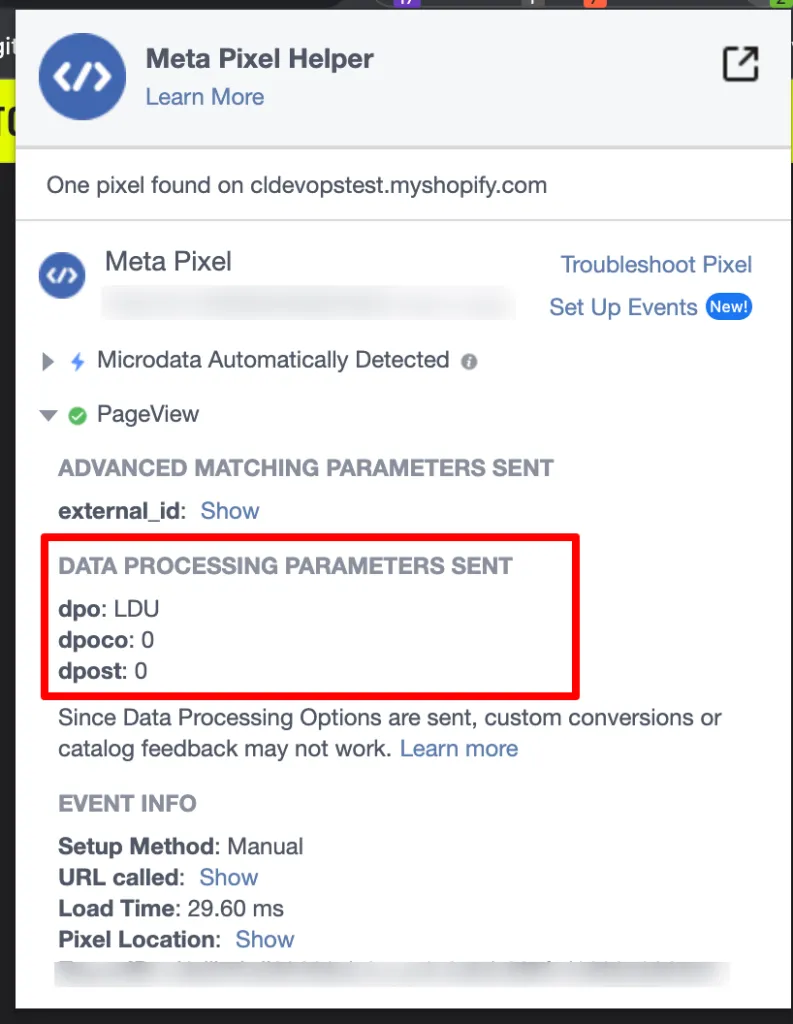
The covered-state list keeps expanding, so check Meta’s LDU documentation rather than any list in a blog post. And server-side tracking does not remove your consent obligations.
Step 7: Test and verify
In Events Manager → Test Events, view a product, add to cart, and complete a test purchase. Look for each event arriving twice, labelled Browser and Server — that is proof both channels are live.
Then cross-check values in the CustomerLabs Events Manager (especially purchase value and currency, which your ROAS depends on), and walk product, cart and checkout with the Meta Pixel Helper.
That is the setup: Pixel and Conversions API live, no GTM and no code.
Improving Event Match Quality
Event Match Quality (EMQ) is Meta’s score for how confidently it can resolve events to real people, shown per event in Events Manager. Most WooCommerce stores never look at it.
An unmatched purchase still shows in your counts, but Meta cannot attribute it, use it to find similar buyers, or put that person in an audience. A plugin-only CAPI setup typically falls short of an EMQ of 9.3 on purchase, or even 6 on page view, with custom audience match rates below 75%.
What moves the number? CustomerLabs assigns an external ID to every visitor and collects IP, fbc (from fbclid), fbp and user agent, appending all of them to CAPI events. That takes match rates to roughly 70–95%, against 15–30% typical — up to 4x — and custom audience match past 80%.
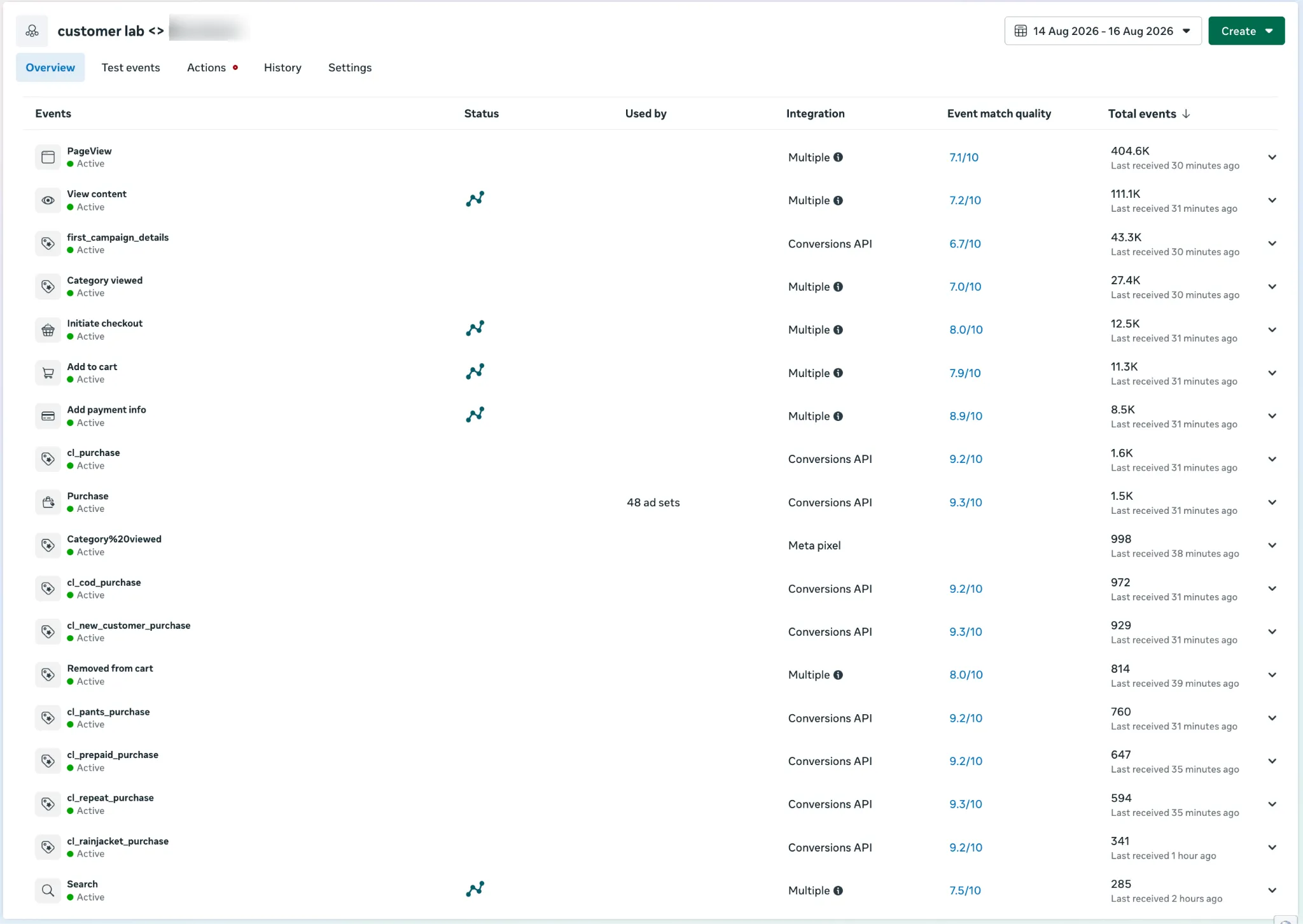
Working targets: Purchase 8.0+, Initiate Checkout and Add to Cart 7.0+, Page View 6.0+ (low is normal — most page views are anonymous).
What drags it down: guest checkout with no email captured, fields you collect but never map, and Pixel-only setups capped at whatever the browser saw.
Deduplication: Stop Double-Counting
Both channels genuinely send the same purchase. Deduplication stops it being counted twice.
Get it wrong and conversions inflate, ROAS looks better than it is, and you scale spend on a number that was never real: 400 real orders reported as 800 turns a true ROAS of 4.0 into a reported 8.0.
Meta matches on event_name and event_id. Same pair, arriving within 48 hours, and one copy is dropped. Three things to know:
-
Not identity-based. Email, phone,
fbpandfbcare irrelevant here. A perfectly matched user is still double-counted if event IDs differ. -
48 hours is a hard edge. Beyond it, the two reports are separate events.
-
Browsers usually win. Arriving within about five minutes of each other, Meta favours the browser copy.
It depends entirely on a shared event_id on both copies, which is why both streams should come from one system. Configure them separately — a plugin firing the Pixel, something else firing CAPI — and they generate independent IDs that no Events Manager setting will reconcile.
Verify it:
-
Compare the deduplicated Purchase count in Events Manager against your actual WooCommerce order count. Roughly double means deduplication is failing.
-
Run one test purchase and confirm you see one deduplicated purchase, not two.
-
Confirm deduplication is enabled in the CustomerLabs Facebook destination.
-
Re-check after any tracking, plugin or checkout change.
If counts are inflated, the first suspect is another plugin still sending events alongside CustomerLabs.
Going Beyond Standard Events
Synthetic events
A synthetic event is one you define around your own business logic.
| Synthetic event | Standard event |
|---|---|
| You create it from your business needs | Meta’s defaults |
| Optimises toward your specific goals | Optimises toward generic goals |
| High-AOV purchases, a specific category, LTV-based, removed-from-cart | Page View, Product View, Add to Cart, Checkout, Payment Info, Purchase |
Optimise for standard Purchase and Meta optimises for purchases — all of them equally. If most of yours are low-AOV, Meta finds more low-AOV buyers: cost per purchase flat, value per purchase falling.
Build a synthetic event for purchases above a chosen AOV, sync it through CAPI, and optimise against that instead. Synthetic events are server-side only.
Full setup in our guide to custom conversion event optimization for WooCommerce.
Also worth enabling: server-side first-party domain tracking, which sends events through your own domain and is far less exposed to browser blocking.
Customising event data
For custom variables, specific content IDs, or values from your own logic, CustomerLabs gives you a callback:
function customiseEvent(parameters) { return { ...parameters, content_ids: parameters.product_ids, value: parameters.order_total, currency: parameters.store_currency };}Every event, user and account attribute is available under parameters. This is the only code in the setup.
Keeping It Working
| Metric | Tells you | Where |
|---|---|---|
| Event Match Quality | Whether Meta can use your events | Events Manager |
| Custom audience match rate | Whether audiences are big enough to activate | Audiences |
| Conversion rate | Whether campaigns convert their traffic | Ads Manager |
| ROAS | Whether campaigns are profitable | Ads Manager |
| Cost per conversion | Whether efficiency is drifting | Ads Manager |
Read it top down. Poor ROAS with an EMQ of 4 is a tracking problem, not a campaign problem. Check event volume and EMQ weekly; the rest monthly.
Four habits:
-
Keep adding identifiers — highest return of anything here.
-
Re-run the Step 7 checks after any theme, checkout or plugin change.
-
Remove old integrations and legacy snippets.
-
Keep consent current.
Common Issues
| Symptom | Fix |
|---|---|
| Pixel not firing on key pages | Check with Pixel Helper page by page — product, cart, checkout, not just the homepage. It names the misconfiguration. |
| Events firing but missing or malformed | Verify Add to Cart, Purchase, View Content and their parameters. A Purchase with no value reports confidently and wrongly. |
| Nothing tracks despite correct config | Test in a browser with no extensions. Works there but not normally = client-side blocking, so confirm the server-side toggle is on. Fails in both = deactivate other tracking plugins one at a time. |
| Events attributed to the wrong campaign | Almost always deduplication. Run the checks above — a duplicate can land against a different campaign and look like an attribution fault. |
What Accurate Tracking Unlocks
Build audiences from real behaviour: viewed a specific product, abandoned a cart (Baymard puts average cart abandonment at 70.22% — the largest recoverable segment most stores have), or completed any given step. Those drive retargeting and seed your lookalikes.
Seed quality decides lookalike quality, which is why Step 5 pays off twice: 500 well-matched customers beat 5,000 poorly matched ones, because Meta can only model the people it resolved.
Across CustomerLabs 1PD Ops implementations we measured a 2.1x increase in ROAS, 2.4x content views, and a 2.8x reduction in cost per purchase.
Meta also publishes CAPI benchmarks for your own account in Events Manager, which will tell you more than any industry average.
For the campaign playbook, see improving WooCommerce retargeting with first-party data.
Why Use CustomerLabs
CustomerLabs is a first-party data platform; the WooCommerce plugin is one collector feeding it. Because data lands in a platform rather than a tag, it can be unified, segmented and re-sent.
-
Pixel and CAPI from one dashboard, which is what makes deduplication reliable
-
First-party data collection, including the identifiers that lift match quality
-
One clean stream to Meta, Google Ads, TikTok — no separate integration each time
-
Segmentation and audience activation, including anonymous visitor activation through patented identity resolution
-
No-code custom events, with a callback when you need it
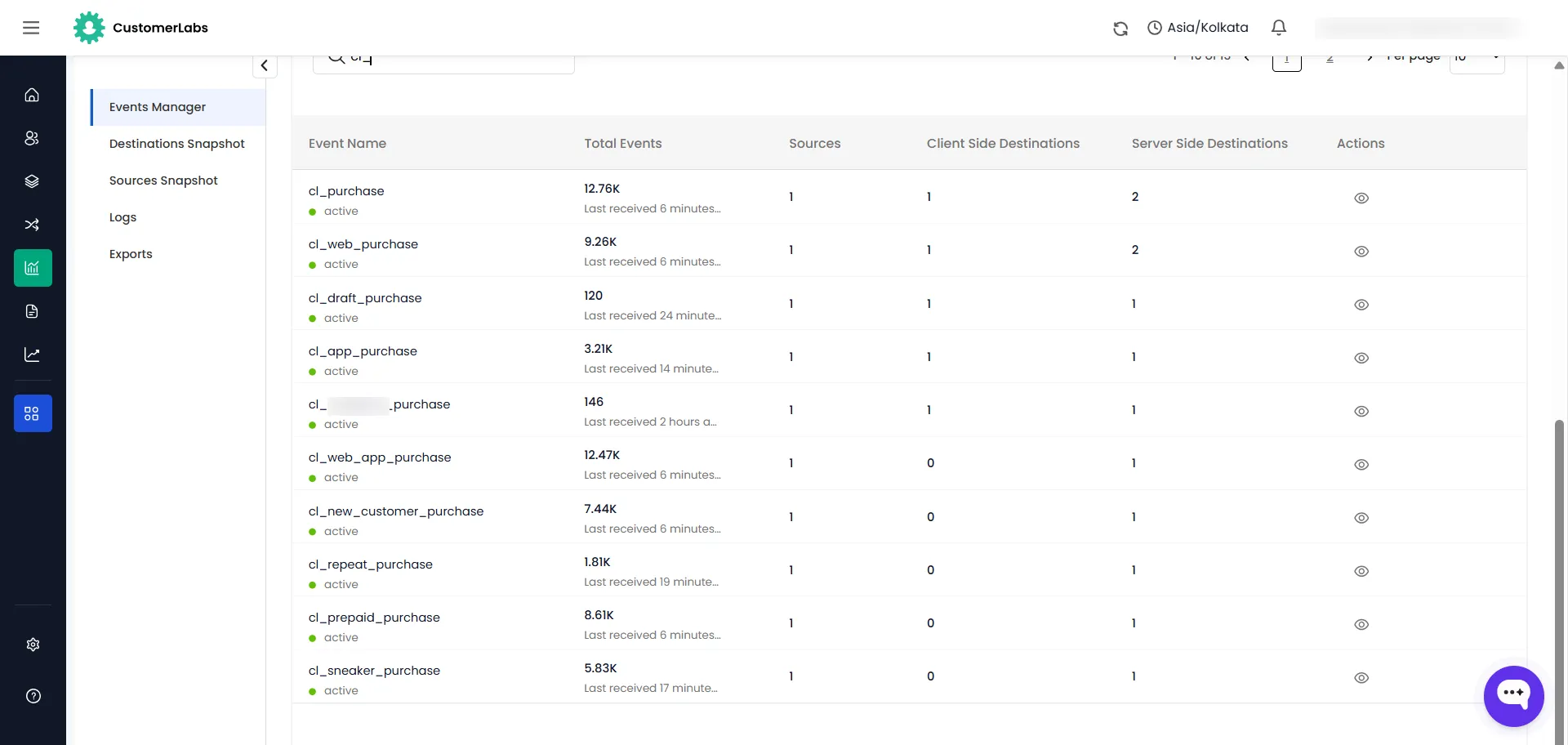
Setup takes about 15 minutes, and free onboarding support is available.
Conclusion
Facebook conversion tracking on WooCommerce is not one setup task you finish and forget. Getting Pixel and CAPI live is the first step; the default CAPI setup sends standard events and stops there.
What separates a working setup from a good one: identifiers mapped so Meta can use your events, deduplication so your numbers are true, and synthetic events built around your business rather than Meta’s defaults.