Why lose valuable leads to slow integrations when you can instantly capture and act on them? In the fast-paced marketing landscape, timing is everything. When a potential customer fills out your lead form, every second counts in turning their interest into action. That’s why Google Ads lead form assets (formerly lead form extensions) are a go-to tool for marketers, they simplify the process of collecting valuable customer data directly within your ads.
However, capturing lead forms in Google Ads is only half the battle. If your team is still downloading CSVs manually or dealing with broken integration scripts, leads are slipping through the cracks.
-
84% of marketers rely on form submissions to drive revenue (Ruler Analytics).
-
41% of companies fail to follow up with leads within the first hour (Verse).
A delay of even 15 minutes drops lead qualification rates significantly. A real-time Google Ads webhook integration solves this by instantly pushing lead form submissions straight into your CRM, so your sales team can act while purchase intent is at its peak.
What is a Google Ads Webhook?
A webhook is an automated, real-time data transfer mechanism between systems. When a user submits a Google lead form asset, Google triggers an immediate HTTP POST request to a pre-configured URL endpoint (such as CustomerLabs or your CRM).
Unlike traditional API polling methods that check for updates on a fixed schedule, webhooks deliver data instantaneously with zero latency.
Key Benefits of a Webhook for Advertising
-
Instant Speed-to-Lead: Push contact data to sales teams in under 5 seconds for immediate outreach.
-
Eliminate Manual Friction: Stop relying on CSV exports that lead to missed opportunities.
-
Seamless Field Mapping: Automatically map Google lead fields directly to custom CRM fields.
-
Full-Funnel Attribution: Capture critical ad parameters like
gcl_idto track offline deal stages.
How Webhooks Work: The gcl_id Payload Advantage
When a prospect submits your form, Google sends a JSON payload to your webhook endpoint containing both contact information and click attribution data:
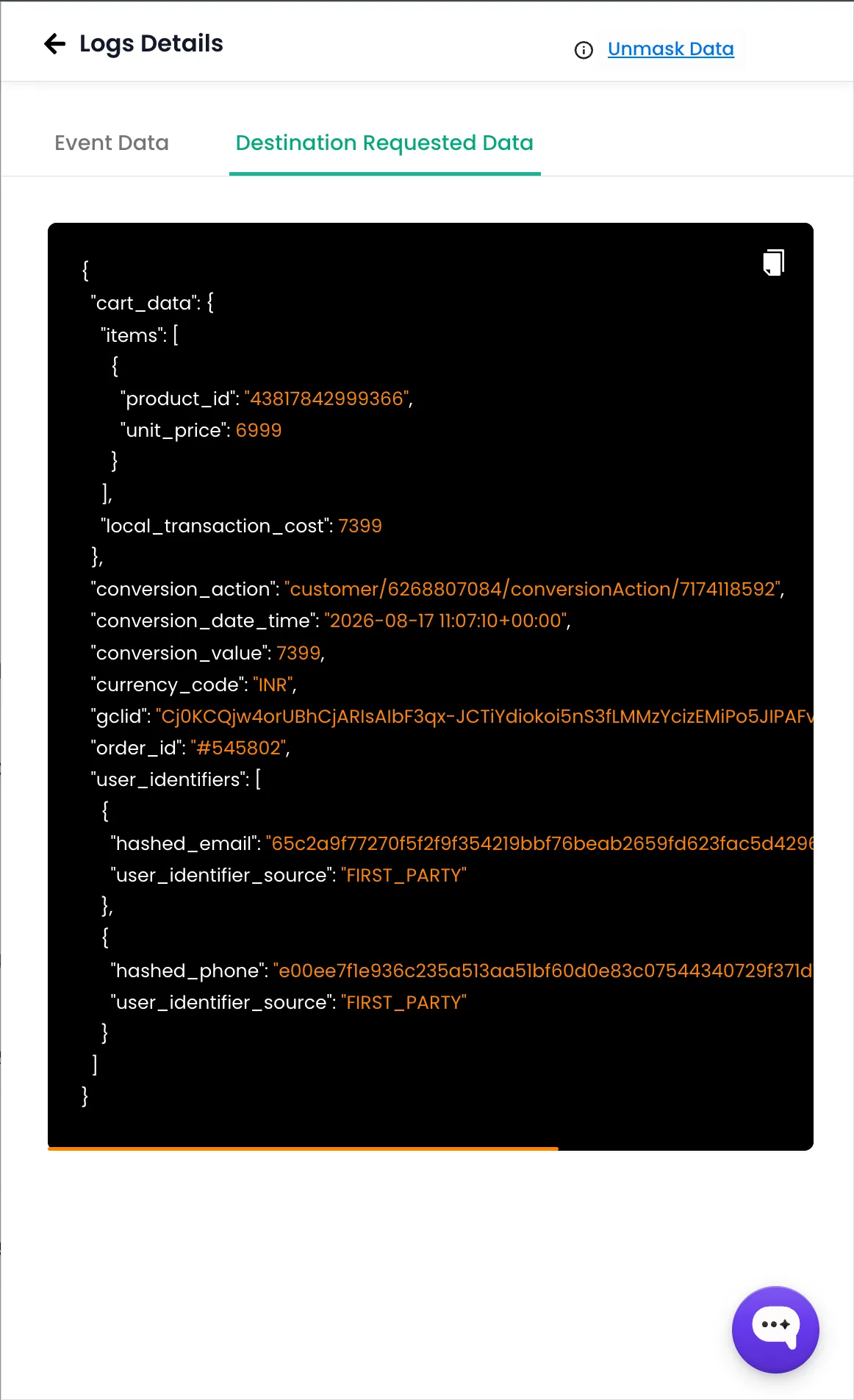
Why the gcl_id Parameter is Your Growth Engine
Standard Zapier setups or basic email parsers often drop technical parameters like the gcl_id (Google Click ID). Capturing this parameter inside CustomerLabs is critical:
-
First-Party Identity Resolution: CustomerLabs ties the
gcl_idto the lead’s unified customer profile across web sessions and CRM stages. -
Closed-Loop Feedback: When your sales team marks a lead as “Qualified” or “Deal Won” inside your CRM, CustomerLabs uses the
gcl_idto automatically pass Enhanced Conversions for Leads back into Google Ads. -
Value-Based Bidding: Passing offline conversion outcomes trains Google’s Smart Bidding algorithms to optimize for actual revenue rather than cheap, low-quality lead form fills.
Industry Use Cases: Zero Lead Loss in Action
Different industries face unique lead-handling challenges. Here is how automating webhooks transforms operations:
| Industry | Operational Challenge | Webhook Solution with CustomerLabs |
|---|---|---|
| Healthcare & Patient Care | High-intent appointment requests lost due to delayed call-backs. | Instantly routes appointment leads into patient CRMs while maintaining strict compliance (GDPR/CCPA). |
| B2B SaaS & Enterprise Services | Manual lead assignment slows down sales development rep (SDR) routing. | Parses form fields (e.g., Company Size) to instantly assign tier-1 accounts to dedicated SDRs within seconds. |
| Real Estate & High-Ticket B2C | Prospects submit multiple ad forms across platforms and buy from the first respondent. | Triggers instant automated SMS/WhatsApp follow-ups the moment the webhook payload lands. |
Why Use CustomerLabs 1PD Ops vs. Building Custom Code?
Google’s official developer documentation explains how to manually build webhook listeners using custom backend code (Python/Node.js). However, managing backend infrastructure creates technical overhead that growth teams shouldn’t have to maintain.
| Capability | Custom Backend (Google Developer Docs) | CustomerLabs 1PD Ops |
|---|---|---|
| Implementation | Requires developer hours, server hosting, and security maintenance. | 100% No-Code UI: Copy and paste the generated endpoint URL. |
| Data Deduplication | Requires writing database logic to deduplicate lead_id strings. | Automated Identity Resolution: Built-in deduplication and profile stitching. |
| Multi-Destination Routing | Requires building and maintaining individual API connectors for every CRM. | Multi-Sync: Broadcast incoming leads to HubSpot, Salesforce, and Meta simultaneously. |
| Offline Conversion Sync | Custom backend code needed to send offline lead stages back to ad platforms. | Native Signal Engineering: Automated Enhanced Conversions for Leads out of the box. |
Also read: Value Based Bidding in Google Ads | Comprehensive Guide
Step-by-Step Easy Integration of Webhook with CustomerLabs
Capturing incoming lead form data from Google Ads into CustomerLabs 1PD Ops is an Inbound Data Source setup. Follow these steps to generate your ingestion URL:
1. Log In to Your CustomerLabs Account
Access your account using your credentials.
2. Navigate to Sources
From the left-hand menu, go to Sources > Search for Google Ads (or Custom Webhook) > Click Enable.
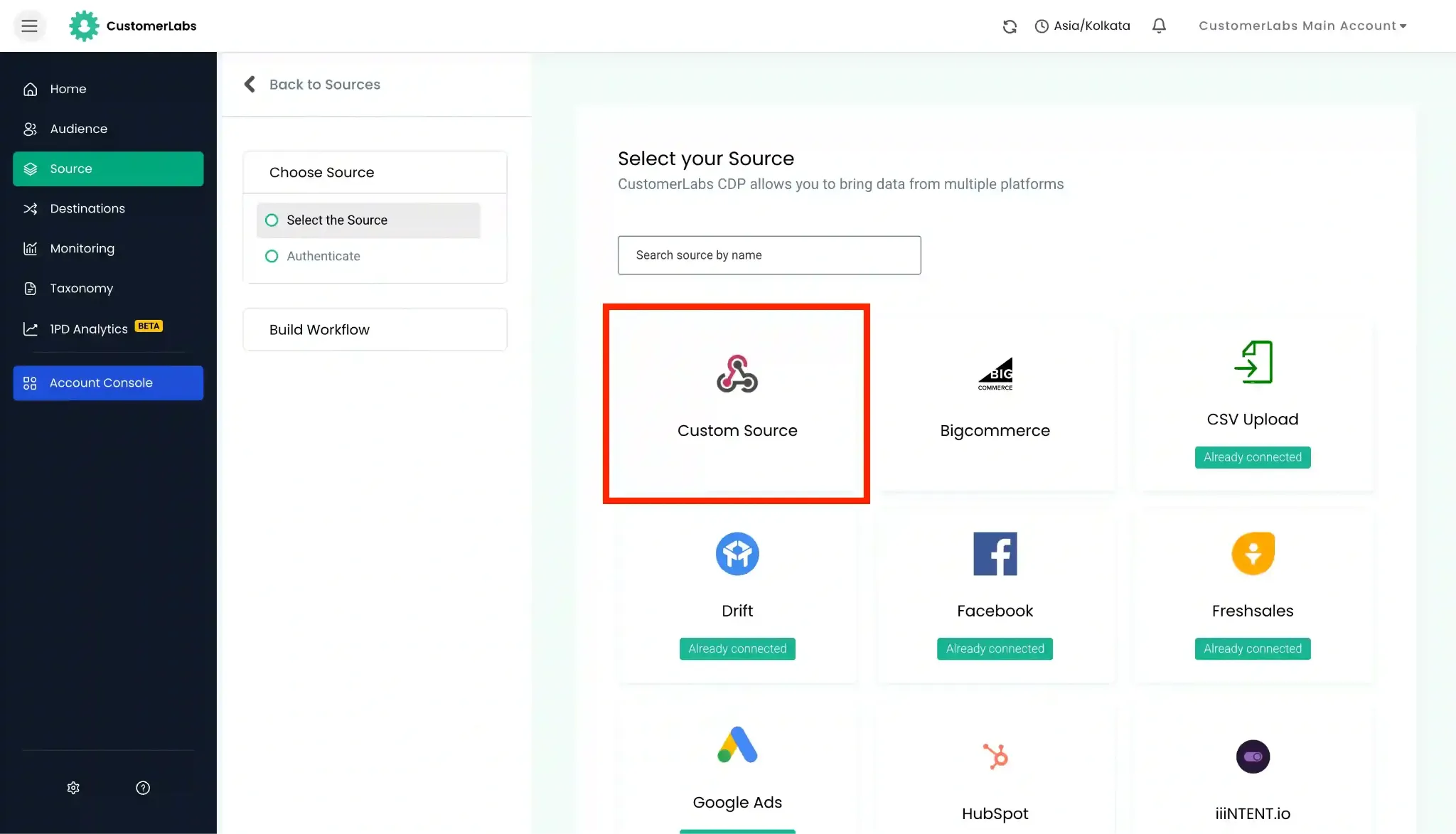
3. Get Your Webhook Endpoint URL
Copy the unique HTTP/HTTPS Webhook URL generated by CustomerLabs. This URL acts as the data ingestion path where Google Ads will send form submissions.
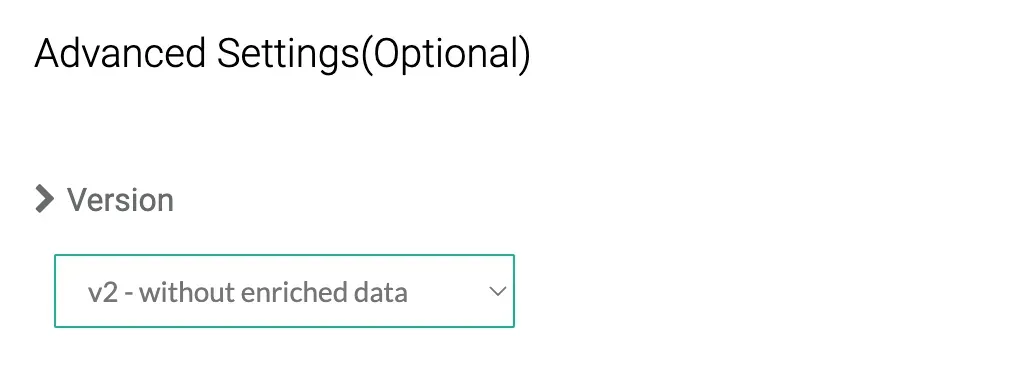
4. Select the Webhook Request Version
Choose the payload format that best fits your infrastructure:
-
V1: Basic sample request.
-
V2: Includes enriched customer data (Preferred).
-
V2 without Enriched Data: Standard payload without extra enrichment (Recommended for basic setups).
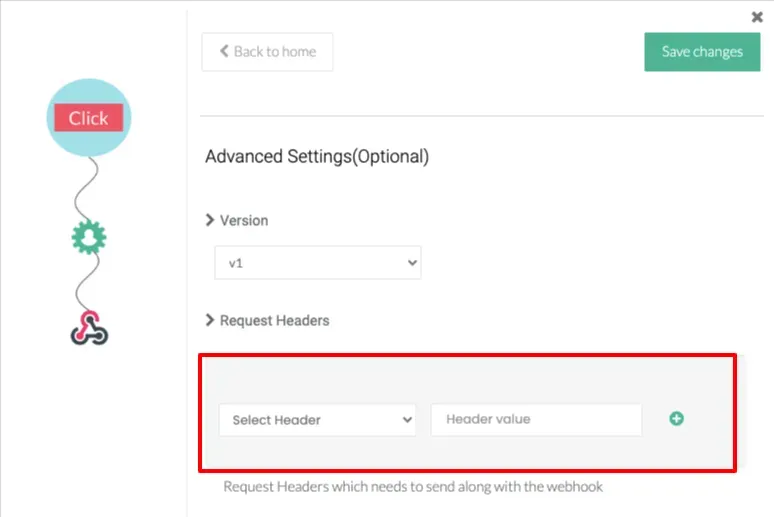
5. Configure Custom Headers (Optional)
If your system requires specific header parameters or security keys, enter the corresponding header key-value pairs.
6. Set Up Trigger Actions & Manual Prompt
Select the events you want to track. Enable Manual Actions Prompt to ensure CustomerLabs only processes data for your explicitly selected actions.
7. Save Changes
Click Save Changes to activate your CustomerLabs Google Ads webhook ingestion endpoint.
These steps ensure a seamless setup of your webhook URL, enabling real-time data transfer and efficient lead management for your campaigns. With CustomerLabs, generating and managing webhooks becomes a simple and code-free process.
That is a straightforward integration method. Let us move on to the fundamental integration procedures. We will allow you to select the approach that you find most comfortable.
Google Ads Integration: Connecting the Endpoint
Once your CustomerLabs ingestion URL is generated, attach it directly to your Google Ads lead form assets.
Option A: Adding Webhooks to a New Lead Form Asset
-
Log in to Google Ads → Click Campaigns → Plus (+) Button → New Campaign.
-
Select Leads as your campaign goal → Choose your campaign type (Search, Video, Performance Max, or Display) → Click Continue.
-
In the campaign builder, navigate to the Lead Form section:
-
Search/Display: Scroll to Assets → More Asset Types → Lead Forms.
-
Video: Scroll to Lead Form → Form.
-
-
Create your form questions and scroll down to expand Export Leads from Google Ads → Other Data Integration Options.
-
Under Webhook Integration, enter your Webhook URL and Webhook Key.
Option B: Adding Webhooks to an Existing Lead Form Asset
-
In Google Ads, navigate to Campaigns → Assets → Assets.
-
Filter the assets table by selecting Lead Form.
-
Hover over the target lead form asset and click the Pencil (Edit) icon.
-
Expand Export Leads from Google Ads → Other Data Integration Options.
-
Paste your Webhook URL and Webhook Key.
Testing & Verifying Your Webhook Integration
Always validate your payload delivery before pushing campaigns live:
-
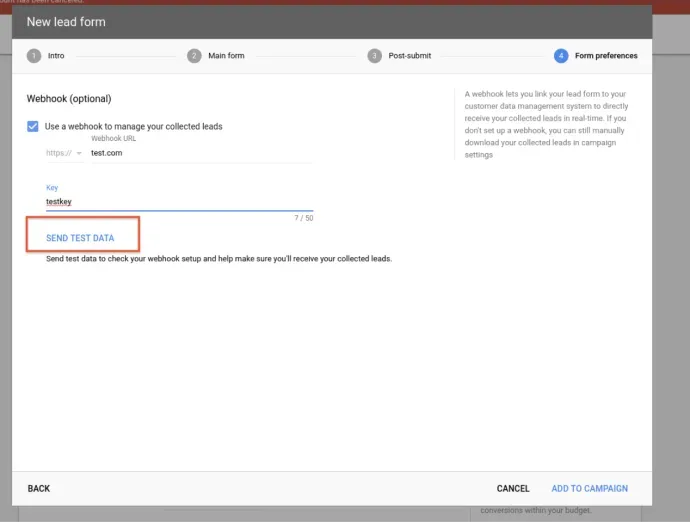
Inside the Google Ads Lead Form asset editor, scroll to the Webhook section.
-
Click Send Test Data.
-
Verify that Google Ads displays a green success message confirming the HTTP POST request succeeded.
-
Check your CustomerLabs activity logs or connected CRM to confirm the test payload (
lead_id: "TeStInGlEaDiD123") was parsed correctly.
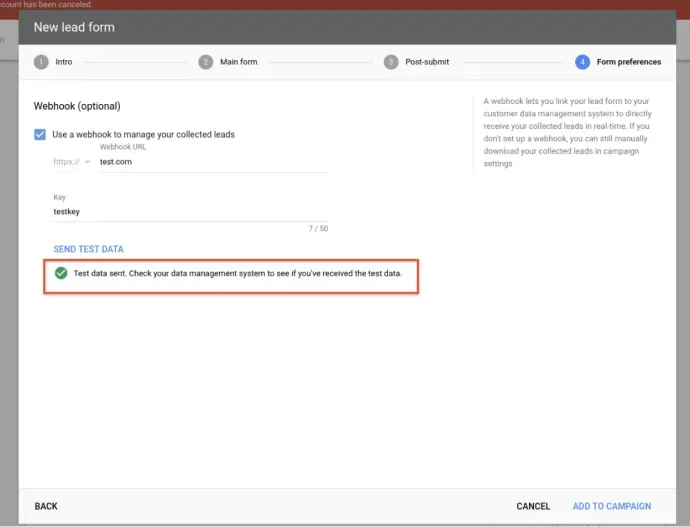
Troubleshooting Tip: If the test fails, ensure your server permits HTTP POST requests, verify the Webhook URL contains no trailing spaces, and double-check your security header keys.
Monitoring & Optimizing Performance
To ensure zero lead loss across high-volume campaigns:
-
Audit Activity Logs: Regularly review request logs inside CustomerLabs to identify unmapped custom fields or failed requests.
-
Set Automated Error Alerts: Enable monitoring alerts to receive immediate notifications if an endpoint experiences downtime.
-
Feed Offline Signals Back: Connect your CRM stage updates back to Google Ads via Enhanced Conversions for Leads to continuously train Google’s Smart Bidding models on qualified revenue opportunities.
Also read: Google Enhanced Conversions for Leads: What, why and how?
Conclusion
Setting up a webhook for Google Ads lead form assets transforms standalone ads into a real-time lead engine. By replacing manual CSV exports with automated webhook ingestion, you eliminate follow-up delays, prevent lost prospects, and capture crucial attribution data like the gcl_id.
CustomerLabs 1PD Ops simplifies this technical integration into a no-code workflow, allowing performance marketers to capture, enrich, and route lead data to any CRM while feeding offline conversion signals back to ad platforms automatically.