In just 3 steps you can setup Google consent mode v2 without much coding or going through the hassle of Google Tag Manager.
*Note: If you had already set up the consent mode v2? Wait…*
You need to verify and revisit your setup to check if you have set up Google’s consent mode v2 for your offline conversion data.
Without consent mode v2 for your offline conversion data or the customer match list upload, here’s what happens:
-
Reduced remarketing list size
-
Improper conversion attribution
-
Decline in customer match rates
-
Drop in campaign performance
To stay ahead and mitigate these problems, you must set up consent mode v2 the ‘right’ way.
Set up Google Consent Mode v2 in 3 easy steps!
Here’s a step-by-step procedure to set up Google Consent Mode v2, the right way. With this, you can preserve your customer match lists, and drive your ad campaigns towards maximum performance.
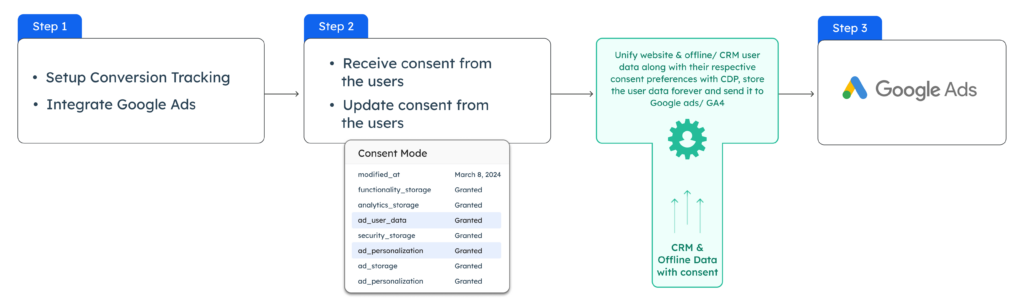Step 1: Setting up conversion tracking in Google Ads
Set up conversion tracking in Google Ads by connecting your website with CustomerLabs and integrating it with Google Ads.
Automatically, with just a few clicks, your conversion data starts flowing into the ad platform as conversions happen, with all the relevant audience signals, in a privacy-compliant way.
Step 2: Collection and storage of consent status
Receiving the consent from the users
While integrating your Google Ads using CustomerLabs, toggle on Consent Mode v2.
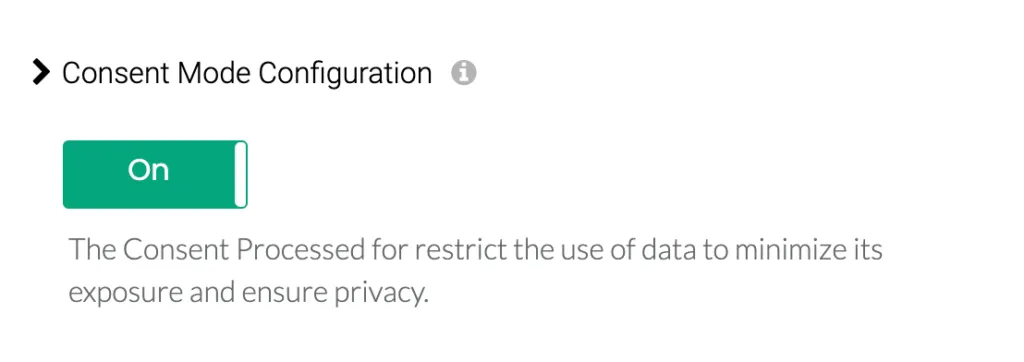
Configure your CMP by triggering the consent parameters to CustomerLabs. You’ll find the detailed instructions and the call-back function here. If you have set up your consent mode using GTM, here are the instructions.
Default values before user interaction with CMP
Toggle on the ‘Client Side Consent Initialization’. This allows you to assign a default consent status, which can either be ‘granted’ or ‘denied’. Choose the default value according to your business preference.
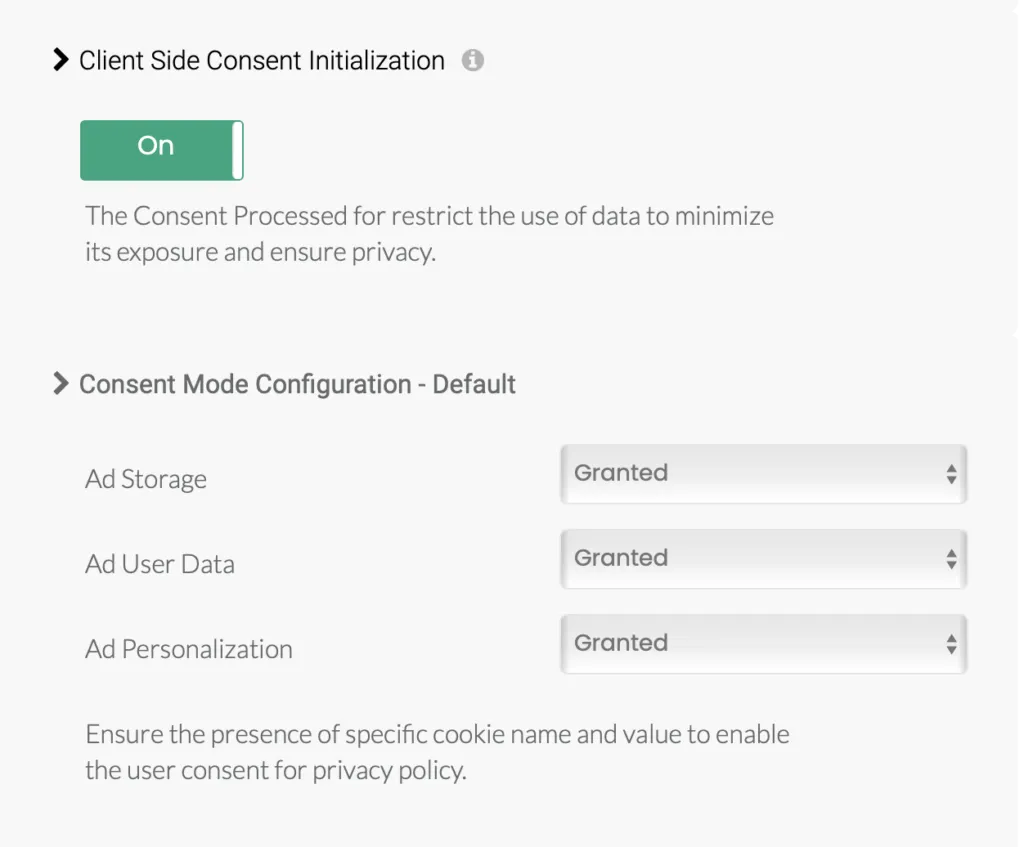
Storage of consent
The consent obtained is stored in the 360-degree profile that contains:
-
Consent details - granted or denied for various parameters
-
Consent mode v2 status for ad_personalization; ad_user_data parameters
-
User parameters like external IDs, ClickIDs, name, email ID, phone number, etc.
-
All other first-party data, and customer journey
-
For anonymous users, the unknown user parameters such as the User Agent, IP address, etc.,
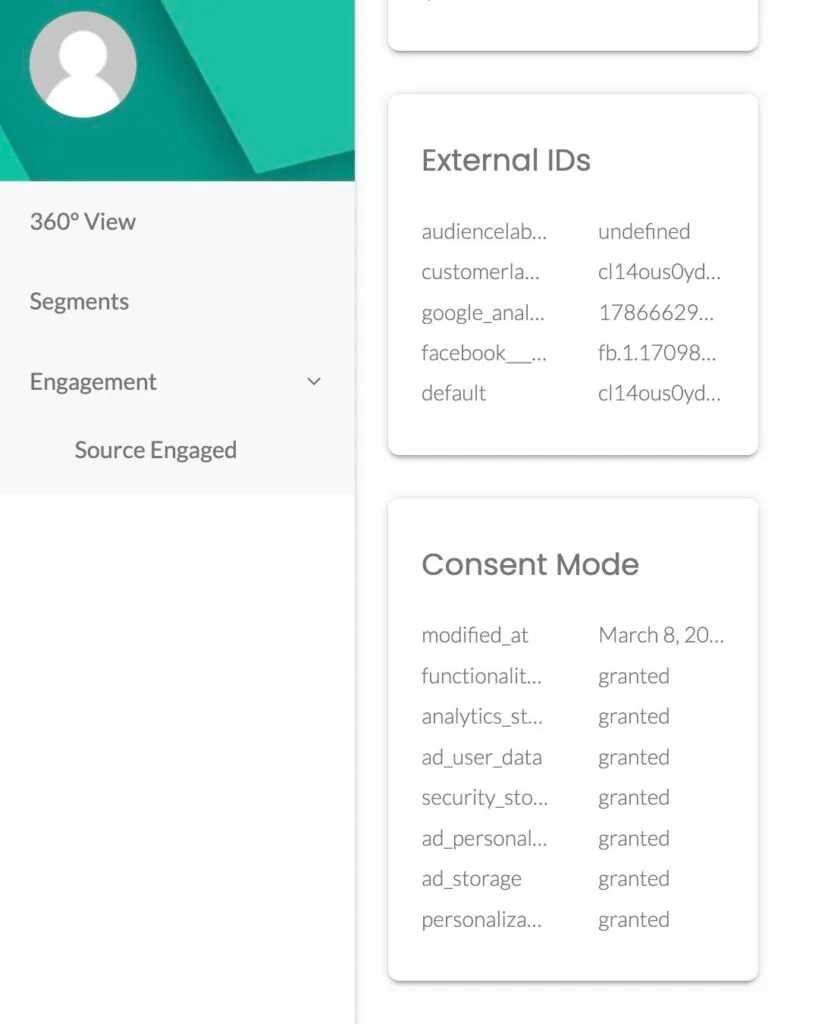
All the data is stored in compliance with data privacy regulations such as the GDPR, DMA, CCPA, etc.
**Step 3: Preserving customer match lists in the EEA**
Connect your CRM and merge the offline user data with the online website data. This ensures you append the right consent status obtained from every user.
You can now send all this offline customer data to Google Ads through Customer Match upload using CustomerLabs. This allows you to preserve the customer match lists in the EEA. It is because you are sending the user data with consent parameters to Google Ads. Watch the video below by Google to learn more about preserving the customer match lists in EEA.