How to Set Up TikTok Pixel Conversion Tracking Without GTM
I’ve put together one of the simplest ways to set up TikTok Pixel Conversion Tracking without using GTM.
This guide walks you through a complete manual setup for anyone who doesn’t have GTM access, finds it too complicated, or simply prefers a faster and more reliable approach.
It’s designed specifically for performance marketers who want a clean, direct installation instead of dealing with GTM tags, triggers, and containers.
By the end, you’ll know exactly how to install your TikTok Pixel, fire key events correctly, and ensure your tracking is accurate so your campaigns optimize better and your ROAS improves.
Let’s get your TikTok tracking set up clean, quick, and correctly.
Prerequisites Before You Start
Before setting up TikTok Pixel Conversion Tracking without GTM, make sure you have the following ready:
-
TikTok Ads Manager Account - Business Center, Ad Account, Events Manager (to create your pixel)
-
Access to Your Website’s Code or Theme Files
-
CustomerLabs Account
-
Two TikTok Pixels (Recommended Setup): 1) Default Pixel - Will be sharing website events, 2) CLabs Pixel - The same procedure for creating a pixel, just name it “CLabs”.
-
Clear Understanding of Your Key Conversion Events
-
Basic familiarity with TikTok Events Manager
Why Should You Use Two Separate TikTok Pixels When Integrating With CustomerLabs?
Before you connect your TikTok Ads account, we strongly recommend using two separate TikTok Pixels. This makes your TikTok integration smoother and ensures cleaner event tracking.
CustomerLabs 1PD Ops sends your audience segments to the TikTok server-side by mapping them to specific events. This approach gives you higher match rates for both anonymous and known users.
To prevent your website’s normal pixel events from mixing with these audience-sync events, it’s best to use two different pixels, one for your website activity and one dedicated to CustomerLabs audience syncing.
How Does Adding the CLabs Pixel Keep Your TikTok Event Data Clean?
By default, if you don’t add a second optional pixel (the CLabs Pixel), both your website events and your audience-sync events will be sent to the same Default Pixel.
TikTok will create your custom audiences under this pixel, and you can use them for targeting, but you shouldn’t rely on this pixel’s event data for conversion tracking or optimization because the signals will be mixed.
Back to the business,
If you do add the CLabs Pixel, then only your website event data will be sent to the Default Pixel. Your audience-sync events will go to the CLabs Pixel instead. This clean separation prevents event overlap and ensures the Default Pixel remains accurate and reliable for conversion tracking and optimization.
Now, we have the prerequisites completely, so let’s move into a step-by-step guide to set up TikTok pixel conversion tracking.
Step-by-Step Guide to Set Up TikTok Pixel Conversion Tracking Without GTM
TikTok Ads gives marketers powerful targeting options and access to a wide, high-intent audience. With the CustomerLabs + TikTok integration, you can automatically segment your website visitors using clean first-party data and sync those audiences directly to TikTok.
This lets you run highly personalised retargeting and lookalike campaigns with stronger optimization signals and higher conversion rates.
Set Up TikTok Pixel Conversion Tracking Inside CustomerLabs
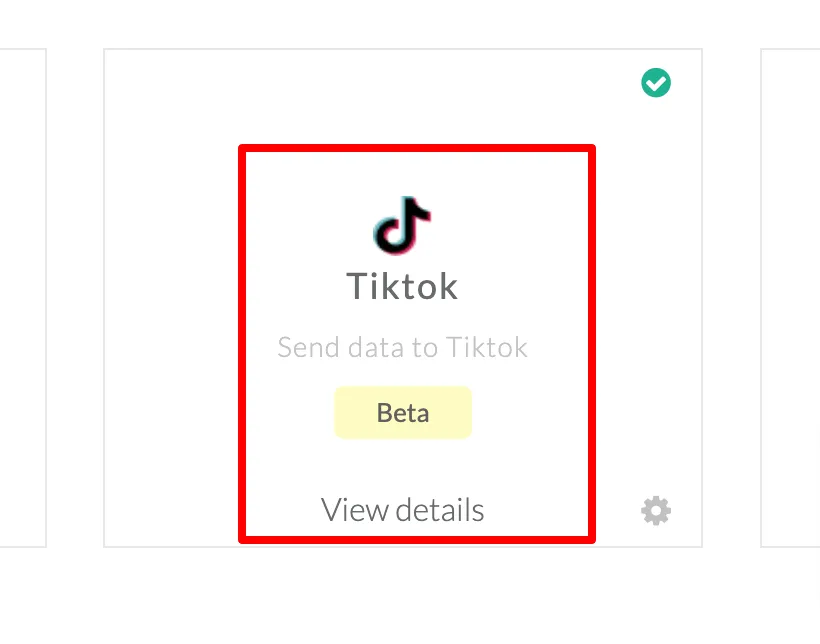
- In your CustomerLabs account, go to Destinations and select TikTok
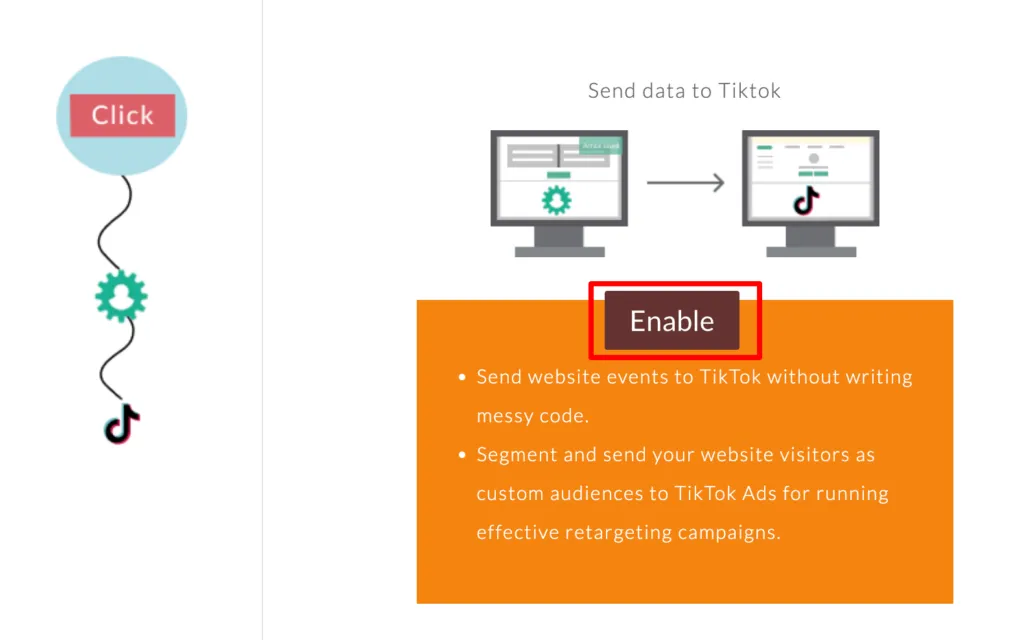
- Click on Enable
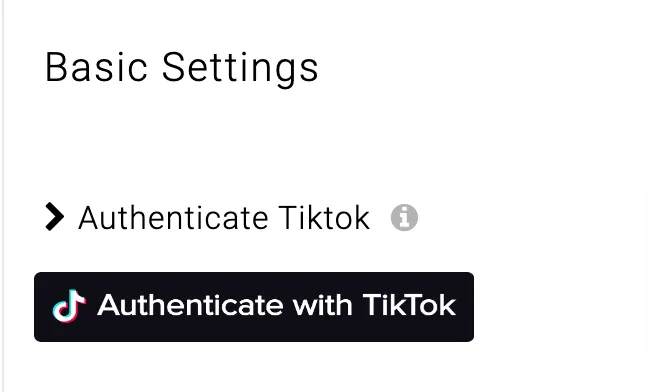
- Open the Configuration settings and click Authenticate TikTok.
-
You’ll be redirected to log in to your TikTok account and grant access to your TikTok Business Account.
-
Select all the permission checkboxes and click Confirm.
-
After verification, you’ll be redirected to select your Business Account. Choose your Business Manager from the drop-down menu.
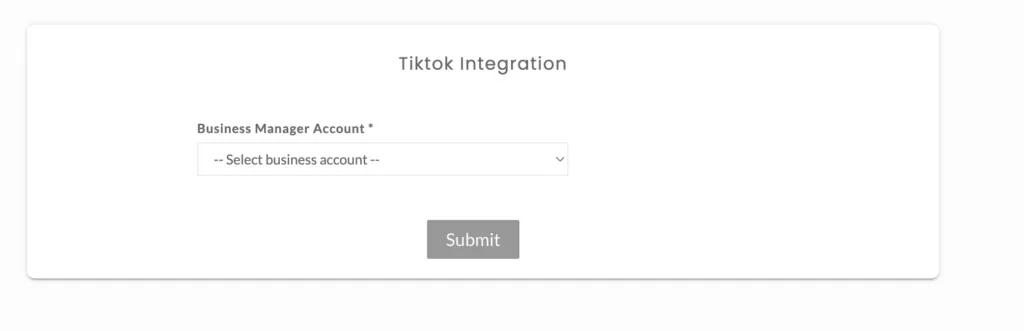
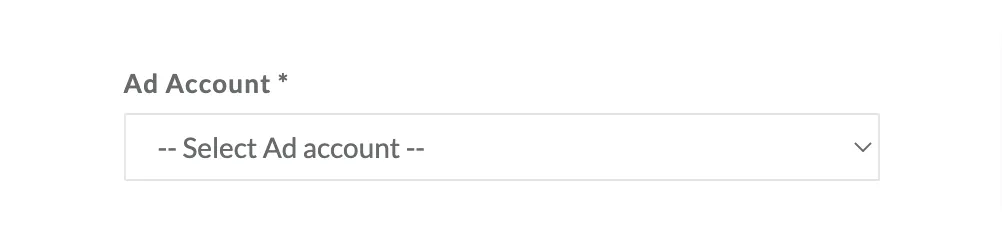
- Choose your Ad Account from the drop-down menu.
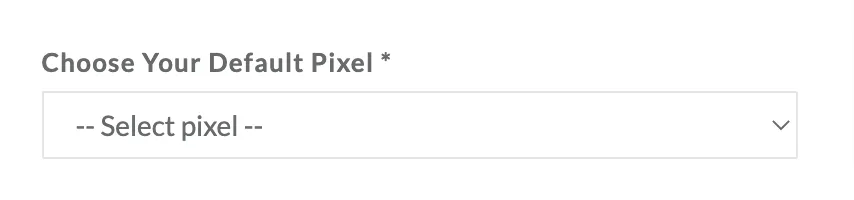
- Now, select your Default Pixel.
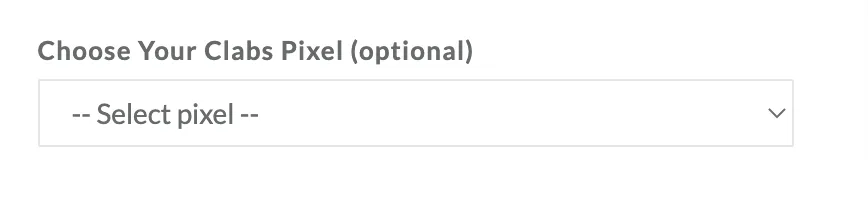
- [Recommended] Select your CLabs Pixel from the drop-down. You cannot use the same pixel you selected as the Default Pixel.
- Click Submit.
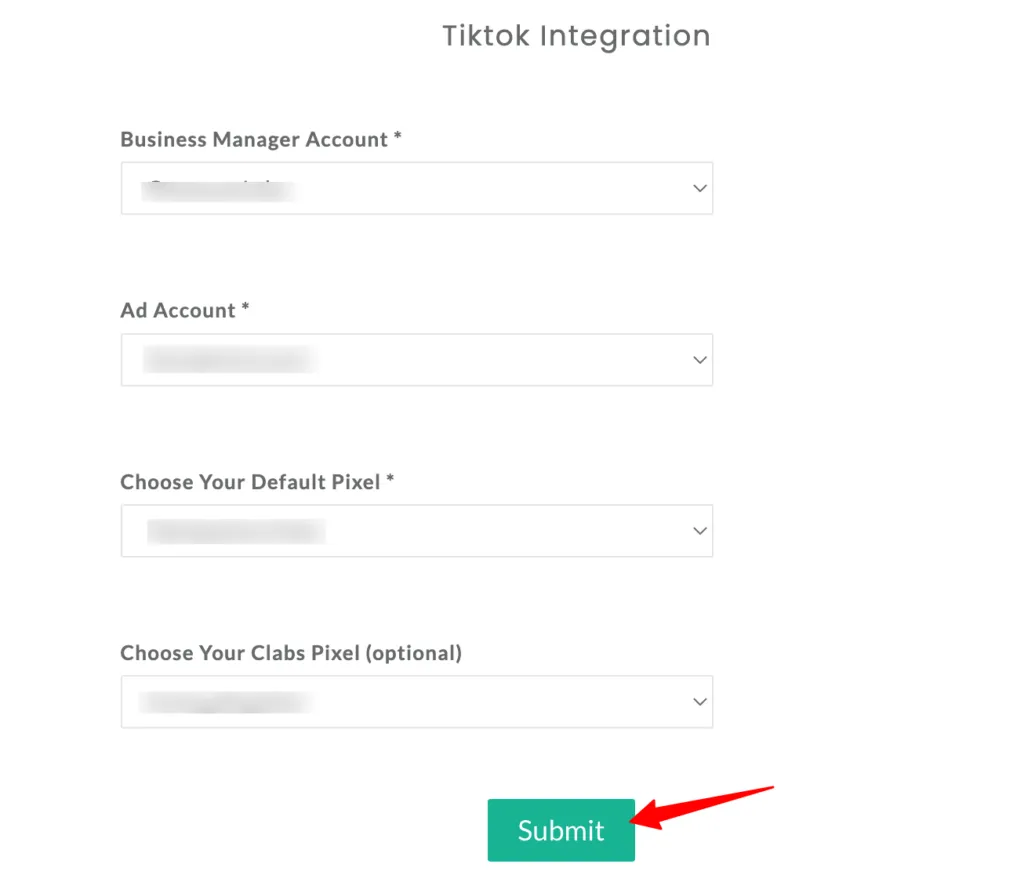
Note: If you need to change the Ad Account or update the selected pixels, just click Authenticate TikTok again to re-authenticate and make the changes.
Set Up Event Workflow
Once your Ad Account and Pixels are connected, you can start sending events to your TikTok Ads account.
-
In CustomerLabs, go to Destinations - TikTok.
-
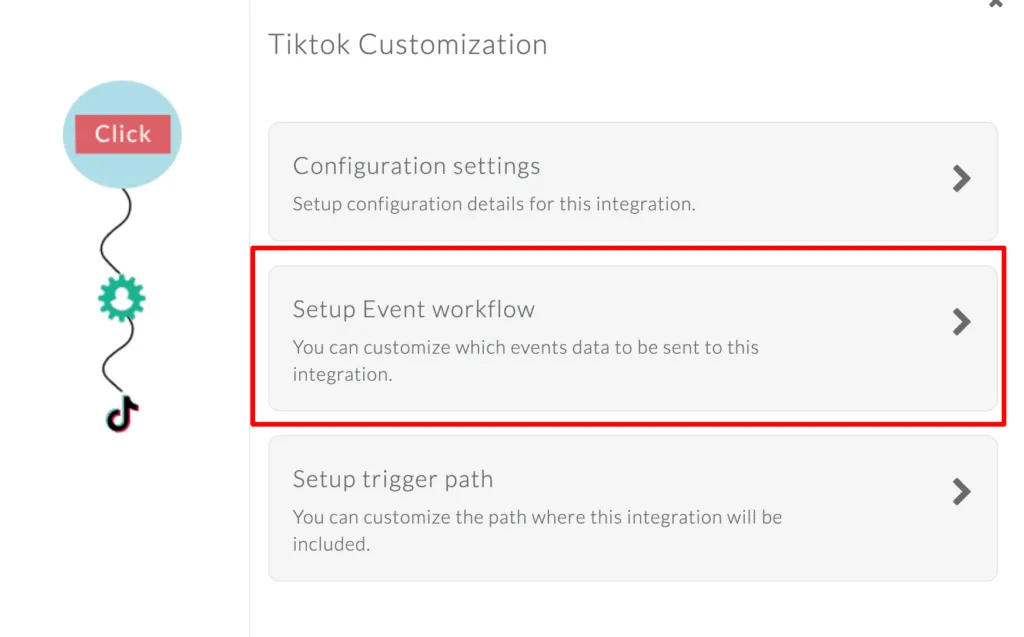
Click on Setup Event Workflow to begin mapping and sending your events.
-
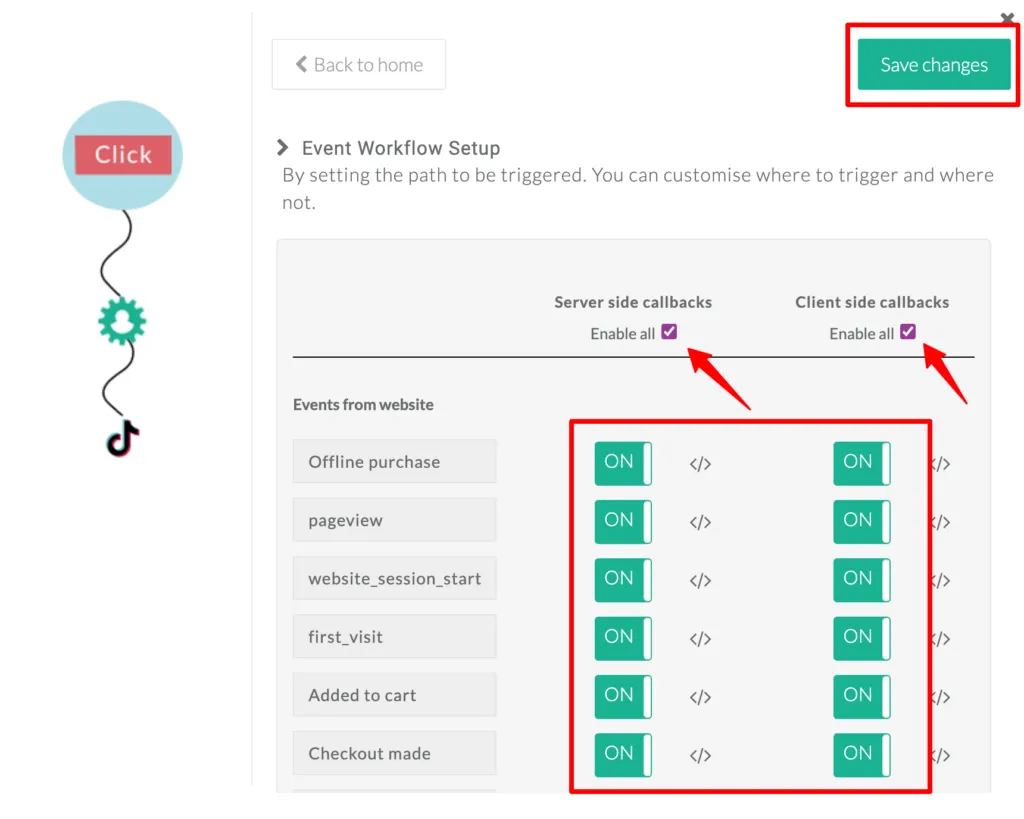
You’ll see a list of all available events with options for both server-side and client-side sending.
-
Turn on the checkbox or toggle for the events you want to send. TikTok will automatically deduplicate events that come from both server-side and client-side, so you won’t get duplicates.
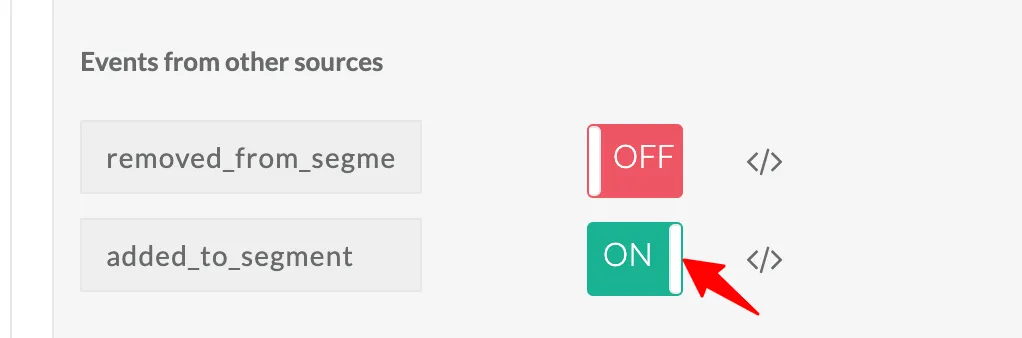
- To send your audience segments to TikTok, make sure to enable the added_to_segment event.
Sync Audiences
You can create powerful first-party audience segments inside CustomerLabs and sync them to TikTok Ads in just a few clicks. These synced audiences can then be used for personalised retargeting campaigns, lookalike audiences, and high-intent performance ads.
Let’s hear more from CustomerLabs itself.
Why CustomerLabs No-GTM Setup Works Best?
Due to evolving privacy regulations and stricter user-consent rules, the way marketers collect data has changed dramatically. Traditional Pixels now fail to capture the full customer journey, signals get blocked, cookies expire, and consent policies limit what can be tracked.
Customerlabs came in as a redeemer.
When you integrate through CustomerLabs, you automatically leverage built-in privacy consent, zero dependence on cookies, and unlimited first-party data capture. Your data fires reliably through server-side pipelines, unaffected by browser restrictions or tracking prevention.
CustomerLabs becomes the ultimate signal source for your ad platforms, sending clean, consented, high-quality first-party data that helps your algorithm run campaigns, optimize faster, and convert 10x better.
Don’t just take our word for it, explore our case studies and see what real brands are achieving with CustomerLabs.
Customerlabs provides:
-
Data ingestion – First-Party Audience
-
No-Code Customer Data Platform
-
Builds a unified customer profile
-
Increasing Operational efficiency through simple segmentation
-
Improves Customer lifetime value
You don’t need a developer or any technical tools. CustomerLabs makes everything far easier than you expect. With a single toggle, all your tracking, event firing, and audience syncing are fully automated.
CustomerLabs sends TikTok a high-integrity, noise-free, overlap-free signal stream, entirely without GTM. And it doesn’t stop there; you can integrate with TikTok just as easily as you can with GA4, Google Adworks, Meta, Klaviyo, Bing Ads, and many more platforms.
There’s no question about it: CustomerLabs is the only platform that can support all your marketing data needs for the long run.
Let’s move forward to the conclusion.
Conclusion
Setting up your TikTok Pixel without GTM gives you faster, cleaner, and more reliable tracking, exactly what performance marketers need for better optimization and stronger ROAS. And with CustomerLabs handling server-side events, audience syncing, and pixel separation, your data stays accurate and ready for scaling.
With this setup in place, you can run smarter campaigns, build high-intent audiences, and give TikTok the clean signals it needs to deliver better results. Enroll in our 14-day free trial that provides you with a real-world experience. If you need more clarity, just book a call with our consultant and get it resolved.